Skip to content
Search our site for answers
Login
  • Help Docs
  • API Docs
  • liquidweb.com
  • Hosting Services
    • Cloud VPS Hosting
    • Dedicated Servers
    • GPU Hosting
    • Hosting For WordPress
    • Hosting For WooCommerce
    • Email Hosting
    • VMware Hosting
    • Add-ons
  • Security & Compliance
    • SSL Certificates
    • Firewalls
    • Cloud Hosting
    • Two Factor Authentication
    • DDoS Protection
    • Compliance
    • Malware Protection
  • Domain & DNS
    • Domain Registration
    • DNS Settings
    • Nameservers
    • Subdomains
    • Domain Forwarding
    • Email DNS Setup
  • Account & Billing
    • Account Setup
    • Payment Methods
    • Billing Cycles
    • Refunds Cancellations
    • Invoices Receipts
    • Account Security
  • Email Hosting
    • Email Setup
    • Email Forwarding
    • Spam Protection
    • Microsoft 365
    • G Suite Setup
    • Account Security
    • Email Troubleshooting
  • Performance & Optimization
    • Server Optimization
    • Caching Strategies
    • Content Delivery Network
    • Database Performance
    • Image Optimization
  • Server Administration
    • Server Setup
    • SSH Access
    • Command Line Basics
    • Database Management
    • CRON Jobs
    • Apache Nginx Setup
    • Log Analysis
  • CMS & Applications
    • WordPress
    • WooCommerce
    • Magento
    • Joomla
    • Drupal
  • Backups & Recovery
    • Backup Strategies
    • Cloud Backups
    • Disaster Recovery
    • Restoring Backups
    • Raid Configurations
  • Reseller & Partner Support
    • Reseller Program
    • White Label Hosting
    • Partner Portal
    • Client Management
  • Policies & Compliance
    • Terms Of Service
    • Privacy Policy
    • GDPR Compliance
    • Acceptable Use Policy
Help Docs Nexcess Portal Nexcess Billing How to Pay an Invoice with PayPal

How to Pay an Invoice with PayPal

Learn how to add PayPal as a payment method in your My Nexcess portal. This guide then shows how to use it to pay your outstanding invoices.
Billing Client Portal Nexcess
4 min read

Introduction

If you’re here and reading about how to pay an invoice with PayPal, you probably already know what an invoice is. But just in case you’re just getting started: an invoice is a bill for services you’ve had performed for you.

PayPal is a financial tech company that allows you to pay businesses and individuals electronically with either a bank account, debit or credit card, or a balance you load into your PayPal account. PayPal acts as a middleman between you and the business or individual you are conducting business. You and the other party have a little extra layer of protection if something with your transaction goes wrong. It’s also much manageable than checks or money transfers between institutions, which is why PayPal is an excellent option for you to use to pay your invoice!

Step by step instructions

  1. Log into my.nexcess.net. If you have an account, but can’t remember your credentials, click on Forgot Password.
  1. Click on Billing in the left-hand menu.
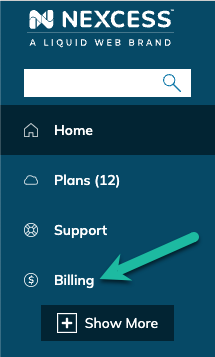
Billing Option

The Billing menu will now be the left-hand menu. If you need to go back for any reason, simply click on Back to Home at the top of the menu.

  1. To proceed with paying your invoice with PayPal, click on Payment Info to view existing payment methods and add new payment methods — like paying invoices with PayPal!
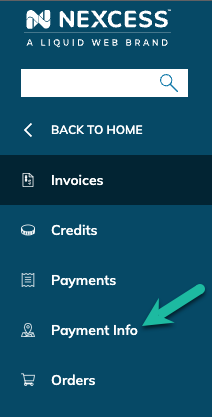
Payment Info

  1. Click on the plus sign (+) in the right-hand corner of the Payment Methods box, as shown below.
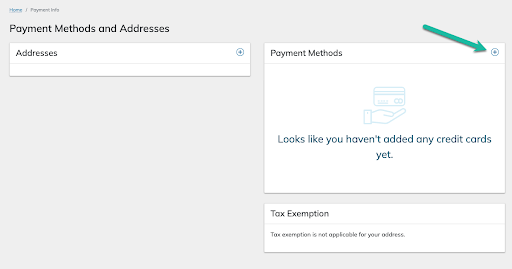
Payment Methods

First Address
If this is the first time you are adding a payment method and have not added any addresses yet, you will be prompted to add an address first, then select the plus sign (+) to add a new Payment Method again. Let’s assume you’ve already added a valid address.

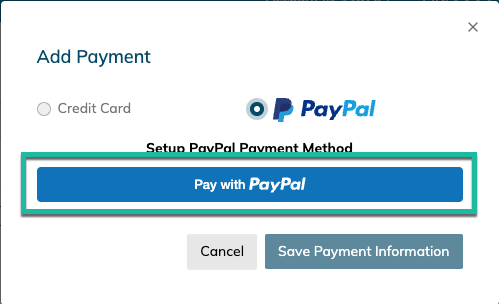
A new dialog box will appear once you click on the plus sign (+) in the upper right corner.
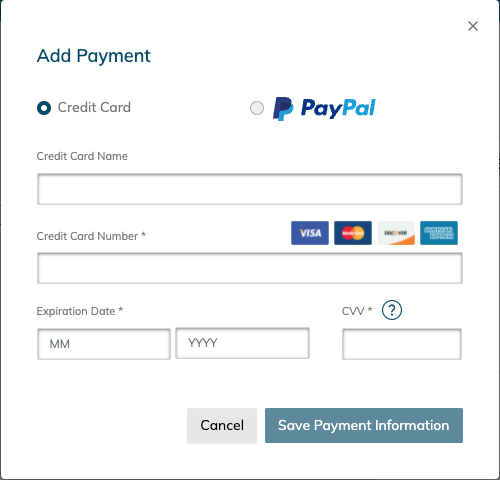
Add Payment

  1. Select the PayPal radio button from the payment options shown.
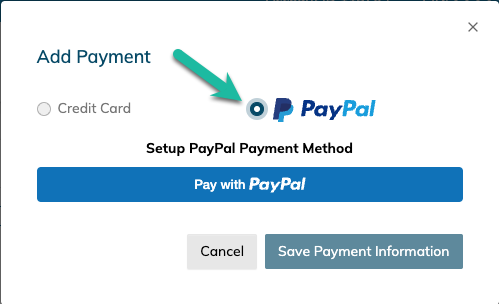
Setup PayPal Payment Method

  1. Then select Pay with PayPal button.
Pay with PayPal

  1. You will be prompted to sign in with your PayPal account. You will need to follow PayPal’s prompts while within their system. 
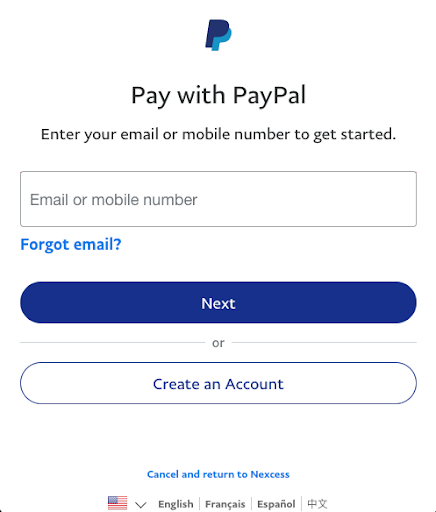
Pay with PayPal Login Window

  1. Sign in and finish adding PayPal as a payment option. Within the PayPal site, you can add a balance to your PayPal account, and other forms of payment. If you choose to use your PayPal balance (instead of a bank account or credit/debit card) to pay your invoice via PayPal, keep your balance above the amount due for your invoice. Without a balance, you won’t be able to pay your invoice with PayPal. Once you have completed this, you can go to your Invoices menu option to pay an invoice with PayPal.
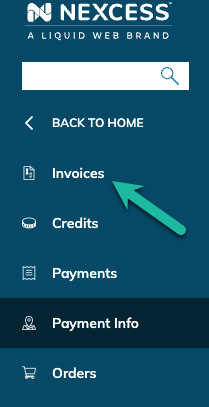
Invoices Option

  1. In the Invoices menu, you can see any unpaid invoices you might have. With regard to other questions on how to view account invoices, check out our Invoice Guide.
  1. On the screen shown below, you will click on either the Invoice Title [1] or the three-dot menu to the right of the Invoice [2]. For example, can you click on the Three-Dot Menu [2] as shown below.

Three Dot Menu

  1. You can select View [3] to see the invoice you are paying with PayPal as shown below.
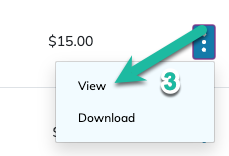
View Invoice

  1. Once you view the invoice you want to pay with PayPal, select Pay Now in the upper right-hand corner of the invoice.
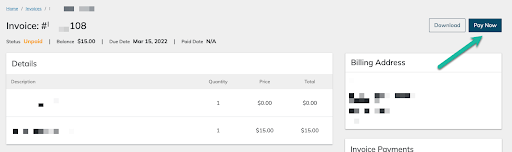
Pay Now

  1. A new dialog will pop up. From the Dropdown Menu [1] select PayPal, then click Pay [2], and follow the prompts from PayPal.

Frequently asked questions

1. Navigate to PayPal.com and click the Sign Up button.

2. The Personal Account radio button and click the Next button.

3. When the Sign up for PayPal screen appears, enter your country, email address, and password as prompted.

4. Enter your additional personal details when prompted.

5. Enter your credit card information for your PayPal account (optional).

6. Enter your bank account information for your PayPal account (optional).

7. Confirm your email address with for your PayPal account.

8. Begin to use your new personal PayPal account.

No, a person does not need a bank account to open a PayPal account and receive payments via PayPal. And it is free to set up a PayPal account, which can be done quickly.

One can connect his or her PayPal account to a bank account, a debit card account, or a credit card account for sending and receiving payments and transferring money for personal or business transactions.

Was this article helpful?
Thank you for your input.
Thank you for your feedback.
Table of Contents
  • Introduction
  • Step by step instructions
  • Frequently asked questions
Essential hosting resources to help your business stay ahead
Get the guides
Related hosting content
  • Web hosting prices explained: What you need to…
  • 25+ Mind-Blowing Ecommerce Stats You Should Know About
  • How to Pay an Invoice with a Credit Card

Hosting

  • Cloud Hosting
  • Dedicated Hosting
  • Email Hosting
  • GPU Hosting
  • Magento Hosting
  • Reseller Hosting
  • VPS Hosting
  • Hosting for WordPress

Additional Hosting

  • Add-ons
  • Agency Hosting
  • Application Hosting
  • Database Hosting
  • Ecommerce Hosting
  • Enterprise Hosting
  • Freelancer Hosting
  • High Availability
  • High Performance
  • HIPAA Hosting
  • PCI Compliant Hosting
  • Private Cloud Hosting
  • Server Clusters
  • Small Business Hosting
  • VPS Reseller Hosting
  • Windows Hosting
  • Windows VPS Hosting
  • Linux VPS Hosting
  • Ubuntu VPS Hosting
  • cPanel VPS Hosting
  • KVM VPS Hosting
  • WooCommerce Hosting

Servers

  • Bare Metal Servers
  • Cloud Dedicated Servers
  • Cloud VPS
  • Custom Servers
  • Dedicated Servers
  • Managed Cloud
  • Gaming Server
  • Windows Servers

Managed Hosting

  • Managed ExpressionEngine
  • Managed Craft CMS
  • Managed Cloud
  • Managed Hosting
  • Managed Hosting for WordPress
  • Managed Magento
  • Managed Servers
  • Managed VPS
  • Managed WooCommerce

Studies

  • Every Second Counts
  • Impact of Downtime
  • Hypergrowth Hosting

Resources

  • API
  • Hosting Coupons
  • Blog
  • Customer Stories
  • Ebooks
  • Help Docs
  • Migrations
  • Sitemap
  • SSL Checker
  • Webinars
  • Web Hosting Tools
  • White Papers
  • What is my IP

Hosting Basics

  • Bare Metal
  • Cloud Hosting
  • Dedicated Servers
  • Gaming VPS
  • GPUs
  • Private Cloud
  • VPS
  • Web Hosting

Partnerships

  • Hosting Affiliate Program
  • Partner Programs
  • Refer-a-Friend

Software & Design Solutions

  • GiveWP
  • IconicWP
  • Kadence WP
  • LearnDash
  • MemberDash
  • Modern Tribe
  • Restrict Content Pro
  • SolidWP
  • The Events Calendar

Get Help

  • Chat
  • Sales
  • Support

Company

  • About
  • Careers
  • Data Centers
  • Hosting Prices
  • News
  • Policies
  • Privacy Policy
  • Security
  • Terms and Conditions
  • Web Hosting Deals

Liquid Web, a web hosting company with 18 data centers globally

HostingAdvice.com logo
Liquid Web reviewLiquid Web review

© 2026 Liquid Web, LLC

Privacy Policy

* Promotions may be exclusively available to new customers and cannot be applied to existing accounts. Qualification is at the sole discretion of Liquid Web. Reach out with questions.

  • Solutions
    • Solutions by industry
      Ecommerce

      Secure, compliant infrastructure for regulated online sales

      Financial Services

      High-trust hosting built for security and compliance

      Agencies

      Fast, flexible hosting for high-traffic client projects

      Healthcare

      HIPAA-ready environments for protected health data

      Solutions by outcomes
      Compliance

      Hosting aligned with HIPAA, PCI, GDPR, and audit readiness

      Launch

      Configure a high-performance server in minutes

      Commerce Scale

      Infrastructure built to handle surges, orders, and growth

      Disaster Recovery

      Redundant, resilient systems for rapid recovery and uptime

  • VPS Hosting
    • VPS Packages
      Cloud VPS Hosting
      Windows VPS Hosting
      Linux VPS Hosting
      Add-ons & Backups
      View All VPS Hosting
  • Dedicated Servers
    • Bare Metal Packages
      Bare Metal Servers
      Cloud Metal Packages
      Managed Dedicated
      Gaming Servers
      View All Dedicated Servers

  • Managed Hosting
    • Managed Hosting
      Managed Servers
      Managed Applications
  • WordPress
    • Hosting for WordPress
      Managed Hosting for WordPress
      VPS for WordPress
      Dedicated WordPress
      WooCommerce Hosting
  • GPU Hosting
    • GPU Hosting
      NVIDIA GPU Hosting
      AI Training & Interface

  • Products
    • Compute
      Cloud Servers

      Scalable, high-speed compute

      Dedicated Servers

      Reliability, power, and control

      Private Cloud

      Isolated, enterprise-grade cloud

      GPU

      Accelerated for AI & ML

      Containers

      Portable workloads for any app

      Platform services
      Cloud Storage

      Storage for growing data needs

      Backups & DR

      Protection for critical workloads

      Global Private Fabric

      Unify networks across servers

      Security & Protection

      Advanced defense for data

      Load Balancing

      Optimized traffic distribution

      Applications
      WordPress

      Optimized for fast, secure sites

      WooCommerce

      Performance for scalable stores

      Magento

      Commerce-ready, built to scale

Log in
  • System status
  • Support | Get Help