

Managing cPanel Tiered Licensing
Due to cPanel licensing structures server costs may be affected by the number of accounts on the server. More than ever, efficient management of the accounts on your server is a necessary part of hosting. For more information about the new cPanel licensing, see cPanel Pricing Breakdown.
To help manage costs and to potentially improve server performance, Liquid Web encourages our customers to review servers and accounts and potentially remove any unnecessary accounts from the server. All active and suspended accounts are included in the total count allowed for each pricing tier.
NOTE: |
| As with any removal of data, Liquid Web recommends backing up all potentially useful data in case restoration is required. See Best Practices: Developing a BackUp Plan and Taking a Manual Backup in cPanel. |
Identify All Accounts on the Server
The first step to streamlining your cPanel server is to identify all the accounts on the server. You can do this through the Account Information menu in WHM. See Listing Your cPanel Accounts for more information.
Backup All Accounts Before Removal
To be sure that no important information is lost, take a local backup of all accounts before removing them from cPanel. See Taking a Manual Backup in cPanel for more information. In the case of a large number of accounts that need to be backed up on a Cloud VPS, you may consider taking an image of the entire server, which can then be restored to a new server later if information needs to be retrieved. For more information, see Creating a Cloud VPS Image and Restoring a Cloud VPS from an Image.
Delete Unnecessary Accounts
Now that you’ve identified and backed up the cPanel accounts that have been identified as unnecessary, you can remove them from the server to lower your account total and possibly save resources on server and licensing costs. For more information, see Deleting a cPanel Account from WHM.
Changing your cPanel licensing tier
If you’ve performed all of the above maintenance and still need to change your cPanel licensing tier (either to a higher tier or a lower tier), you can do this through your My Liquid Web account.
- Login to your My Liquid Web account. For more information on logging in, see Exploring Your My Liquid Web Account.
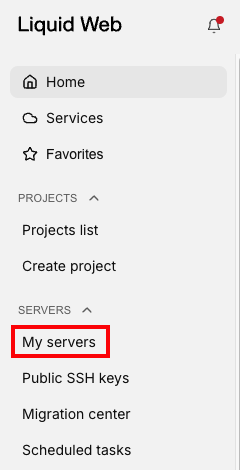
- Click on My Servers in the left side menu

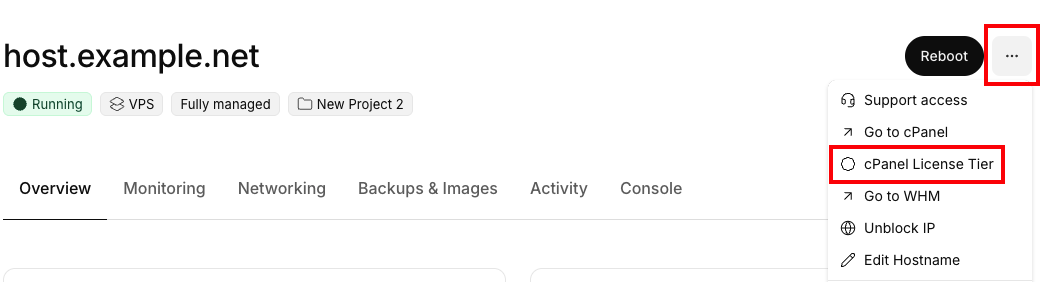
- Select the server for which you need to adjust pricing by clicking on the server name.
- Click the three dot menu to the right of the servers name then click on cPanel License Tier.

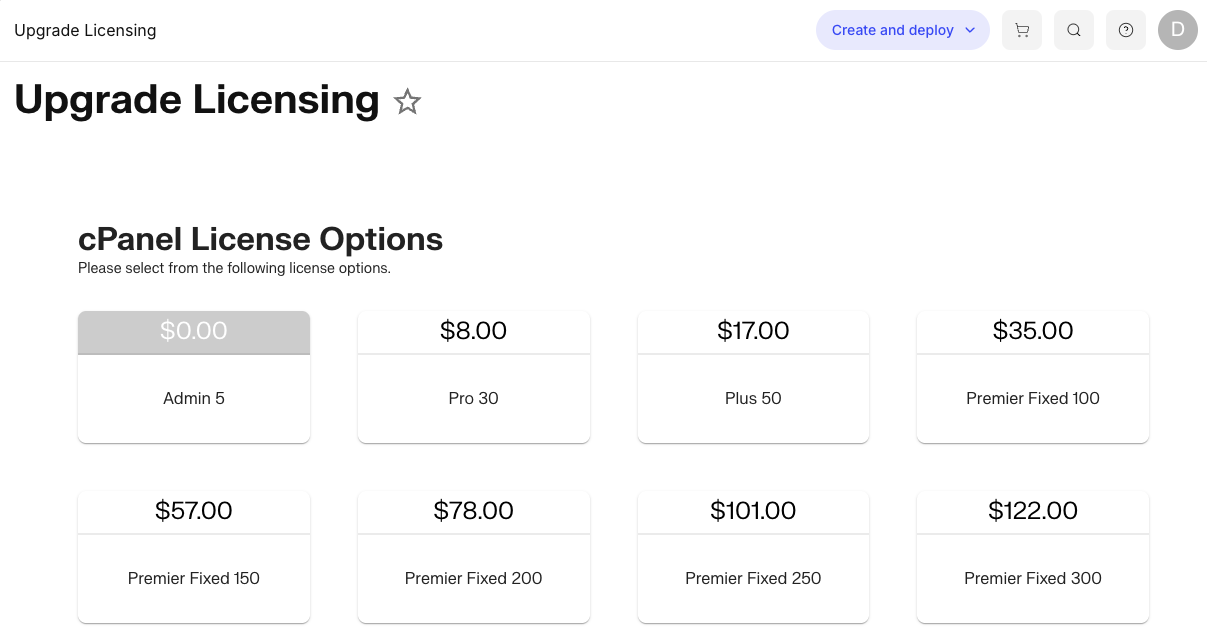
- Choose the required license tier for the total number of accounts on the server (both active and suspended accounts). NOTE: pricing in the below image is for example only. To see updated pricing, check your Liquid Web account.

- Click Change License to update your cPanel licensing tier.
If you need additional assistance with your cPanel licensing or would like to discuss your changing your cPanel licensing situation, please contact our Sales team for more information.