Manage File Permissions in Cloud Sites
Securely transfer files to your Cloud Sites account using SFTP. Learn how to configure an FTP client like FileZilla and safely upload your website data.
File Permissions determines the type of action that can be taken on a file or folder within a server or website. Control what files are visible and editable right from the file manager within Cloud Sites control panel.
Tip
Learn more about the different permissions that can be granted in our article: File Permissions.
Change Permissions in the Cloud Sites control panel
Note
File permissions are different than user permissions. If you need to change a user’s permissions in Cloud Sites, see our article Creating FTP Users.
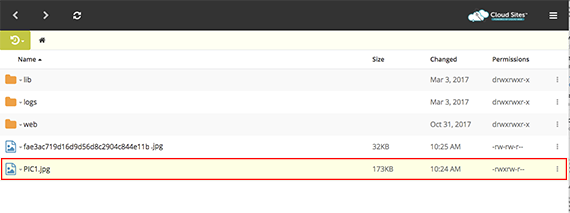
- From the home page of the Cloud Sites File Manager, highlight the file you want to edit permissions by clicking on it with your mouse.

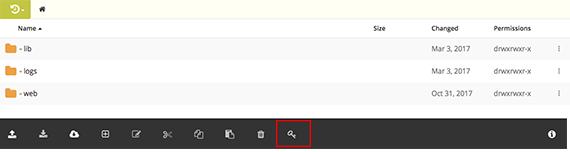
- In the menu at the bottom of the page, click on the key icon to open the permissions for that file.

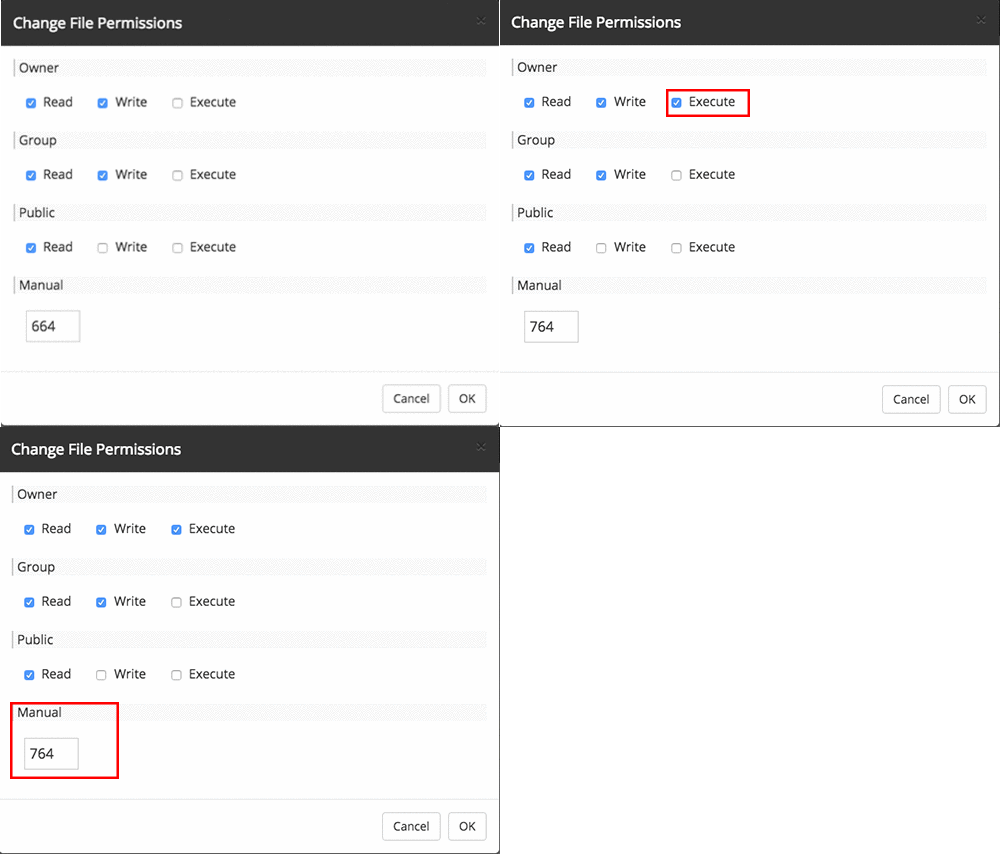
- From the permissions pop-up, check the appropriate box or enter the octal permissions in the Manual section.

- To save your permissions, click OK.
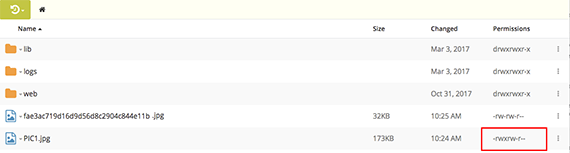
- You will now see the updated permissions in the Permissions column of the directory.