

Logging into Siteworx
Login to SiteWorx via domain credentials or through NodeWorx as admin to manage website content and domain settings.
Logging into SiteWorx directly
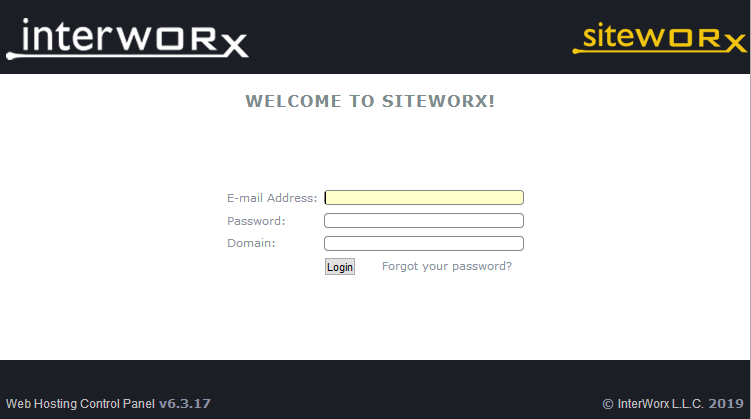
You can login to SiteWorx (the domain control panel of InterWorx) as a domain user once you’ve created a new domain. You’ll use the username you created for the domain and the password you entered when you created the user. If you’ve forgotten the password, you can reset it by logging into InterWorx as the administrator. See Resetting a User’s Password in InterWorx Web Panel.
- Open your browser and go to your server’s IP address or domain name at port 2443 and the /siteworx flag, for example: https://123.123.123.123:2443/siteworx or https://mydomain:2443/siteworx.
- On the login screen, enter the username and password you created for the domain that you wish to control.
- Click Login and you’ll be taken to the control panel for your domain so that you can begin adding content (like installing a CMS or uploading your website) and managing your domain.
Logging into Siteworx through Nodeworx as the administrator
- Login to Interworx (Nodeworx). For help logging into Interworx, see Logging into Interworx Web Panel.
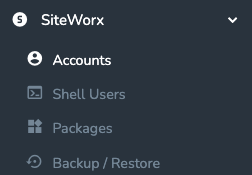
- In the left menu, click SiteWorx, then click Accounts.

- Find the domain that you to log in to from the list and the Siteworx login icon (door with an arrow).

- You will be directed to the home page of Siteworx.

Siteworx provides a full range of operations in regard to domains and websites:
- Create or delete domains, subdomains, and domain aliases
- Edit and organize your website content
- Set up different web applications
- Enable secure access to your websites and additional features
For information on how to use Siteworx and what can be done from it, see our article Getting Started with SiteWorx Web Panel.