

Logging into Plesk
Before you log into Plesk for the first time, we recommend you register your website domain name (if you need help registering your domain name, see our article Registering a Domain Name (Main URL). If you already have a domain registered, you’re ready to get started. You can log into Plesk easily through your Liquid Web account.
Log in through your Liquid Web account
- Log into your Liquid Web account.
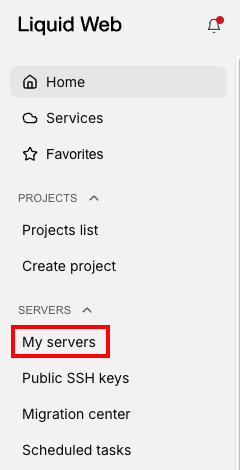
- Click My Servers to the left of the screen.

- Click on the name of the server you want to access.
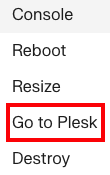
- On the Server details page, Click on the three dot menu to the right of the servers name and click Go to Plesk.

- You may need to click through a security warning page because Plesk uses a self-signed SSL certificate by default. This is expected and your connection is secure.
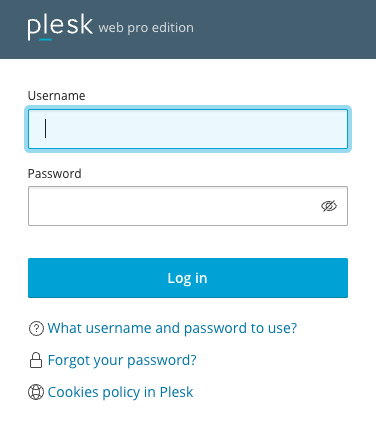
- This brings you to the login windows. Enter the username and password for Plesk (by default, the username is Admin and the password is the same as the password for the server. Click on the Username and Password button in your account if you need these credentials).

- Click Login.
You are now logged in to Plesk and ready to start managing your server!
Log in directly from the browser
You can also log into Plesk by going directly to the login screen from your browser. Go to:
https://yourip:8443
Remember to change “yourip” to your server IP address. If you aren’t sure what your IP address is, it’s easy to check.
- Log into your Liquid Web account.
- Click My Servers to the left of the screen.
- Click on the name of the server you want to access.
- The Primary IP of the server will show at the top of the Server Dashboard.
Plesk provides a full range of operations in regard to domains and websites:
- Create or delete domains, subdomains, and domain aliases
- Edit and organize your website content
- Set up different web applications
- Enable secure access to your websites and additional features
For help getting started with Plesk, see Getting Started with Plesk