Log into myLittleAdmin from Cloud Sites
Manage your Windows MSSQL databases with ease. Learn how to quickly access and log into myLittleAdmin directly from your Cloud Sites control panel.
When you create a website on Cloud Sites control panel using Windows technology, setting up a database for that site will use myLittleAdmin as the MSSQL database handler for your site. If you haven’t set up a database in Cloud Sites, see our article Setting Up a Database in Cloud Sites.
Linux and MariaDB |
| If you chose Linux as your website technology, you will use an MariaDB database and phpMyAdmin as the handler, see our article Logging into phpMyAdmin from Cloud Sites for instructions to access your MariaDB database. |
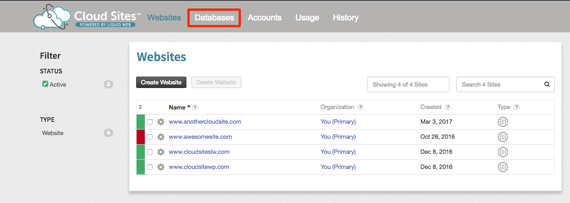
- To log into your database from the Cloud Sites control panel, navigate to the Databases section.

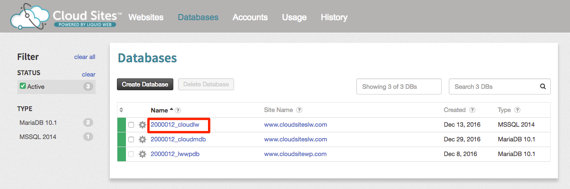
- Open the database details by clicking on the database name you want to log into.

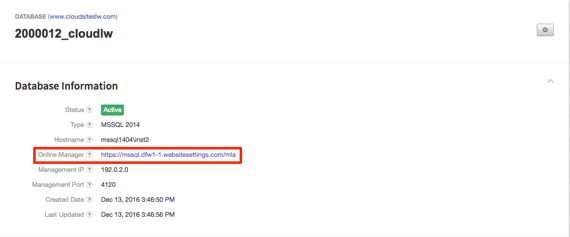
- Once the database details are open, click the link listed in the Online Manager section of the details.

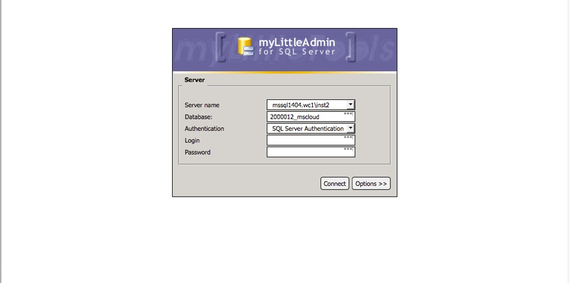
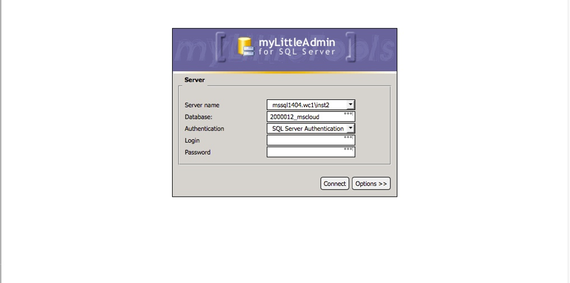
- myLittleAdmin will open in a new window.

- Copy and paste the username from the Database Users section of the details page in your Cloud Sites control panel. Enter your password and click Connect to enter myLittleAdmin.
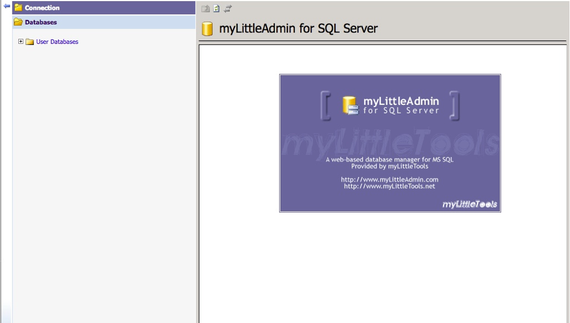
- You are now logged into myLittleAdmin and can administrate your database.