

Install Let’s Encrypt SSL in Cloud Sites
Secure your Cloud Sites website with a free Let's Encrypt SSL. Learn how to manually generate, validate, and install your certificate using Certbot locally.
There are a few steps to installing a Let’s Encrypt SSL on your site when working with Cloud Sites. However, once you have the installation complete, you will have an Auto-SSL that will allow you to use it on any site you wish. Let’s take a look at the installation process:
- First, download and install Certbot locally. You can find instructions for Certbot installation on their website. Select your software and operating system for specific instructions.
- Next, run the Certbot manual command using the command line:
sudo -H certbot certonly --manual --rsa-key-size 2048 --key-type rsa --preferred-challenges http -d www.domain.com -d domain.com

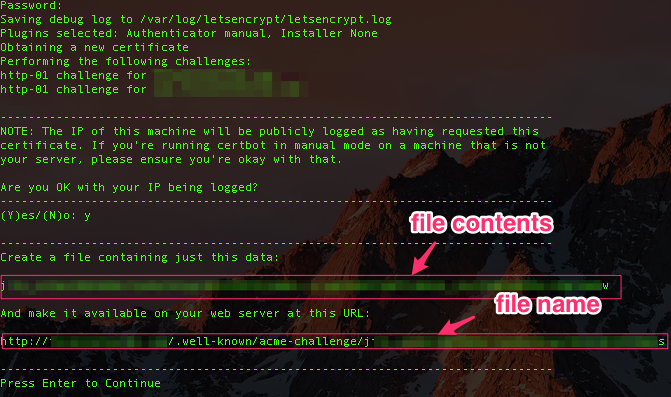
- Now, you’ll be met with a prompt for you to create the file at the URL specified location, with the contents of the mentioned “file contents.” Make sure this is set to readable by viewable traffic. This is how Let’s Encrypt will validate domain ownership.
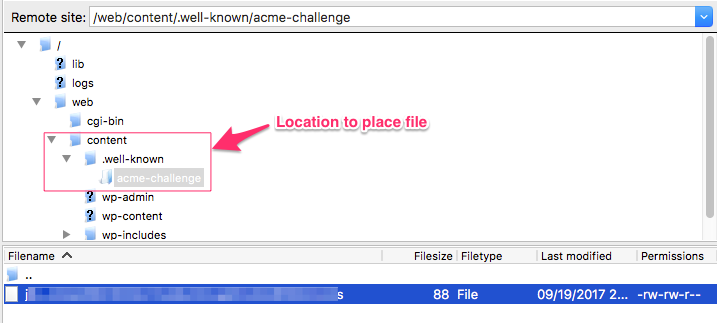
- While the prompt is waiting for you to finish, you need to place the file under the /web/content directory of your site. Once you have placed the file and changed permissions to be visible, you can continue with the command line prompt.
Warning:
You will have a short period of time to place this file. Otherwise, Certbot will generate a new hashed file set asking you to create a newer version. 
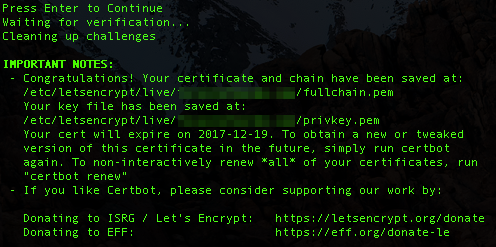
- After you complete the validation, a prompt will appear, showing you the location of the files you need. List out the files locally to see what other files have been generated for you. Copy the files, you will use them in a moment.
Note:
Let’s Encrypt provides the private key for you, make sure you don’t already have a CSR generated. 
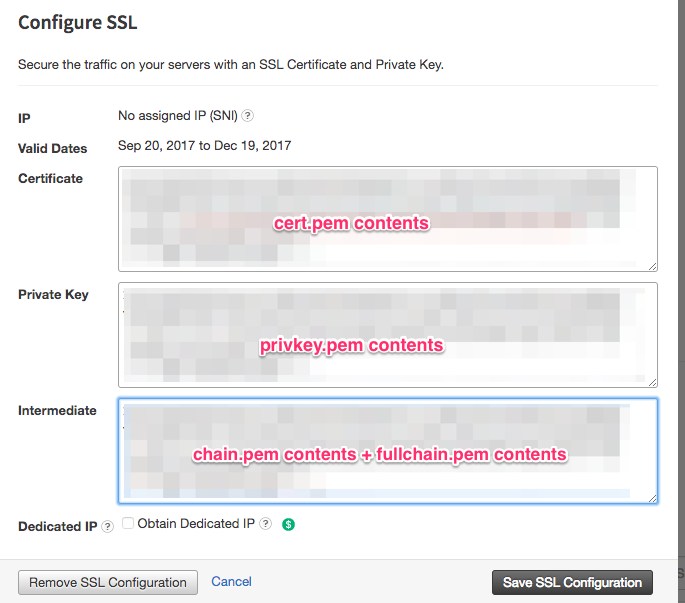
- You can now open any of the files at the specified location with the text editor of your choice and copy the contents directly in the correlated fields. In order to have the intermediate certificate chain successfully, you will need to add just the first BEGIN/END certificate file only from your intermediate chain certificate. If that does not work, use the middle BEGIN/END certificate file only from your chain certificate.


NOTE: |
| The Private Key must be in “BEGIN RSA PRIVATE KEY/END RSA PRIVATE KEY” format |
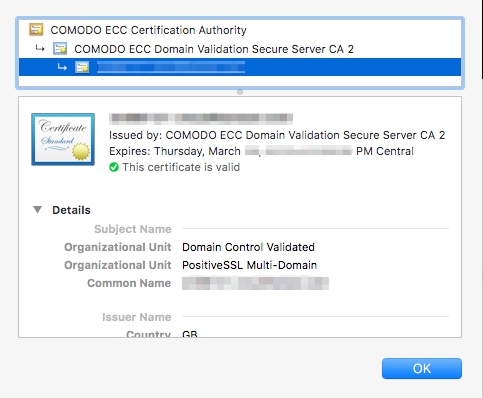
- Confirm that everything went as expected by viewing the response in the security tab of your browser when viewing the site.
For instructions on renewing your Let’s Encrypt SSL, see Renewing Let’s Encrypt SSL in Cloud Sites.