

Installing a CMS in Cloud Sites
Adding a CMS to your Cloud Sites account is straightforward. This tutorial guides you through installing WordPress, Joomla, or Drupal quickly. For existing CMS, migrate via plugin or FTP after setting up the new site in your account.
Cloud Sites makes adding a CMS to your account an easy process. With just a few steps, your WordPress, Joomla, or Drupal site will be up and running. This tutorial will take you through installing a new CMS instance in your account. If you already have a CMS and are wanting to add it to your Cloud Sites account, you will need to complete a migration via plugin or FTP once you get the new site set up in your account.
Changing Existing CMS Framework |
| Once you set up a CMS site in Cloud Sites, it cannot be changed to a different CMS instance or to a standard Linux or Windows Framework. |
WordPress Installation
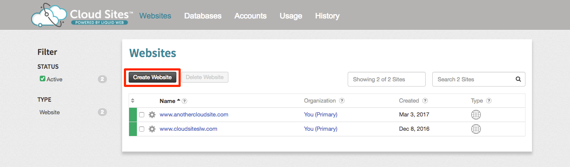
- Log into your Cloud Sites control panel.
- Click on Create Website.

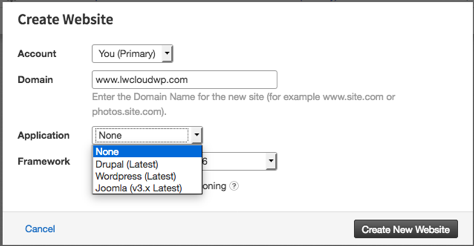
- Enter your Domain name and select WordPress from the drop-down menu in the Application section.

- Click Next.
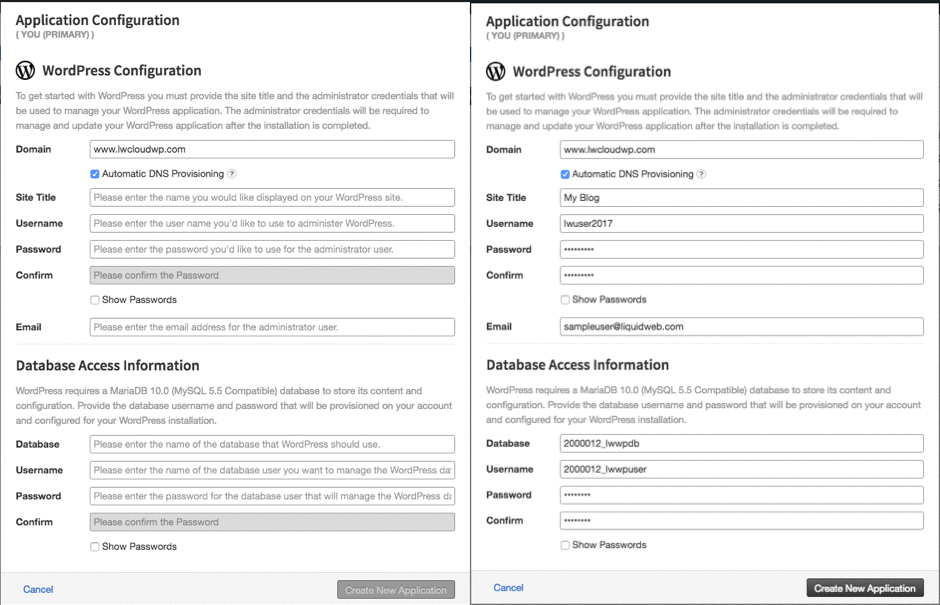
- You will be directed to enter your CMS information and create the database needed for WordPress.
- Click Create New Application to create your new WordPress site.
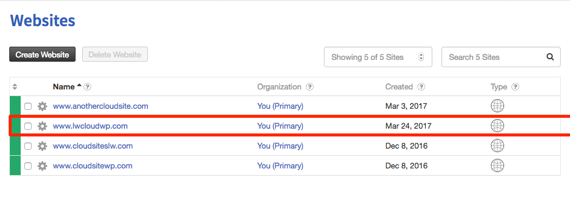
- Once it is complete, the site will show in your websites list.

Joomla Installation
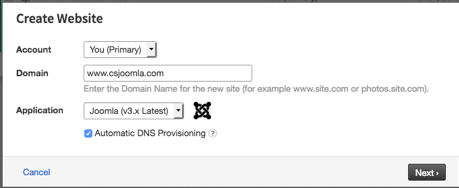
- Click Create Website from your Cloud Sites home page.
- Enter your Domain name and select Joomla from the drop-down menu in the Application section.
- Click Next.
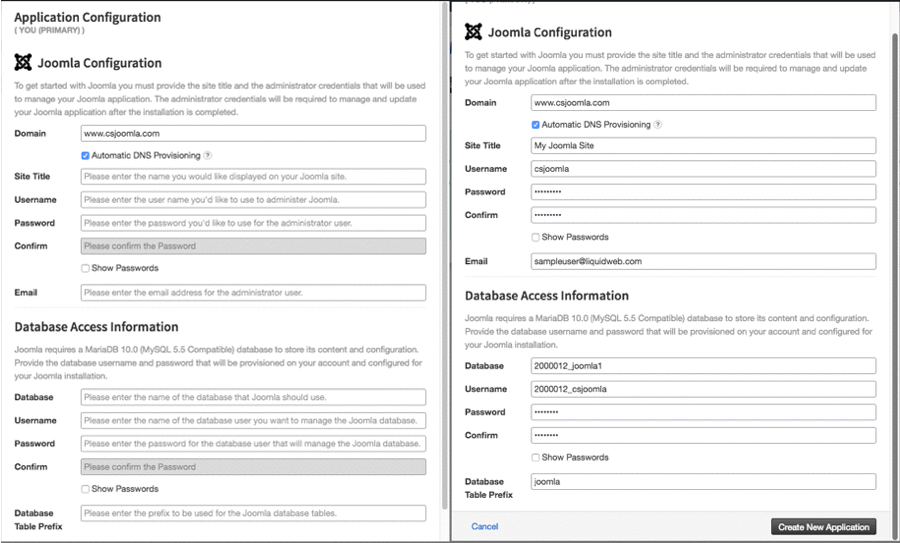
- You will be directed to enter your CMS information and create the database needed for Joomla.
- Click Create New Application to create your new Joomla site.
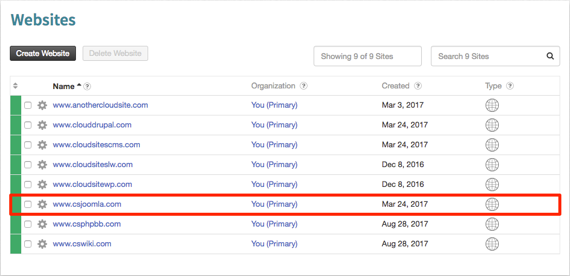
- Once it is complete, the site will show in your websites list.

Drupal Installation
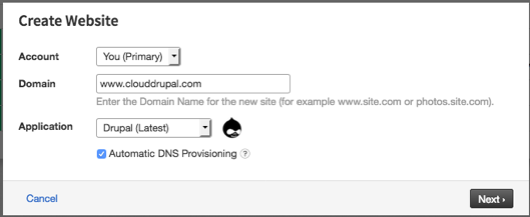
- Click Create Website from your Cloud Sites home page.
- Enter your Domain name and select Drupal from the drop-down menu in the Application section.

- Click Next.
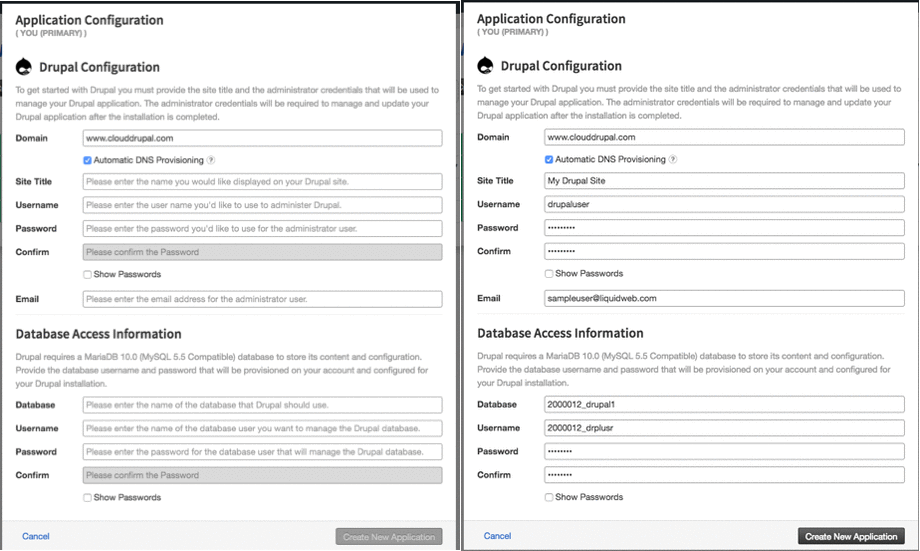
- You will be directed to enter your CMS information and create the database needed for Drupal.
- Click Create New Application to create your new Drupal site.
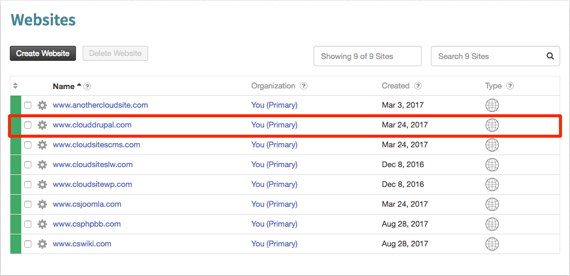
- Once it is complete, the site will show in your websites list.
Media Wiki
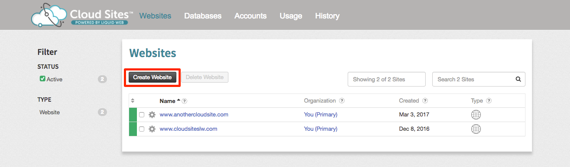
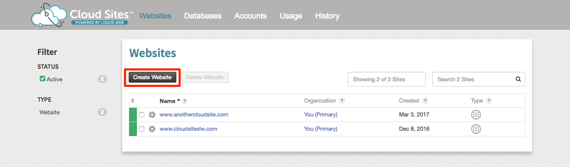
- Click Create Website from your Cloud Sites home page.
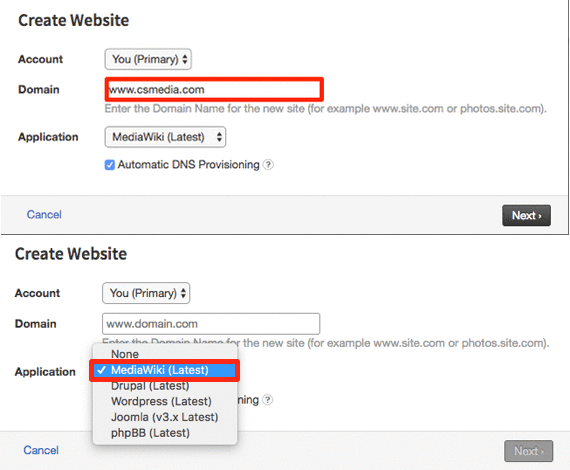
- Enter your Domain name and select Media Wiki from the drop-down menu in the Application section.

- Click Next.
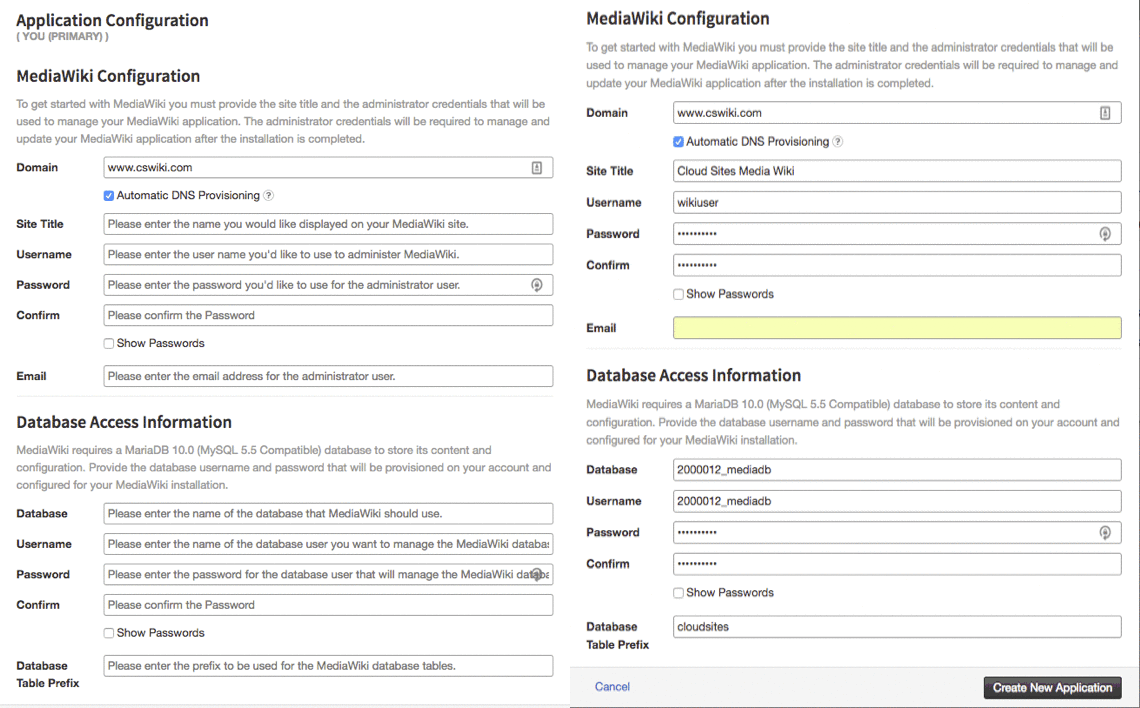
- You will be directed to enter your CMS information and create the database needed for MediaWiki.

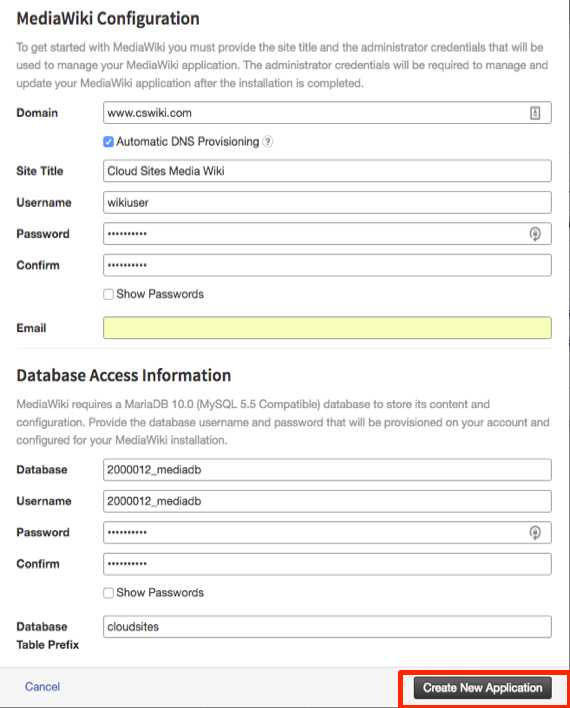
- Click Create New Application to create your new MediaWiki site.
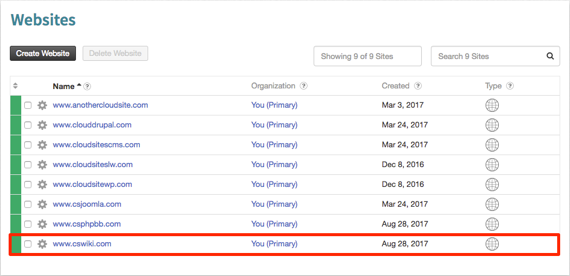
- Once it is complete, the site will show in your websites list.
PHP Bulletin Board
- Click Create Website from your Cloud Sites home page.
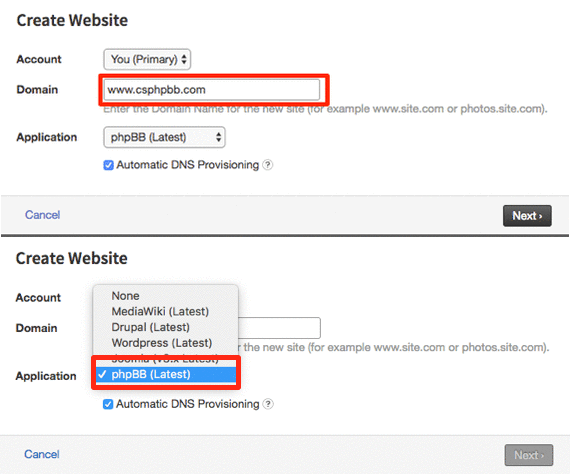
- Enter your Domain name and select PHP BB from the drop-down menu in the Application section.

- Click Next.
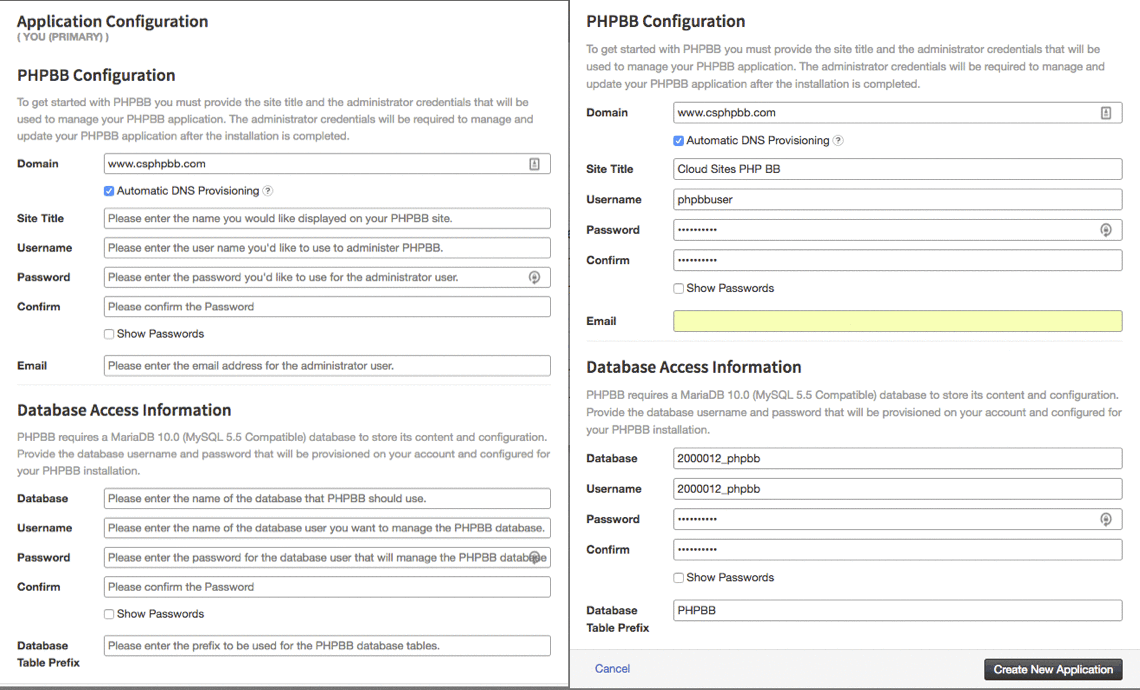
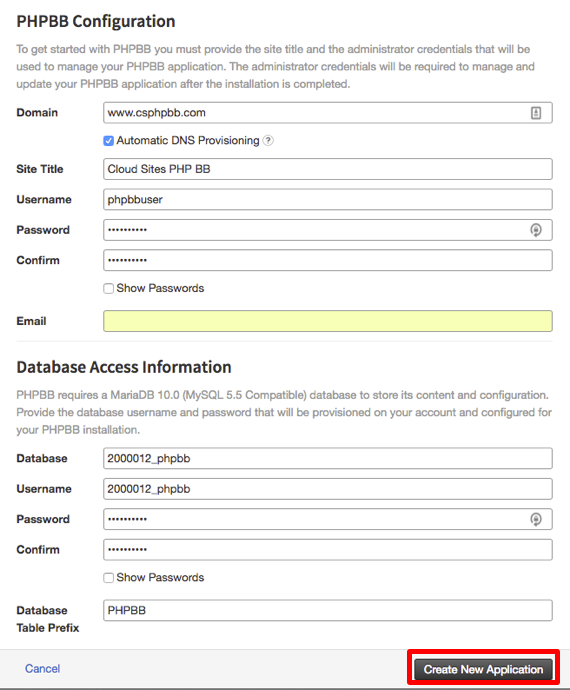
- You will be directed to enter your CMS information and create the database needed for PHP Bulletin Board.

- Click Create New Application to create your new PHP Bulletin Board site.
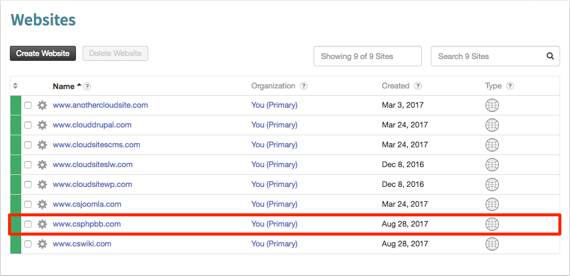
- Once it is complete, the site will show in your websites list.
If you are looking to create a website using a Linux or Windows Framework, please see our article Adding a Website to Cloud Sites.