

How to Clear Browser Cache and Cookies
What is the Browser Cache?
The browser cache is used for storing website data like HTML, CSS, JavaScript, and images. Caching is a method of storing data that can be used later. Like other programs that you may have installed, browsers use caching to store website data on your computer instead of requesting the data from a web server to make web pages load faster.
What are Browser Cookies?
Browser cookies are different from the cache; Instead of making web pages load faster, they instead store text information like preferences and favorites.
What are Cookies Used For?
Cookies store authentication tokens that save your login info, keep the items that you have on your shopping cart or collecting other data from websites that you have visited and buttons that have been clicked for advertisers. Clearing your cookies can help you not get tracked by advertisers.
Clearing the Browser Cache and Cookies
Table of Contents
How To Clear Cache and Cookies On Google Chrome
How To Clear Cache and Cookies On Mozilla Firefox
How To Clear Cache and Cookies On Opera
How To Clear Cache and Cookies On macOS Safari
How To Clear Cache and Cookies On Microsoft Edge
How To Clear Cache and Cookies On Google Chrome
Step 1. Click on the menu button on the top right of your browser.

Step 2. Click on the “Settings” button.
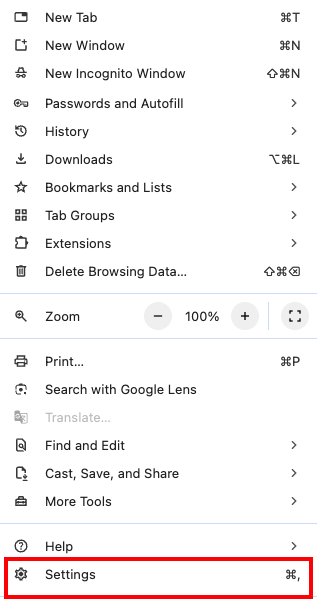
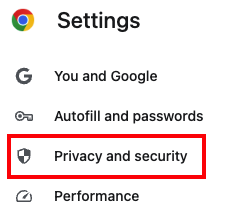
Step 3. Click on “Privacy and security on the left side menu”.
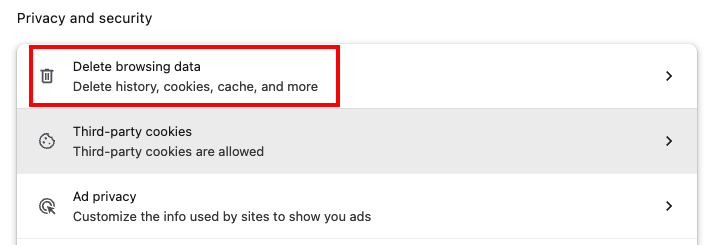
Step 4. Click on “Delete browsing data”.
Step 5: Select “Cached images and files” to delete your browser cache.
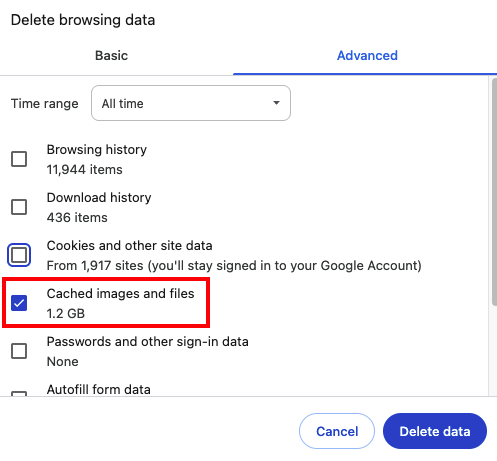
Step 6: Select “Cookies and other site data” to delete your browser cookies.
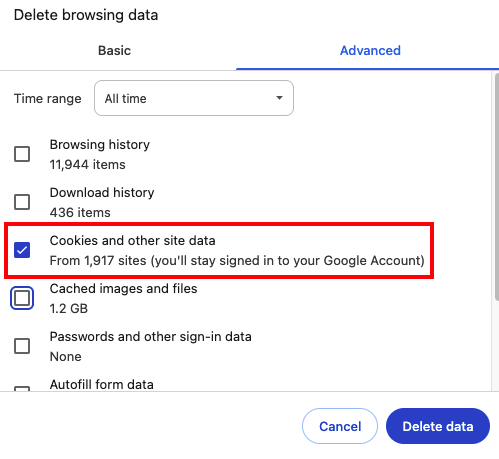
Step 7: Click on “Delete data” button to clear your cache and/or cookies.
How To Clear Cache and Cookies On Mozilla Firefox
Step 1. Click on the menu button on the top right of your browser.

Step 2. Click on the “Settings” button.
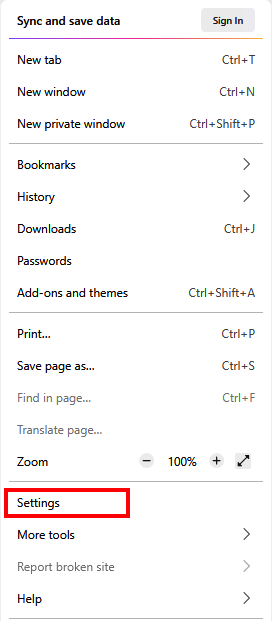
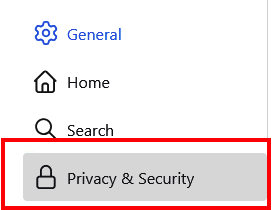
Step 3. Click on “Privacy & Security” on the left side menu.
Step 4: Scroll down a bit until you find the “Cookies and Site Data” section, then click on “Clear Data…”.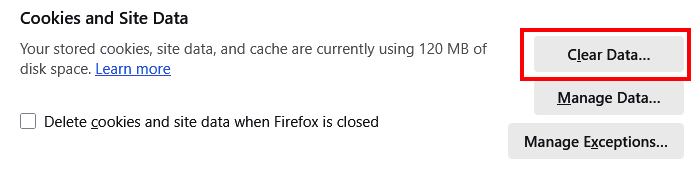
Step 5: Select “Cookies and Site Data” and/or “Cached Web Content” to clear your browser cache.
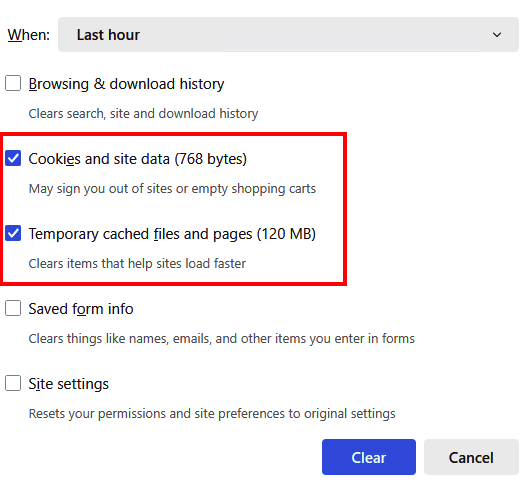
Step 7: Click “Clear” to clear your cache and/or cookies.
How To Clear Cache and Cookies On Opera
Step 1. Click on the menu button on the top right of your browser.
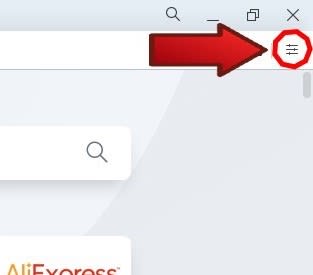
Step 2. Scroll down to the “Privacy & Security” section and find and click on “Clear”.
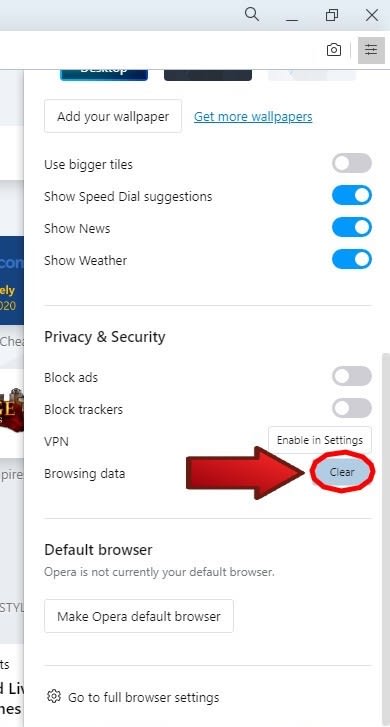
Step 3. Select “Cached images and files” to clear your browser cache.
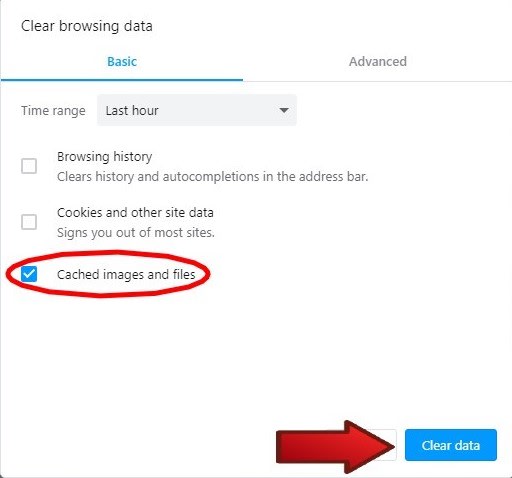
Step 4: Select “Cookies and other site data” to clear your browser cookies.
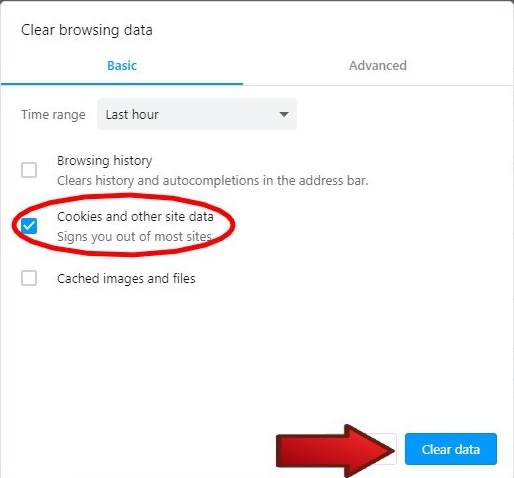
Step 5: Click on “Clear data” button to clear your browser cache and/or cookies.
How To Clear Cache and Cookies On macOS Safari
Step 1. Click on “Safari” on the top menu bar.
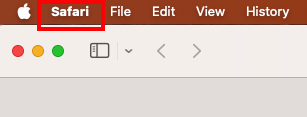
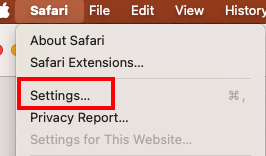
Step 2. Click on “Settings”.
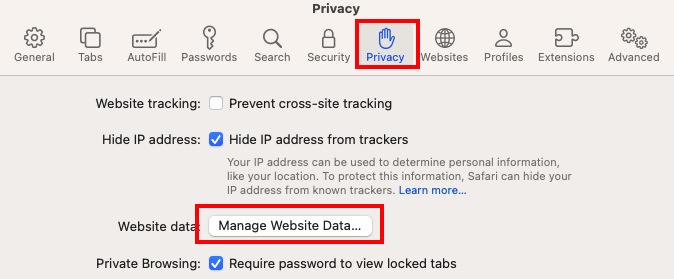
Step 3. Click on “Privacy”, then click on “Manage Website Data…”.
Step 4. Click on “Remove All”.

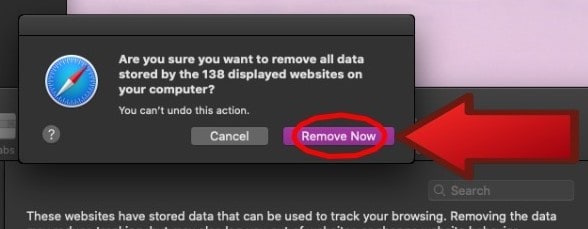
Step 5. Click on “Remove Now” to clear your browser cache and cookies.
How To Clear Cache and Cookies On Microsoft Edge
The simplest way to clear your browsing data in Edge is to go to the URL designed for this on your local computer: edge://settings/privacy/clearBrowsingData