

Managing Firewall Rules in VMware Multi-Tenant
Managing your firewall rules is an important part of network security in any computing environment. While you can use the operating system in a VM to establish firewall rules, you’ll also need to configure appropriate firewall rules on the VMware Edge Firewall. The Edge Firewall functions much like a hardware firewall in a traditional hosted network cluster. The Edge firewall protects your virtual machines from unauthorized access before the attempts even reach the servers inside your VMware network. For more information on implementing a good firewall strategy, see What is a Firewall?
The Edge Firewall in VMware Multi-Tenant is configured in much the same way that any hardware firewall would be configured. Each firewall rule must at least have a name, a source, a destination, and an action. The source and destination can be set to “any” or can be defined in a preset IP Set. The action can be allow, drop, or reject. You can also specify individual ports for which to apply the rule. Ports must first be defined in an Application Port Profile. Since IP Sets and Application Port Profiles must be defined before they can be applied to firewall rules, we’ll start with those instructions.
Adding an IP Set
Specifying an IP or IP range to be applied to rule as either a Source or Destination requires first adding the IP or IP range to an IP Set.
- From the portal select your VDC (Virtual Data Center)
- Navigate to Networking -> Edges
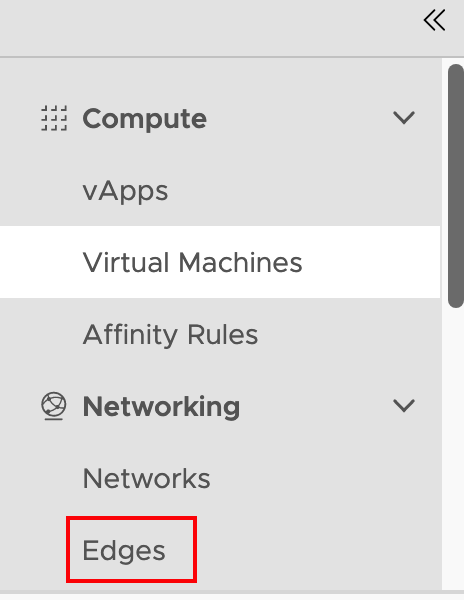
- Click the named Edge Gateway.
- Navigate to Security -> IP Sets.
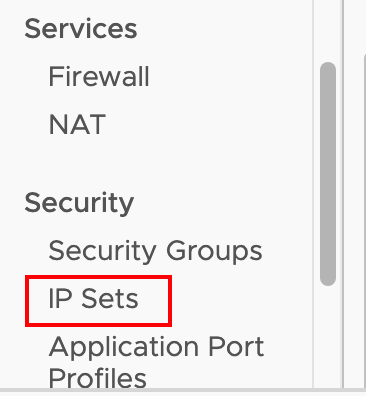
- Click New to create a new IP Set.
- Name the IP Set. Include a description if helpful. Add the IP addresses for this set. NOTE: Include both the Public IP address and the NAT (or Internal) IP address for the server if you need to manage outgoing traffic.
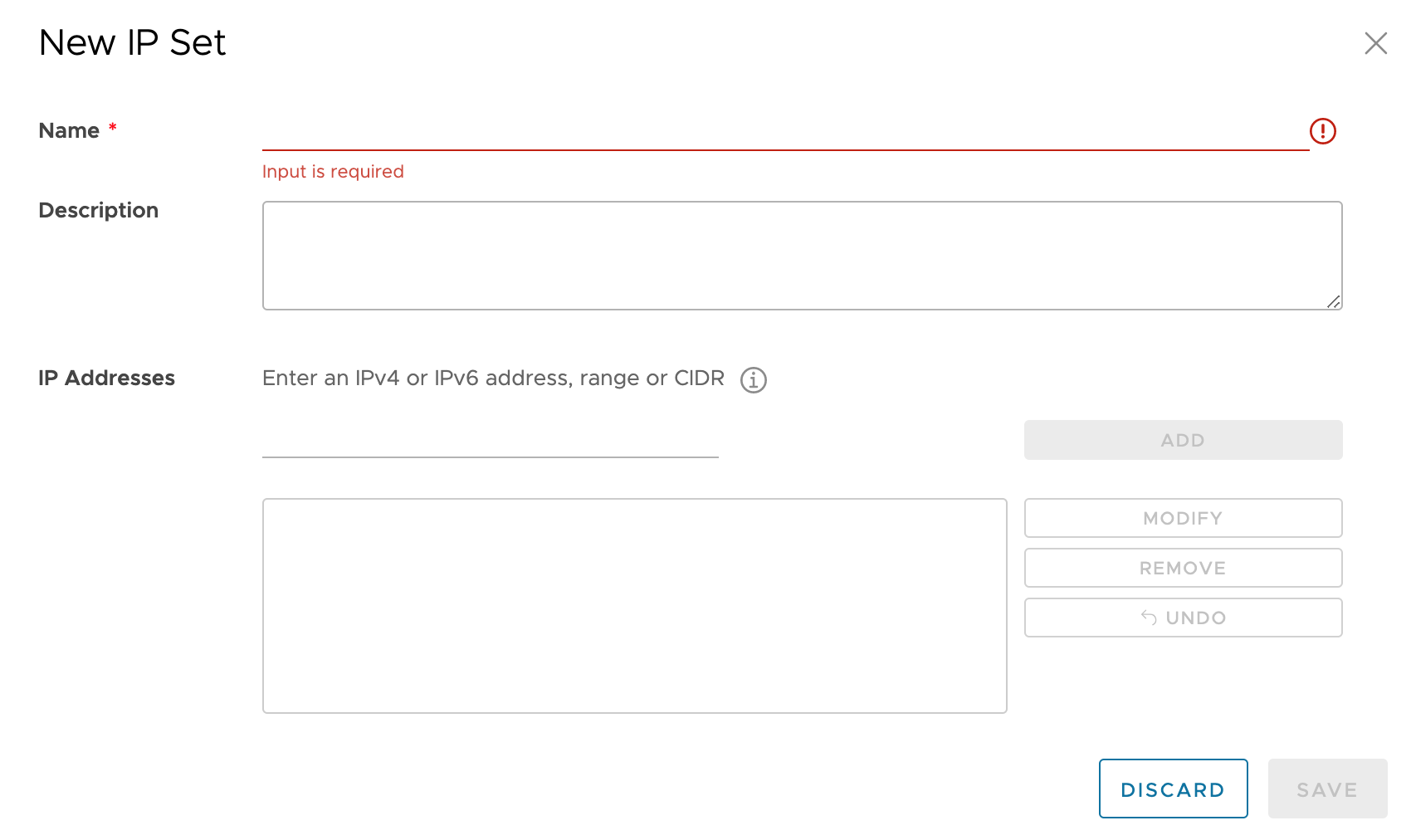
- Click Save to save the new IP Set.
Now the custom IP Set can be applied to new rules or any existing rules in the firewall.
Adding an Application Port Profile
Specifying ports for firewall rules requires adding custom Application Port Profiles before those ports can be added to a rule.
- From the portal select your VDC (Virtual Data Center)
- Navigate to Networking -> Edges
- Click the named Edge Gateway.
- Navigate to Security -> Application Port Profiles
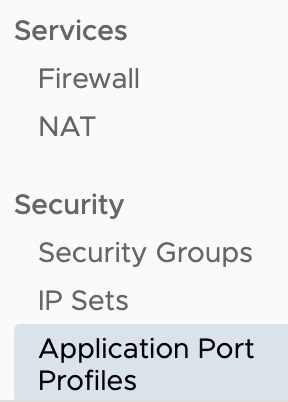
- Click NEW
- Name: Fill in a descriptive name.
- Description: Add a description of the port if helpful
- Protocol: Optional, TCP, UDP, ICMPv4, ICMPv6
- Ports: Enter comma-separated port list.
- Click SAVE
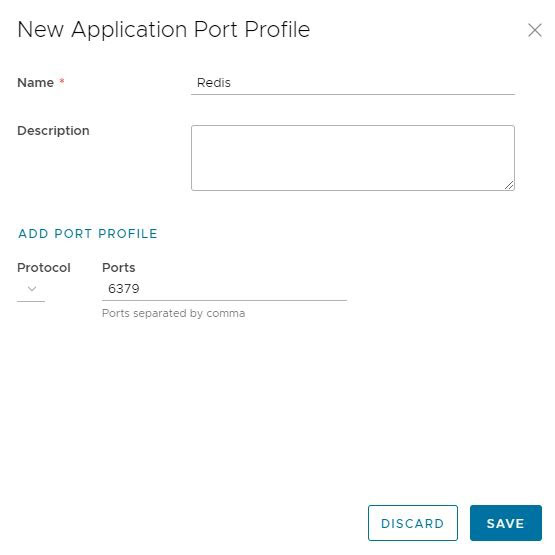
Now the custom Application Port Profile can be applied to new rules or any existing rules in the firewall.
Adding or Modifying Firewall Rules
- From the portal select your VDC (Virtual Data Center)
- Navigate to Networking -> Edges
- Click the named Edge Gateway.
- Navigate to Services-> Firewall
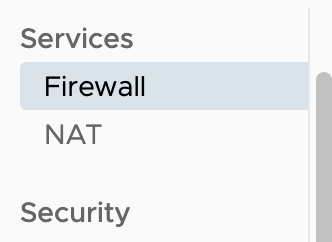
- Click EDIT RULES
- Click NEW ON TOP to create a new rule or to edit the rule you wish to modify.
- Name: Add a descriptive name.
- Applications: Optional. If the rule requires specific ports see Adding Specific Ports first.
- Click the pencil icon to the right of the field.
- Toggle the Choose a specific application setting.
- Locate the specific Application Port Profile and check the box. It is possible to add multiple Application Port Profiles to the list.
- Click SAVE.
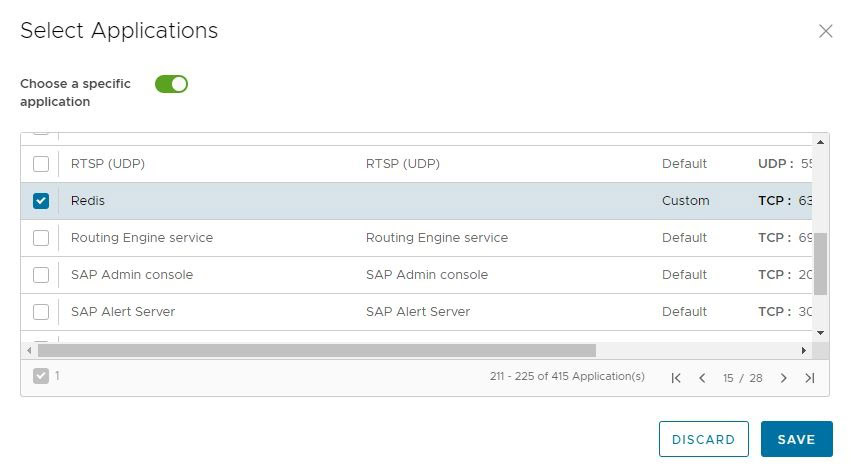
- Source or Destination: If your rule requires a specific IP address or range you will need to first add the IP/range as an IP Set.
- Source: Denying or Allowing a specific IP address or range will need to be added as Source in the rule definition. See Adding an IP Set.
- Destination: Use ‘Any’ to apply the rule to every host in the VDC. Applying a firewall rule to a specific host requires setting the Destination to the IP Set that defines that hosts public IP addresses. See Adding an IP Set.
- Click the pencil icon to the right of the field.
- Check the box next to any IP Sets you want to add.
- To apply the rule to a specific host. Set the Destination to the IP Set that defines the host’s public IP addresses.
- Click SAVE
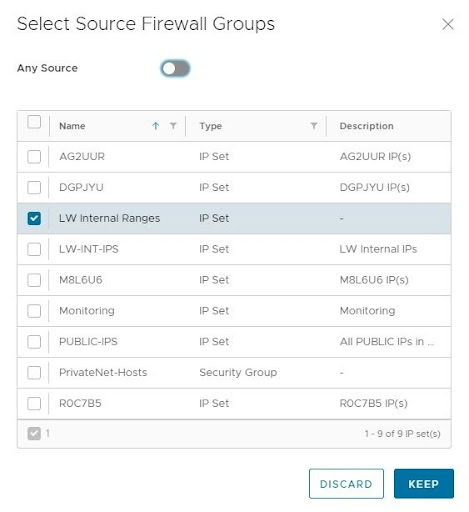
- Choose an Action from the drop down menu. You can select Allow, Drop, or Reject. Click Save to finish creating or modifying the firewall rule.