

Change VM ownership in VMware Multi-Tenant
If management options (such as power on/off) for a given VM are greyed out in your VDC, it's possible that the ownership of the VM is not set to match the user that is currently logged in. Fortunately, adjusting the ownership of the VM is a simple process.
If management options (such as power on/off) for a given VM are greyed out in your VDC, it’s possible that the ownership of the VM is not set to match the user that is currently logged in. Fortunately, adjusting the ownership of the VM is a simple process.
- Log into the VDC that manages your VM.
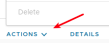
- Click the Actions menu for the VM that has greyed out options.
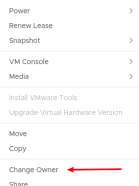
- Click Change Owner from the actions menu.
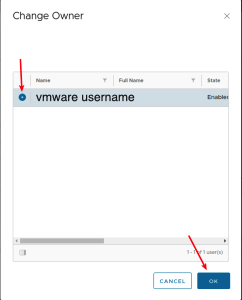
- Click the radio button next to the username you are logged in as, then click OK to update the ownership of the VM.
You should now be able to power on and off the VM from the VDC like normal.