Restoring a Cloud VPS from an Image
Server images restore or clone servers. Choose from custom or pre-made Liquid Web images for flexibility.
Images of your server can be used to restore a live server, or clone new servers from an image. There are two ways to do this, one is with a pre-made image provided by Liquid Web (called templates) and the other is to use an image you created of your current server.
Warning: |
| Using a previous image of your current server or a pre-made image provided by Liquid Web will erase all your current data from your server and all recent changes will be lost. If you are looking to restore back to a more recent date, please see Restoring Your Cloud VPS From a Backup for the least amount of information loss possible. |
Reimage from a Liquid Web template
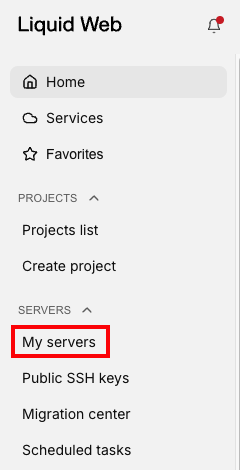
- In your Liquid Web account, click on My Servers, then select the server you want to create the backup for by clicking on the server name. This will open your server details page.

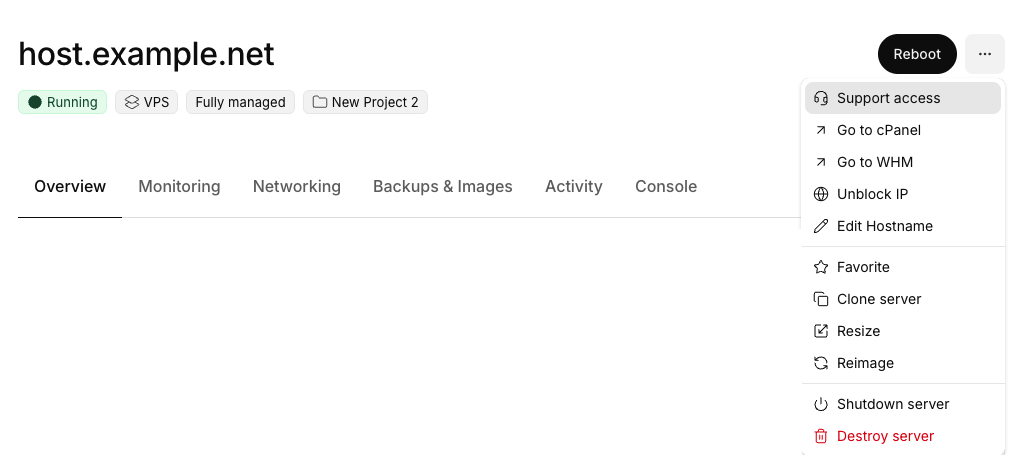
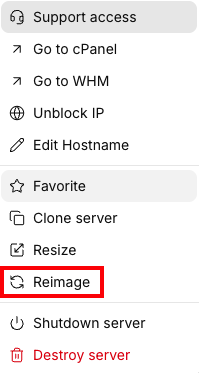
- On the server details page, click the three dot menu to the right of the servers name.

- Click on Reimage in the drop down menu.

- In the slide out panel, choose the template, management level, and control panel you would like to use.
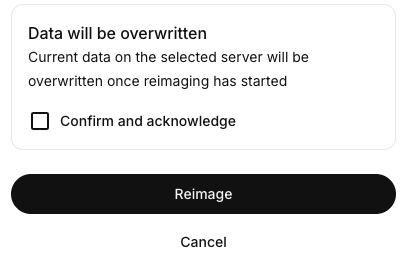
- At the bottom of the panel is a warning that all data will be overwritten. Click on the checkbox to Confirm and acknowledge this data loss.

- After you’ve chosen the image you wish to use from the list, click the Re-Image button to proceed.
Reimage from an image in your account
- In your Liquid Web account, click on My Servers, then select the server you want to create the backup for by clicking on the server name. This will open your server details page.
- Click on the name of the server you want to restore from an image. This will open the Server details page.
- Click on the Backups and Images tab.
- Scroll down to the Server Images block.
- Click on the three dot menu to the right of the image you want to restore (if the image you want to use is not in the list, click on View all to see all of the images available to restore).

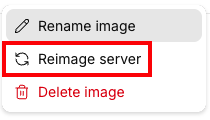
- Click Reimage from the drop down menu.

- In the Slide Out menu, select the name of the image you want to restore and the server that you want the image restored to (these are preselected by default based on the selections in the previous step).
- You can choose to Rebuild the filesystem is there server is having trouble rebooting.
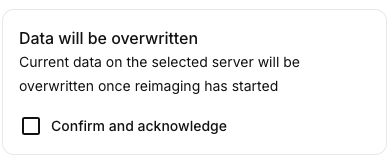
- At the bottom of the panel is a warning that restoring from an image will cause current data to be overwritten. Click the box to Confirm and acknowledge the warning.

- Finally, click Reimage server to reimage the server based on your selections.
- When your server has been restored with the new image, it will show as running in the server dashboard. If your re-image requires a migration, please see our article What to Expect During a Site Migration.