Deleting IP Addresses from Your Cloud VPS
Whatever the reason, you can delete an IP address from your server in a simple three step process. Just log into your Liquid Web account, expand the Cloud server you need to adjust and click on the Network tab to begin.
Whatever the reason, you can delete an IP address from your cloud VPS server in a simple three step process. Just follow these directions:
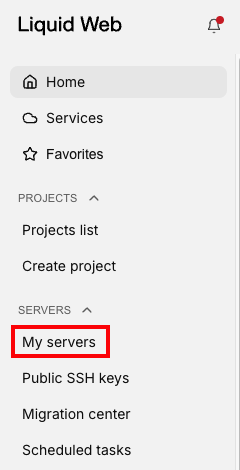
- First, log into your Liquid Web account. Click on the Servers tab to see a list of all your servers.

- Click the name of the server for which you want to add IP addresses. This will display the server details page.
- Click the Networking tab to open the Networking page.

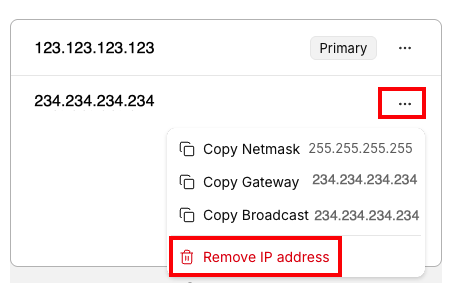
- Select the IP address that you want delete and click the three dot icon to the right of the IP address and click Remove ip address.

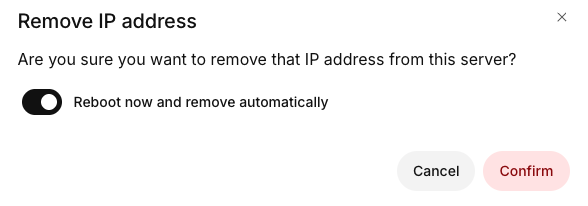
- By default, the IP address will be removed automatically. This requires a reboot of the server. If you’d like to delay the reboot, you can remove the IP address manually from your server. The IP address will be removed from our networking settings, but you will need to remove it from the server manually to finish the process). Click Confirm to remove the IP address from your account.