

Resetting the root password for your Bare Metal server
This guide provides step-by-step instructions on how to reset the root password for your Linux systems. This process is essential if you’ve forgotten your root password or need to regain access to your system’s administrative functions.
Prerequisites
- Access to the console feature in your Liquid Web account.
- Basic understanding of Linux command-line operations.
Step-by-Step Instructions for Ubuntu or Debian
Step 1: Access the Console
Begin by accessing your Liquid Web account. From there, go to the Servers section, and click on the appropriate server from the list to go to the server detail page and go to the console.
Step 2: Reboot the server
With the console open, issue a reboot for the server via the Reboot button in my.liquidweb.com for the server and go back to the console.
You may need to do this from the server detail page if the reboot button in the console is greyed out.
Step 3: Access the grub menu
When the server is starting, press the down the shift key and repeatedly press the F1 key until you hit the grub screen as shown below:
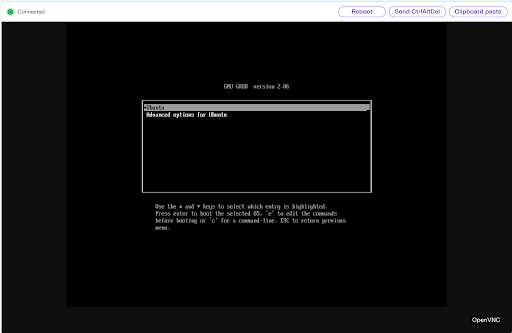
From this screen, ensure the latest kernel is selected (usually the top one labeled “Ubuntu” or “Debian”) and press the e key on your keyboard while inside the console.
Step 4: Edit Boot Commandline Parameters
From here, use the arrow keys on your keyboard to go to the line that starts with linux (you may need to scroll down by pressing the down arrow to see it) and move your cursor to the very end of the line (recommend pressing the End button on your keyboard), then add the following to the end of that line after a space:
rw init=/bin/bash
As shown in the screenshot below:
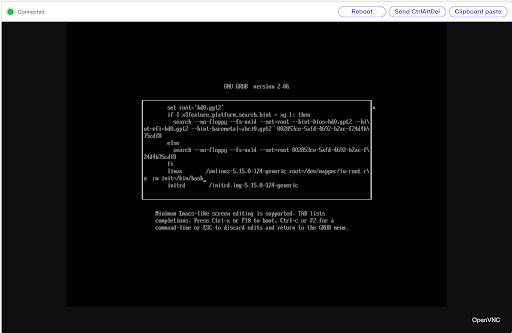
Then press ctrl x or F10 on your keyboard to continue booting.
Step 5: Set a new root password and reboot
Now, we can set a new root password. Create a secure password, then run the following:
passwd root
Enter the new password twice as prompted.
Next, reboot the server by typing:
exec /sbin/init
Step 6: Final steps
After the server reboots, test your new root password via SSH to ensure access. Don’t forget to report your new password via the Support Access button so our team can provide help in the future.
For Rocky Linux and AlmaLinux
Step 1: Boot into Rescue Mode
- Restart Your System: Begin by rebooting your machine.
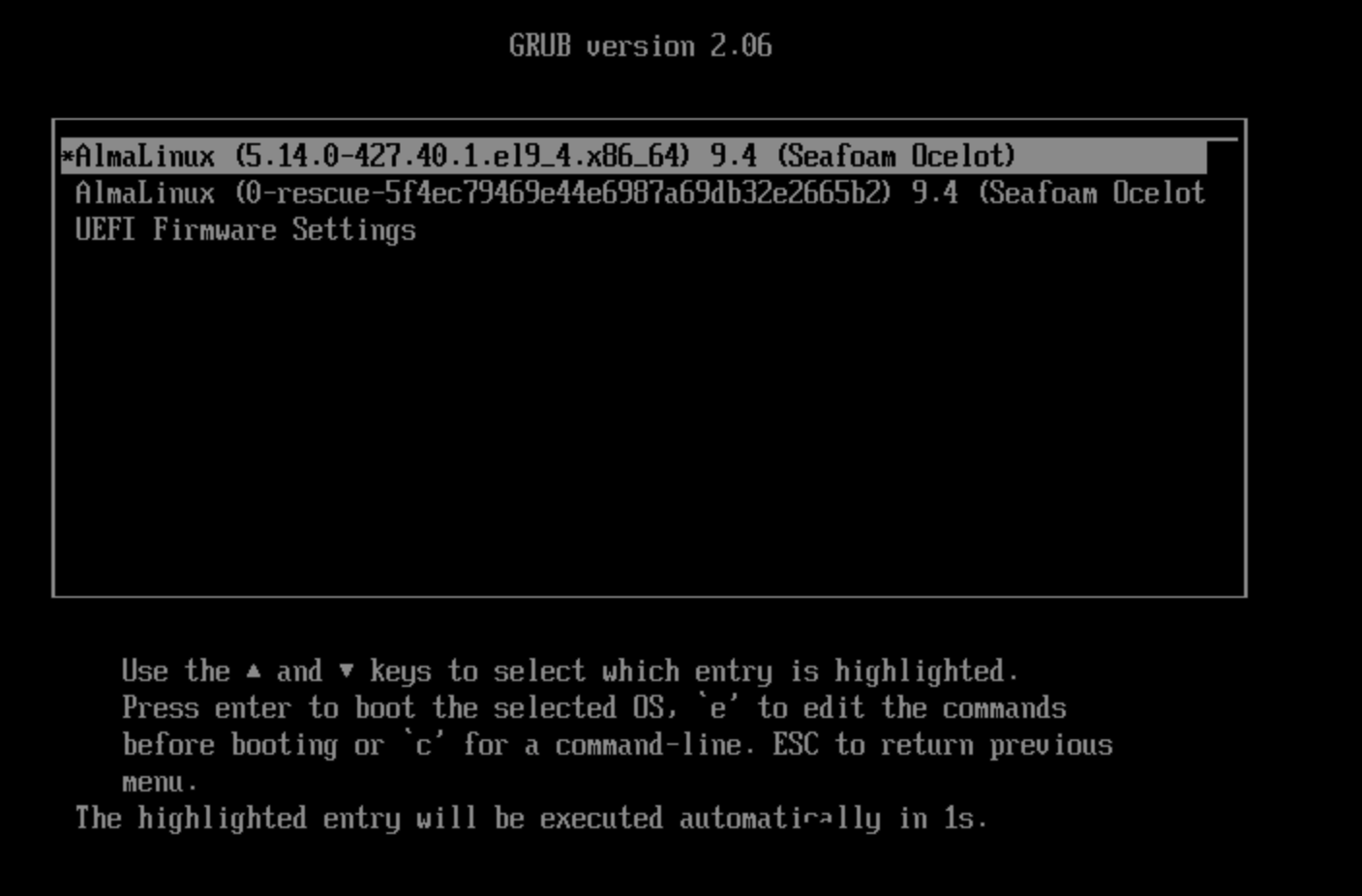
- Access GRUB Menu: As your system starts up, press any key when you see the GRUB menu prompt.

- Edit Boot Parameters:
- Highlight the default boot entry using arrow keys.
- Press e to edit the selected entry.
- Find the line starting with linux or linux16.
- Append rd.break enforcing=0 at the end of this line after a space.

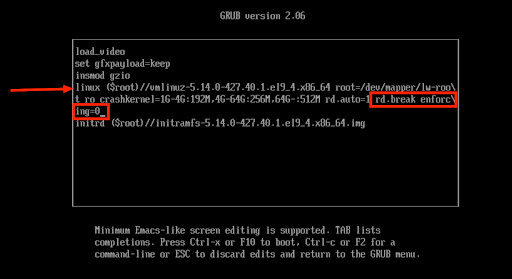
- Boot into Rescue Mode: Press Ctrl + X or F10 to boot with these parameters.
Step 2: Remount File System
Remount with Write Permissions:
mount -o remount,rw /sysroot
Step 3: Change Root Directory
Chroot into Sysroot:
chroot /sysroot
Step 4: Reset the Root Password
- Change Password:
passwd root
- Enter New Password: You will be prompted to enter a new password twice for confirmation.
Step 5: Relabel SELinux Contexts (if enabled)
Create .autorelabel File:
touch /.autorelabel
Step 6: Reboot Your System
Exit Chroot Environment and Reboot:
reboot
Step 7: Final steps
After the server reboots, test your new root password via SSH to ensure access. Don’t forget to report your new password via the Support Access button so our team can provide help in the future.
Related Articles/Guides
For further reading on related topics: