Reimage a Bare Metal Server
Reimage your server via your Liquid Web account by selecting a new OS, confirming cautions, and clicking “Reimage.”
Sometimes you need to start with a clean slate on a server. Projects may change or maybe development has gone wrong and you need to start with a fresh install of the operating system. You can easily reimage your bare metal server through your Liquid Web Account.
- Log in to your Liquid Web Account.
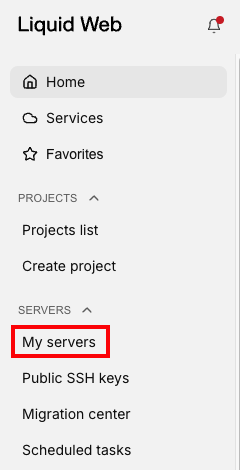
- Click on My Servers in the left side menu.

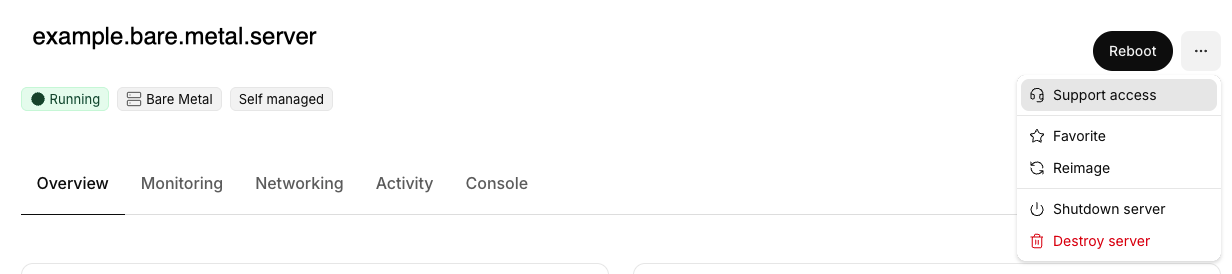
- Navigate to the server you want to re-image by clicking on the servers name in the list.
- On the Server details page, click the three dot menu to the right of the server name.

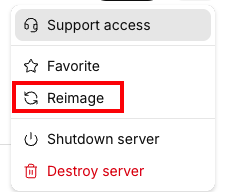
- Click Reimage from the drop down menu.

- In the slide out panel, choose the template, management level, and control panel you would like to use.
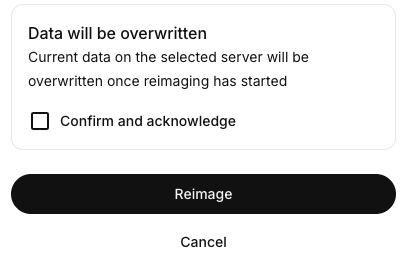
- At the bottom of the panel is a warning that all data will be overwritten. Click on the checkbox to Confirm and acknowledge this data loss.

- Click Reimage to proceed to reimage the server.