Understanding Acronis Backup Types
Backups come in all shapes and sizes and a good backup plan utilizes a number of different approaches to make sure that data is safe and systems can be recovered in the event of mistakes, failure, or catastrophe (see Best Practices: Developing a Backup Plan).
Backup systems typically offer three main types of backups: full backups, incremental backups, and differential backups. Acronis offers these options as “backup schemes” and understanding the advantages and disadvantages of these options is important to maximizing your backup resources.
Full Backups
Full backups are just what they sound like: complete backups of all selected information. Whether this is disks, volumes, directories, or files, a complete copy of data selected will be backed up for later retrieval. While this is most comprehensive backup type, it also requires the most amount of storage space and generally takes the longest to complete a single backup.
Incremental Backups
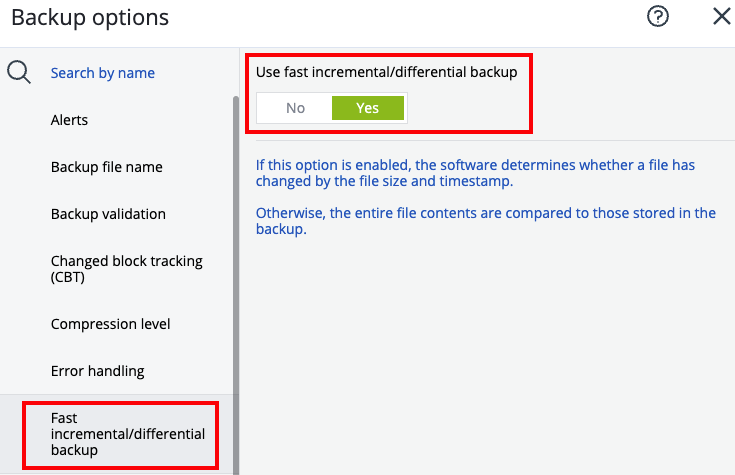
Incremental backups are based on a full backup. Once a full backup is complete, backup systems can use incremental backups to only make copies of data that has changed since the last full backup. This is generally determined with information from file time stamps, but Acronis can also be configured to compare the complete file to the original to see if an incremental backup is needed.
Incremental backups generally require fewer resources than full backups as only the changes are saved to the new backup. This means that more backups can be stored in a smaller space. Incremental backups are also normally faster than full backups, meaning less system resources being consumed during the backup process. However, incremental backups require the entire chain of backups to be intact in order to complete a restoration. Restoring an incremental backup starts with the last full backup and then each incremental backup has to be applied in order to get the entire up to date file restored. Because of this, incremental backups can take additional time to restore and may be less reliable than full or differential backups.
Differential Backups.
Differential backups are a kind of hybrid backup type that seeks to incorporate the best of both full and incremental backups. Like incremental backups, differential backups only make copies of files that have changed since the last backup. However, unlike incremental backups, differential backups copy the complete file that was changed so that only the final differential backup is needed to restore the file to its most up to date state.
Because the differential backups do not depend on the original full or incremental backups performed in the past, they produce more reliable and generally faster restorations. However, because they copy whole sets of data rather than just changes, differential backups do consume more resources (both space and time to execution) compared to incremental backups.
Type | Space | Speed | Reliability | Cost |
| Full | Most | Slowest | Highest | Highest |
| Incremental | Least | Quick backups, Slower Restorations | Depends on entire backup chain to be undamaged | Least |
| Differential | Medium | Slower backups, Faster Restorations | High, each backup is complete in itself | Medium |
Selecting Backup Types in Acronis
Backup types (or schemes) can only be selected or changed when creating a new backup plan. In order to create a new backup plan, follow these steps:
- Login to the Acronis Portal. For help on logging in, see Accessing Acronis Backups.
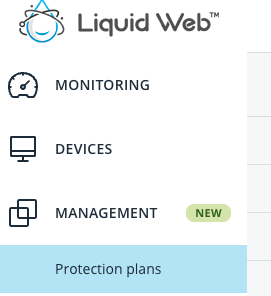
- Click on Protection Plans in the left navigation menu.
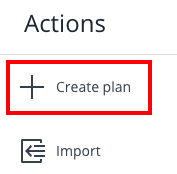
- Click on Create Plan.
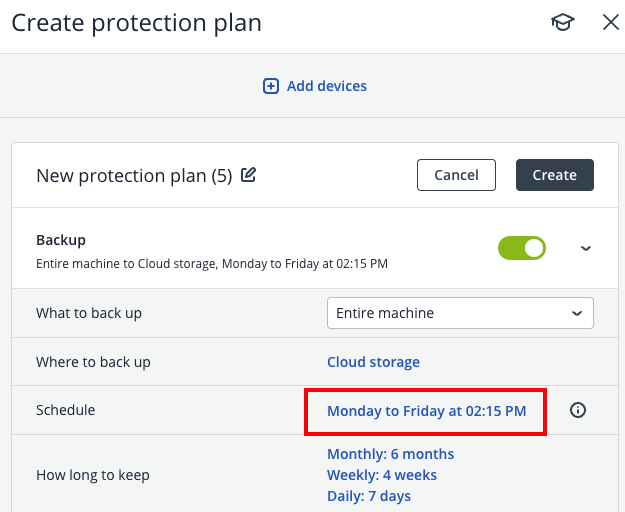
- On the plan creation screen, click the time next to schedule to see scheduling and scheme options.
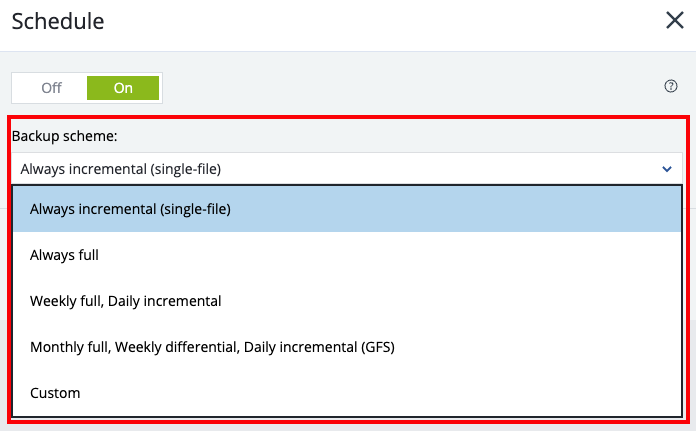
- Select a default backup scheme from the drop-down menu, or choose Custom to choose individual schemes.
Viewing Current Backup Scheme
To view the current backup scheme:
- Log in to the Acronis panel.
- Click Protection Plans.
- Click on the plan you want to view.
- Click Edit in the right hand menu.
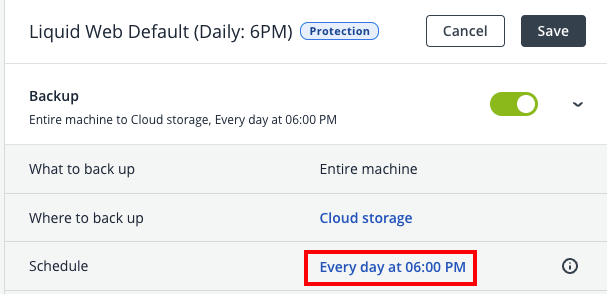
- Click the time stamp next to Schedule.
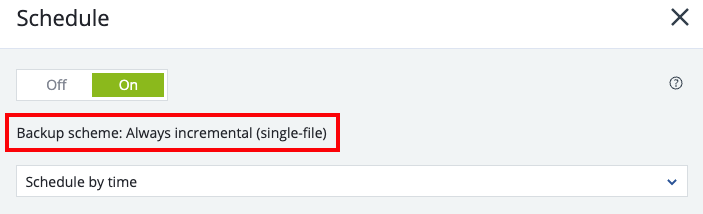
- The current backup scheme is listed under the on/off switch for the schedule.
Fast Incremental/Differential Backups
- Select the backup plan you want to adjust.
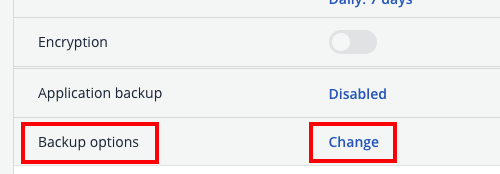
- Click Change next to Backup Options.
- Click Fast Incremental/Differential Backups and select Yes to enable faster backups.