

Restoring a Database with Acronis
When you restore a database, the preferred method is to restore it to a different location than the original database and then import the data into the production database. This minimizes the danger of accidentally overwriting or destroying data during the restoration process. This article explains how to restore a database from your Acronis Panel onto your server and then import that backup copy into another database.
Before such a procedure is completed, you will need to know how to connect to your server via SSH and the basics of navigating through the Acronis Backup Panel. Below are some articles which will help you become more acquainted with those actions:
How to restore a database from Acronis Backup with a Linux Server
- Log in to your server via SSH/SFTP as the user “root” and create the directory for where to send files from Acronis:
mkdir -p /home/temp/database-restore
- Once the directory has been created, you can go into the Acronis Panel and go to the /var/lib/mysql location and select the following files/directories:
- mysql
- ibdata1
- ib_logfile
- ib_logfile1
- your-database_folder
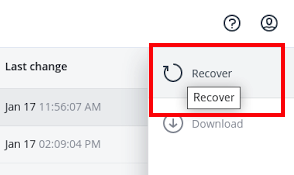
- Select the check box to the left of each of the above items, then in the upper right of the Acronis Panel, select Recover.
- When the Recover Files menu opens, select Custom Location within the Path menu and then click Browse. Within this location you’ll specify the folder to which you want to send the files from Acronis. As shown below, we’ll enter in the directory we created earlier: /home/temp/database-restore.
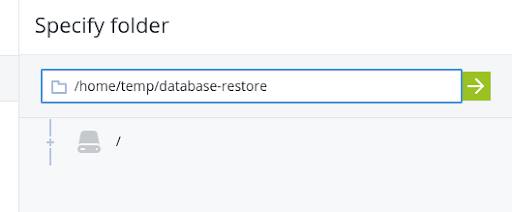
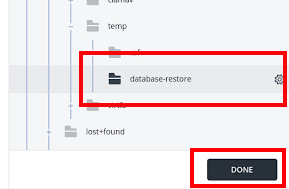
- Click the Green Arrow icon so Acronis locates it and select Done.
- Click Start Recovery and proceed as shown in the image below. It is best to always have Do Not Overwrite Existing Files selected and uncheck the box for Automatically Restart The Machine, If Required.
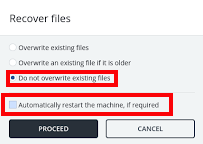
- After you click Proceed, Acronis will begin to send those files to your server at the location specified earlier. You can view the restore progress from the Activity Log within the Acronis panel (upper left menu under Monitoring).
Restoring your Backup Database to a New MySQL Instance
After the files are finished being sent to your server, you’ll want to return to your server via SSH and start a screen. Then while in screen you’ll move to the directory you created so it is your PWD (present working directory):
- Use the following command to create and enter a screen named “restore”:
screen -S restore
- Move to the backup location while in screen:
cd /home/temp/database-restore
Now you’ll set some directives before firing up a second MySQL instance so you can create MySQLDumps of your database, which after can be imported into your live database or another for review.
- Verify that when $dir is used in the upcoming command, it will be the proper location. Use the command
echo $dir
This should return the path of your PWD (present working directory).

- Verify that MySQL will have proper permissions to start a second instance. To do so, run these commands:
chown mysql. $dir -R

chmod 751 /home/temp
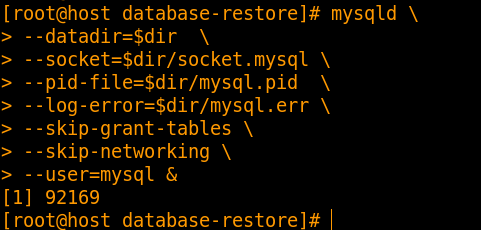
- After you’ve updated permissions and ownerships, it is time to start a second MySQL instance so you’re able to create a copy of your database. This is done by using this full command and hitting enter:
mysqld
--datadir=$dir
--socket=$dir/socket.mysql
--pid-file=$dir/mysql.pid
--log-error=$dir/mysql.err
--skip-grant-tables
--skip-networking
--user=mysql &
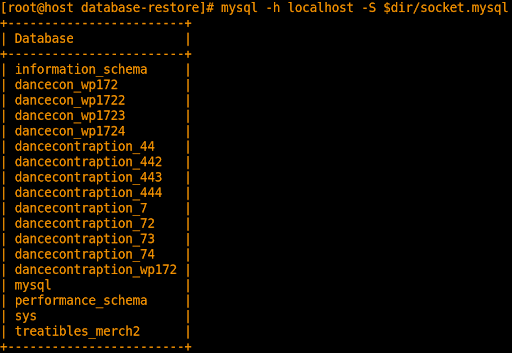
- Connect to that second MySQL instance using this command:
mysql -h localhost -S $dir/socket.mysql -e 'show databases;'
- Create a MySQLDump of your database using this command and enter in the database name you wish to create a copy of:
mysqldump -h localhost -S $dir/socket.mysql $database > $database.sql
- Once you’ve completed creating that copy we can shutdown the second MySQL instance with this command:
mysqladmin -h localhost -S $dir/socket.mysql shutdown
Congratulations! You’ve now restored a copy of your database from Acronis backup and are ready to import it into either your existing live database or another newly created database to review.
Import the Database Copy into an Existing Database
To import the database copy, use this command:
mysql database_name < /home/temp/$database.sql
The above is importing the MySQLDump we create into another database. Replace database_name with the database you wish to import the copy into.
NOTE: |
| Importing a Database Copy into an existing database will replace the current database with the copy. Be sure you have a backup of the existing database in case of data loss or the need to restore the database to its original state. |