

How to Resolve Acronis Storage Alerts
If you receive storage alerts from Acronis, it means you have exceeded the storage quota for your backup plan. This article will guide you through the steps to resolve these alerts by upgrading your storage, freeing up space, and optimizing your backup settings.
Understanding Acronis Storage Alerts
Acronis storage alerts indicate that your current backup plan has reached its maximum storage capacity. This can lead to issues in backing up new data and may hinder your data protection strategy. To prevent data loss, it’s crucial to address these alerts promptly.
Options to Resolve Acronis Storage Alerts
1. Upgrade Your Storage
If you find that your current storage capacity is insufficient for your needs, consider upgrading to a higher plan.
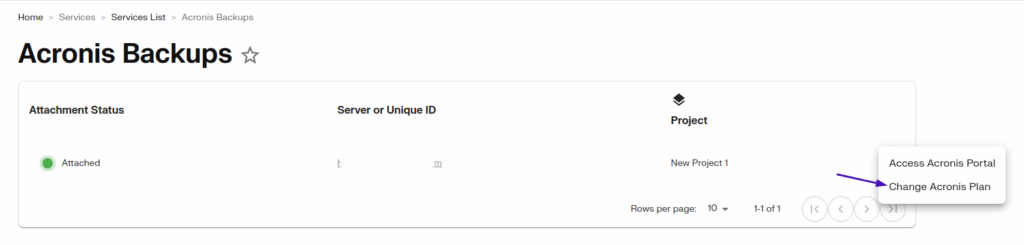
To view your current plan and what your upgrade options are, go to https://my.liquidweb.com/services/acronis and from the three dots choose change acronis plan.
2. Free Up Space
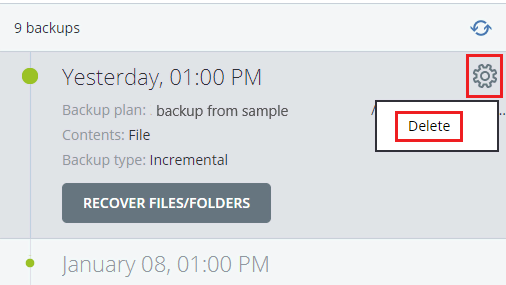
Review the data stored on your server and remove any unnecessary files or backups that are no longer needed. This will help reset your quota.
- To Remove Individual Backup Restore Points: Refer to our article on Modifying or Deleting Acronis Backups.

3. Optimize Your Backup Settings
Evaluate your current backup settings to ensure you are not backing up data that is redundant or unnecessary. This may involve:
- Deleting old backups to reset the quota.
- Adjusting your backup schedule to reduce the frequency of backups.
To learn how to adjust your backup settings, refer to our article on Modifying or Deleting Acronis Backups.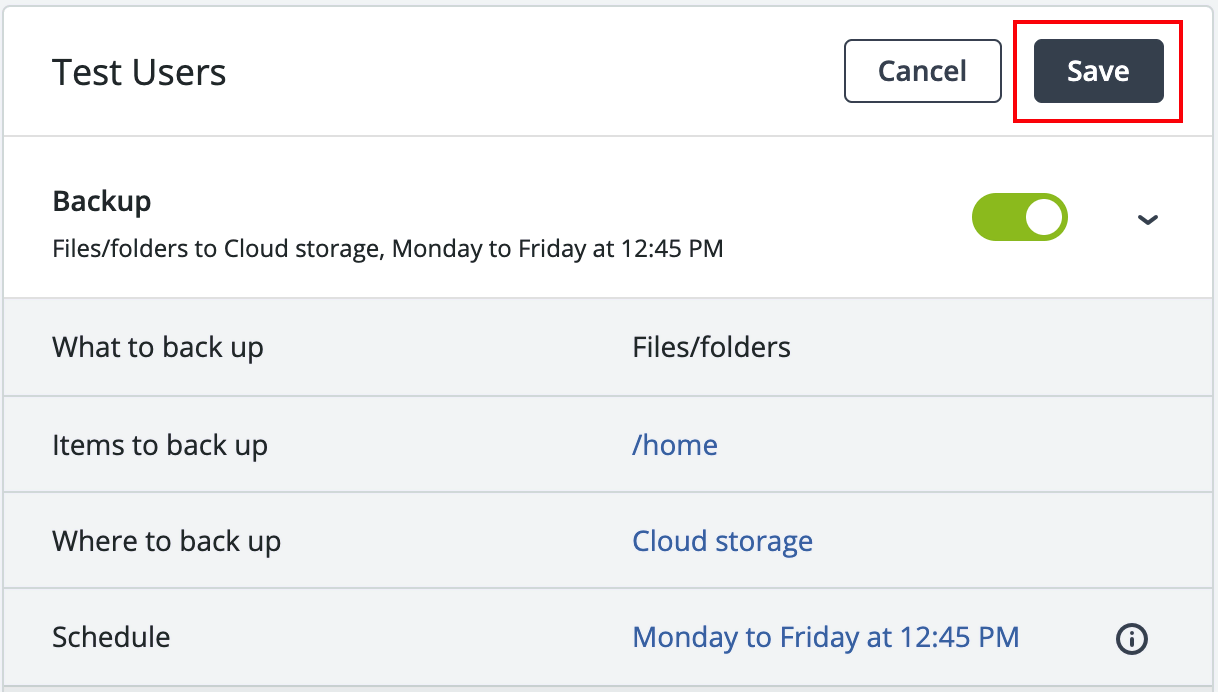
Conclusion
Addressing Acronis storage alerts promptly is essential for maintaining your data protection strategy. Whether you choose to upgrade your storage, free up space, or optimize your backup settings, taking action will ensure your backups continue without interruption.