

Creating Acronis Backups
Customize your Acronis Backups with a different plan for more frequent backups of specific folders, directories, or drives.
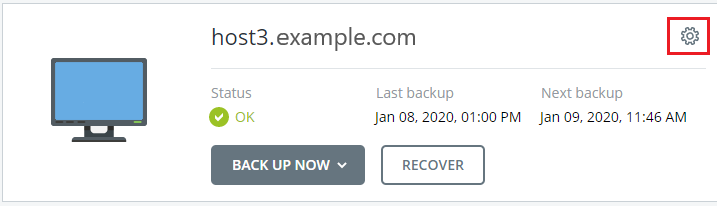
While your Acronis Backups start with a default protection plan (see Accessing Acronis Backups for more information about the default setup), you may want to add a different plan to include more frequent backups for select folders, directories, or drives. To access your backup schedules, find the server on the main Acronis Backup Portal and click the gear icon to the right side of the server name. For more information about the Acronis Backup Portal, see Accessing Acronis Backups.
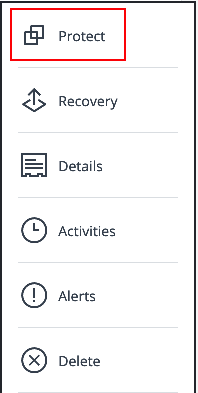
- Select Protect from the menu.
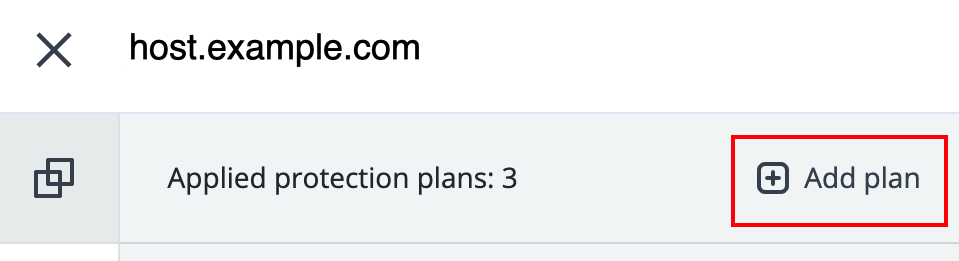
- To create a new protection plan, click Add Plan.
- Name the Backup Plan by clicking the Pencil icon (a default name will be suggested).

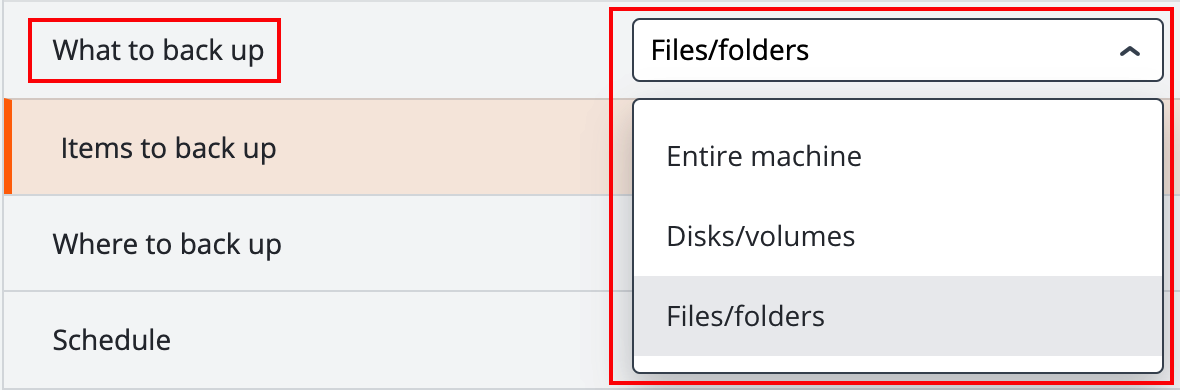
- Choose What to Backup.
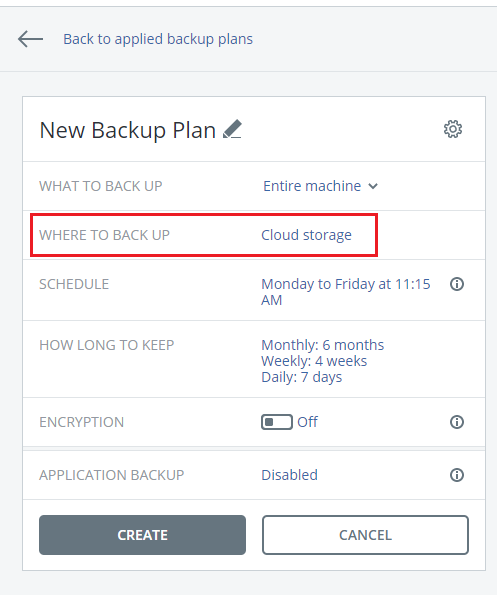
- Choose where you would like the backup stored (default is Cloud Storage).
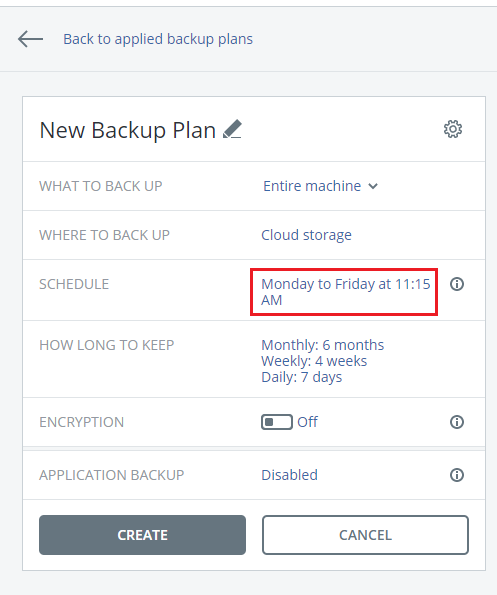
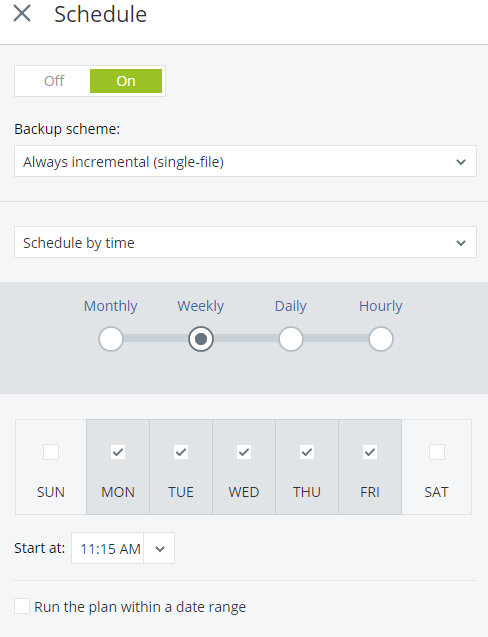
- Select the schedule that you want to run the backups by clicking on the sample date/time listed.
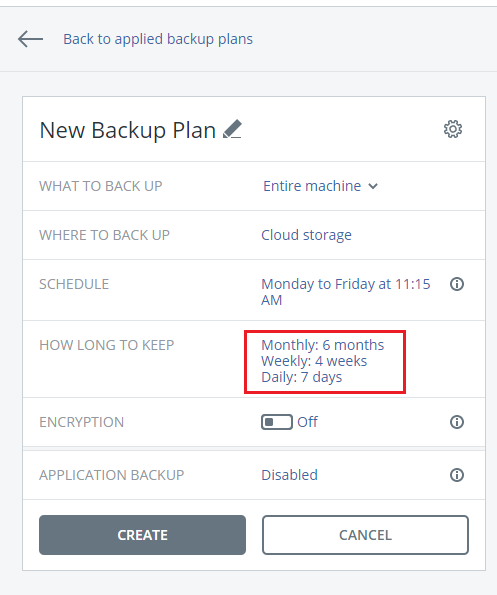
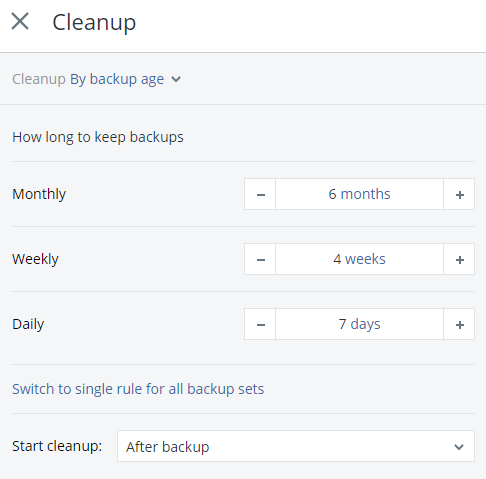
- Select how long to keep the backups (retention schedule) by clicking on the suggested schedule.
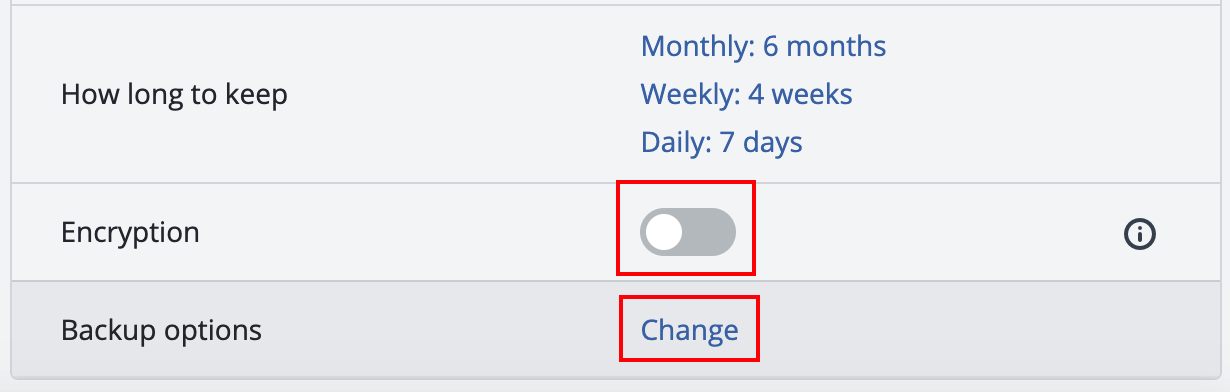
- Turn on Encryption or change additional Backup Options as desired. To learn more about these options, click the “i” icon to the right of the option.
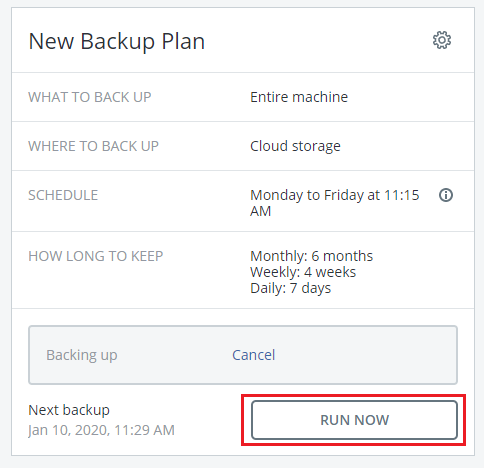
- Click Create to save the backup plan. The backup plan will run when next scheduled, or you can click Run Now to create the first backup.
Now that you’ve created a Backup Plan, learn how to modify an existing plan in Modifying or Deleting Acronis Backups. If you want to restore files from a backup, see Restoring Files from Acronis Backups.