

Accessing Acronis Backups
Once you’ve ordered your Acronis Backups, your account will be activated and a default backup schedule will be applied and backup processes will begin running. What if you want to modify the backup schedule or see when the backups were last run? What if you want to restore files or modify the backups in some other way? You can do all this and more through your Acronis Backup Portal, located in my.liquidweb.com.
You may want to make adjustments to meet your business needs.
The default backup schedule is Monday-Friday, running at the time the schedule is initially deployed on the server. The default retention schedule is 7 daily backups, 4 weekly backups, and 1 monthly backup. Encryption is not enabled by default.
Accessing the Acronis Backup Portal
- Login to my.liquidweb.com.
- For help with logging in, see Exploring Your My Liquid Web Account.
- Go to the server for which you want to access backups.
- For help finding your server, see Exploring Your Cloud VPS Infrastructure.
- Click on the Backups and Images tab.

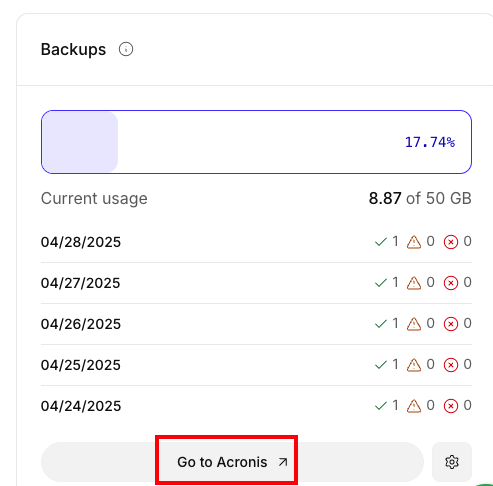
- In the Backups block, click Go to Acronis.


Acronis Backup Portal Main Screen
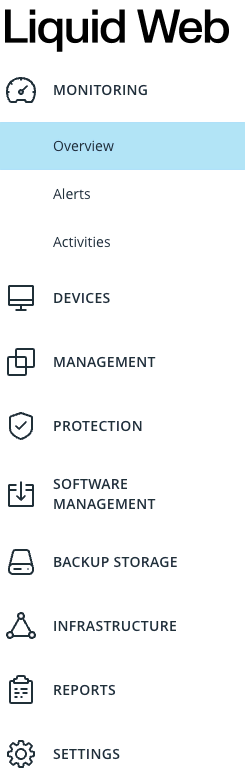
The Acronis Backup Portal main screen contains all of the navigational tools to manage your Acronis Backup Plans. From this screen you can see an overview of Alerts and Activities, List your Devices, view all of your existing Backups, and find your account Settings.
Overview
Clicking the Overview button allows you to view all current Alerts and Activities on the account.
Devices
The Devices button will show all the devices (machines, servers, workstations, etc) that are currently attached to your account, either in Simple view or as a List.
Management
This section allows to manage your protection plans, remote management plans, and monitoring plans.
Protection
The protection tab allows to see results of anti-malware scans and review any quarantined items.
Software Management
Software Management is a basic vulnerability scanner that attempts to identify possible issues on your protected devices. This feature in still in BETA and may not be fully deployed at this time.
Backup Storage
The Backup Storage button will list all available backups, first by location, then by timestamp.
Reports
Reports gives you access to customizable reports about your account, including alerts, activities, and weekly activities.
Settings
The Settings button will give you access to the Agents that are currently installed on each of your machines, as well as a host of Advanced Settings listed under System Settings.
Additional Resources
Now that you’ve logged into your Acronis Portal, learn how to create, modify, and restore backups with these helpful articles: