Getting Started with SiteWorx Web Panel
When you log into InterWorx Web Panel as a domain user (SiteWorx), there is a lot of information provided to you and multiple options and features that you can use to improve your website and server. When you get started, however, there are four main sections that deserve your attention. You’ll want to be familiar with the Home Screen, Hosting Features, the File Manager, Backups, and how to install applications like WordPress using Softaculous. If you haven’t created a domain user yet, read Creating an InterWorx Web Panel User Account/Domain.
In this article, we will go over the most common functions our customers use in CWP. Follow the links below to be directed to the section you’d like to see.
- Understanding the Home Screen
- Using File Manager
- Configuring Backups
- Installing Programs with Softaculous
Understanding the Home Screen
The Home Screen is the default screen that loads when you first log in as a domain user. The Home Screen provides links to common management tasks, as well as a lot of information about the current status of your server. Let’s look at the details.
My Info
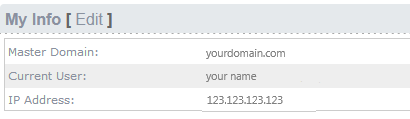
At the top of your screen, you’ll see a section titled “My Info”. In this section, you’ll see the primary domain for the account, the currently logged in user, and the IP Address assigned to the account.
Account Features
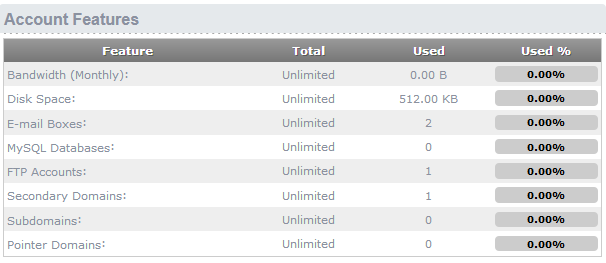
Below the top status area, you’ll see a listing of the resources of the account (like bandwidth and disk space), the limits of the resources, and the current usage. Clicking on a resource name will take you to more detailed information about that resource, including a management screen for the resource if applicable.
Common Tasks
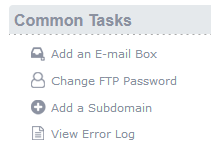
On the right side of the screen, you’ll see links to common tasks for domain management, as well as adding Email boxes or viewing error logs. You can get to these features from the left navigation bar as well, these links are just collected here for your convenience.
Site Usage Snapshot
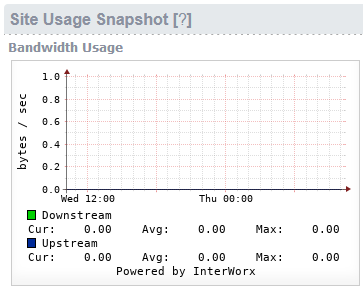
The bottom right corner of the Home Screen shows a basic bandwidth graph for usage for this domain.
Using the File Manager
A website is a collection of files, just like your computer or a file cabinet. These files run different programs and can be written in markup languages like HTML or CSS. When someone goes to your website, the web page they see is a file that’s been turned into visuals and text. Other files in this section include logs, which tell you what’s recently changed your website.
To manage these files in SiteWorx, click File Manager in the left navigation bar.
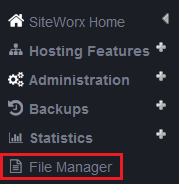
Clicking on the File Manager will open a new window. You may see many different directories like etc, logs, and html. It looks a lot like the file system on your computer. By default, you should at least see a file titled html (this is where your website’s publicly available content is stored.
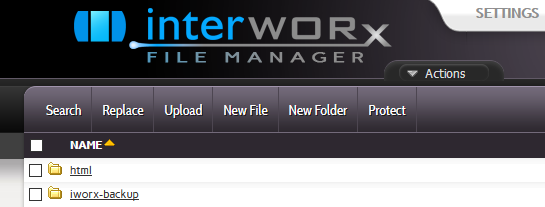
Click around your folders to see what’s inside each one. Your html directory is the most important directory to get your website up and running. This directory is where you’ll upload any files you want people to see when they visit your website. If you’re using a Content Management System (CMS) like Magento or WordPress, you won’t have to upload or edit many files in File Manager. Instead, you’ll upload content directly to your Content Management System (CMS).
Using the File Manager, you can create files and directories, upload files, edit files, change permissions, delete files, and basically manage the file structure of your domain however you need.
Configuring Backups
Backups are a vital part of reliability and security in webhosting. Whether you are dealing with an accidental data deletion or a malicious attack, backups can make getting your website running again a simple process. SiteWorx allows you to both schedule regular backups and take manual backups as needed. See Configuring Backups in Interworx Web Panel for more information.
Installing Programs with Softaculous
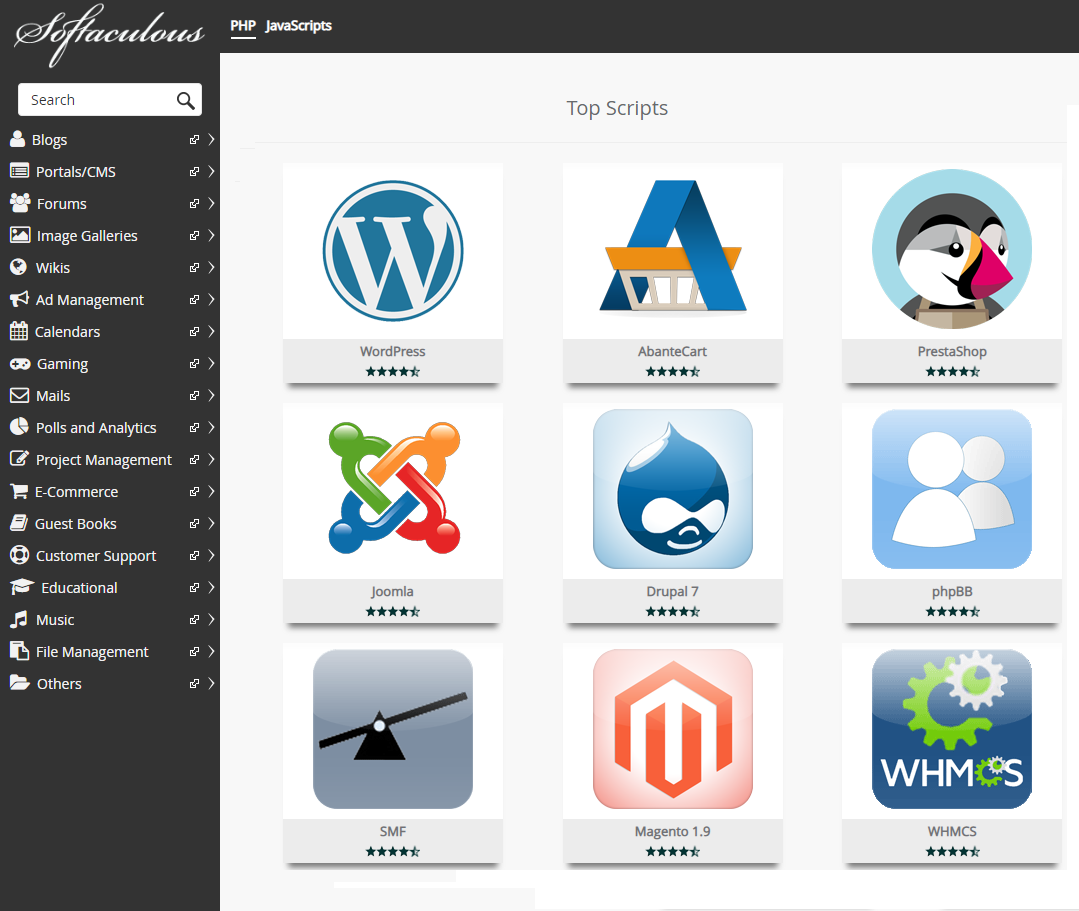
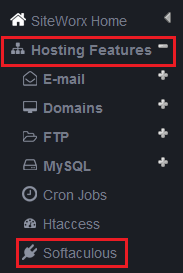
Under Hosting Features, you’ll find a link to Softaculous. Click on Softaculous to launch the Softaculous Installer page.
You can develop your website completely by yourself and load all the files into your html folder. But why not take advantage of applications that are already developed? Softaculous makes installing packages like WordPress, Magento, and Joomla easy. For example, instead of downloading WordPress from WordPress.org and installing it yourself, simply install WordPress using Softaculous and you’re ready to start customizing.
When you install a program, Softaculous will walk you through where you want to install the program, if you want to create new directories, some basic settings, and setting up your first administrator account. Each program has a slightly different installation process, but if you follow the prompts you’ll be set up in no time.