

Getting Started with Acronis Backups
Introduction
Cloud dedicated servers, managed cloud servers, cloud VPS servers, traditional dedicated servers, and VMware servers can be backed up with our fully supported Acronis Backup System. Acronis can store all of your server information in a secure, off-site location (or in one of our secure data centers for a more affordable solution) and can be used for both whole server and individual file restoration. Our partnership with Acronis gives you full access to your backups through your Liquid Web Account.
Ordering Acronis Backups
Accessing Acronis Backups
Creating Acronis Backups
Modifying or Deleting Backups
Acronis Notifications
Understanding Acronis Backup Types
Ordering Acronis Backups
The first step in using Acronis to backup your Liquid Web server is ordering the service. You can do this easily from your Liquid Web Account.
- Log in to your Liquid Web Account.
- Select My Servers from the menu bar.

- Click the Backups and Images tab.

- Click Set up now to begin adding Acronis Backups to your server.

- Choose Acronis Backups from the Backup settings drop down menu.

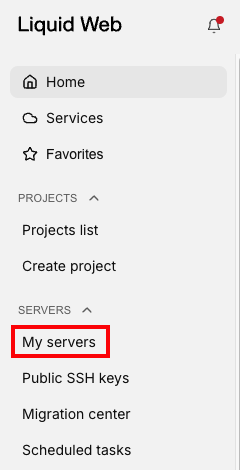

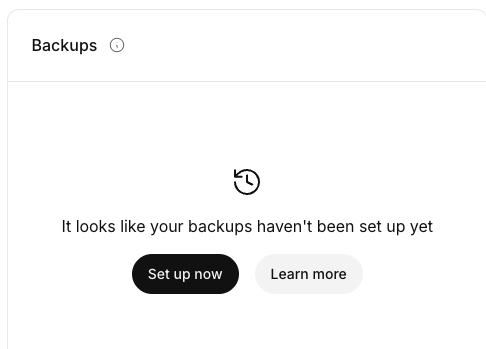
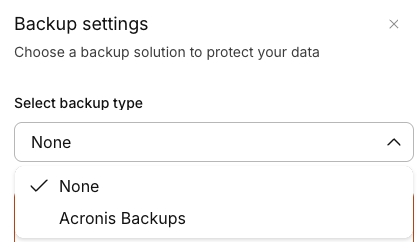
Follow the prompts to complete your order. For more information, see Ordering and Managing Acronis Backup Plans.
Accessing Acronis Backups
Once you’ve ordered your Acronis Backups, your account will be activated and a default backup schedule will be applied and backup processes will begin running. What if you want to modify the backup schedule or see when the backups were last run? What if you want to restore files or modify the backups in some other way? You can do all this and more through your Acronis Backup Portal, located in your Liquid Web Account.
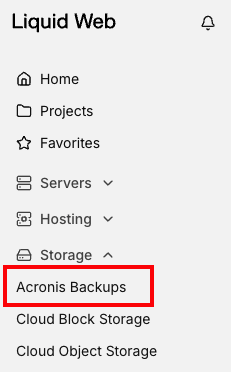
- Login to my.liquidweb.com. For more information, see Exploring Your My Liquid Web Account.
- Go to the server for which you want to access backups.
- Click the Backups and Images tab.
- Click Go to Acronis from the Backups block.

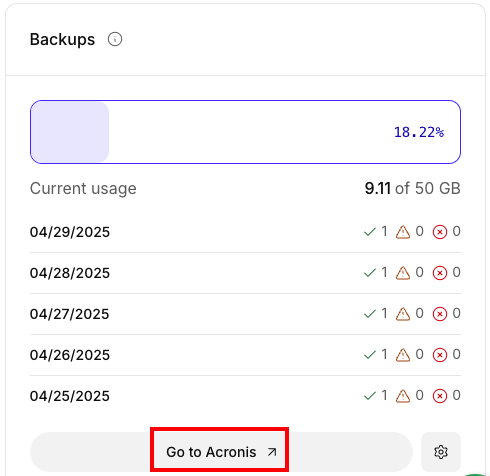
For more information, see Accessing Acronis Backups.
Creating Acronis Backups
While your Acronis Backups start with a default protection plan, you may want to add a different plan to include more frequent backups for select folders, directories, or drives. To access your backup schedules, find the server on the main Acronis Backup Portal and click the gear icon to the right side of the server name.
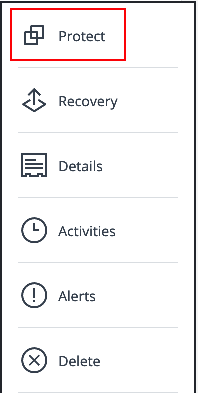
- Select Protect from the menu.
- To create a new protection plan, click Add Plan.
- Choose What to Backup.
- Select the schedule that you want to run the backups by clicking on the sample date/time listed.
- Click Create to save the backup plan. The backup plan will run when next scheduled, or you can click Run Now to create the first backup.
For more detailed instructions, see Creating Acronis Backups.
Modifying or Deleting Backups
Since the backup schedule is setup by default when the service is purchased, one of the first things you may need to change is the timing or frequency of the backup schedule. Since the backup process is most effective when the server is the least busy, you may want to adjust when the backup starts to a more appropriate time for your business. You might also want to adjust what is being protected or delete individual backups or backup plans. You can do all this through the Acronis Backup Portal.
- Find the server on the main Acronis Backup Portal (in the Devices section) and click the gear icon to the right side of the server name.
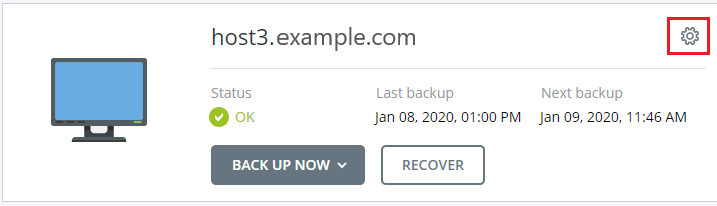
- Select Protect from the menu.
- Select the Protection Plan you want to modify from the list. Click the three dots to the right of the protection plan to modify the details. Click Edit to change the details. You can also Rename, Disable, Revoke, or Delete the protection plan from this location.
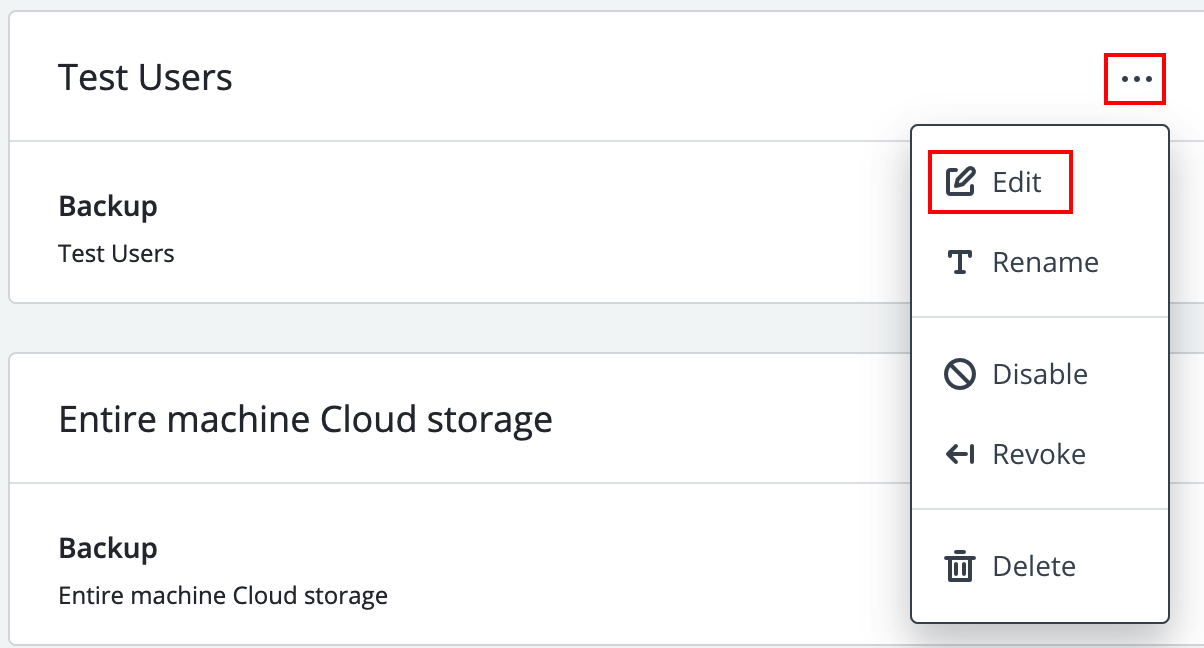
For additional information about modifying your Acronis Backup plans, see Modifying or Deleting Acronis Backups.
Acronis Notifications
One of the major advantages of the Acronis platform is that customers can manage and access their own backups directly, without needing to contact Support. Customers also receive notifications about the status of their backups directly from Acronis. You’ll be notified of any issues or problems encountered during the backup process so that you can address them in a timely manner. By default, notifications are sent to the main email contact for your Liquid Web account. For more information about Acronis Notifications, see Acronis Notifications.