

Generating an SSL Certificate Signing Request (CSR) in Interworx Web Panel
Generating a Certificate Signing Request (CSR) is the initial step in obtaining an SSL Certificate for your server. While it can be done manually, InterWorx Web Panel simplifies the process by generating the CSR with your provided information, ensuring convenience and accuracy.
A certificate signing request (CSR) is information generated by your server. This is the first step in ordering an SSL Certificate and getting it functioning on your server. For more information about SSL Certificates, see What Is an SSL Certificate? You can create a CSR manually, but because the CSR is encoded, it’s much easier to let InterWorx Web Panel create your CSR. All you have to do is enter your information into the CSR Generator and InterWorx will take care of the rest.
- Log into your InterWorx server as the domain user (SiteWorx). For help logging in, see Logging into InterWorx Web Panel.
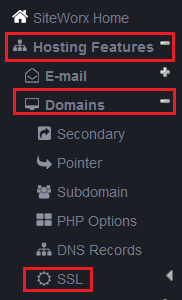
- In the navigation menu on the left, click Hosting Features, then Domains, then SSL.
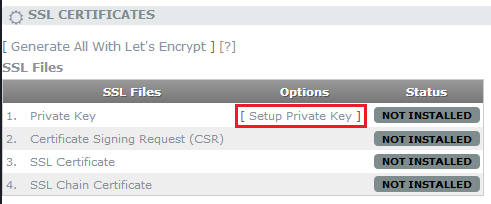
- Setup the Private Key by clicking the Setup Private Key link. You can either import an existing private key or generate a new one for this server using the Generate button.
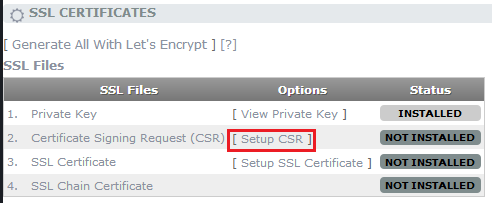
- Once the Private Key is set, click on Setup CSR.
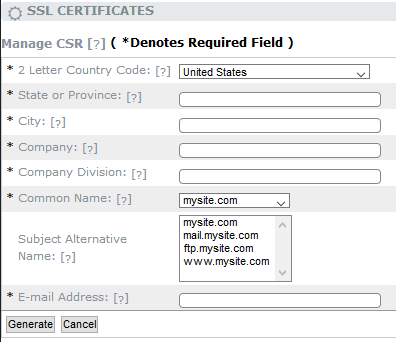
- Fill out all of the required fields and click Generate to create the Certificate Signing Request.
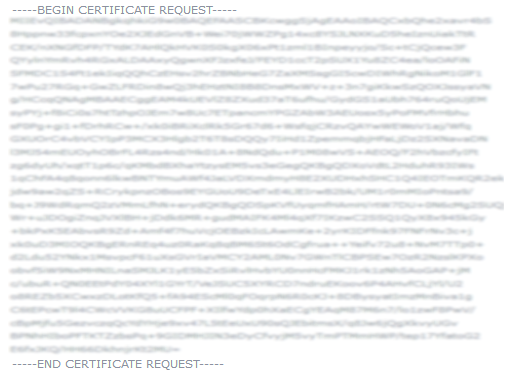
- Once you’ve generated the CSR, be sure to save both the CSR and the Private Key (click on the tab on the CSR screen) to your local computer. You’ll need both of these to complete the SSL order. Line breaks are very important, so we recommend pasting the text into a plaintext editor. The CSR and Private Key will both appear as random looking blocks of text. We’ve blocked it out in the screenshot below for the sake of security.
Now that you have your CSR, you can move on to the next step: Ordering an SSL Certificate.