

Generating an SSL Certificate Signing Request (CSR) in cPanel
Learn how to generate a Certificate Signing Request (CSR) and private key in WHM or cPanel to apply for an SSL certificate and secure your website.
A certificate signing request (CSR) is information generated by your server that is necessary to apply for an SSL certificate. It contains information about your website, but it’s encoded. Instead of trying to learn the notation and encode a CSR yourself, Webhost Manager (WHM) can do all that for you. All you have to do is enter your information and WHM will create the CSR for you.
- Log into WHM to get started. If you haven’t logged into WHM before, our article Getting Started with WHM has lots of useful information about navigating WHM.
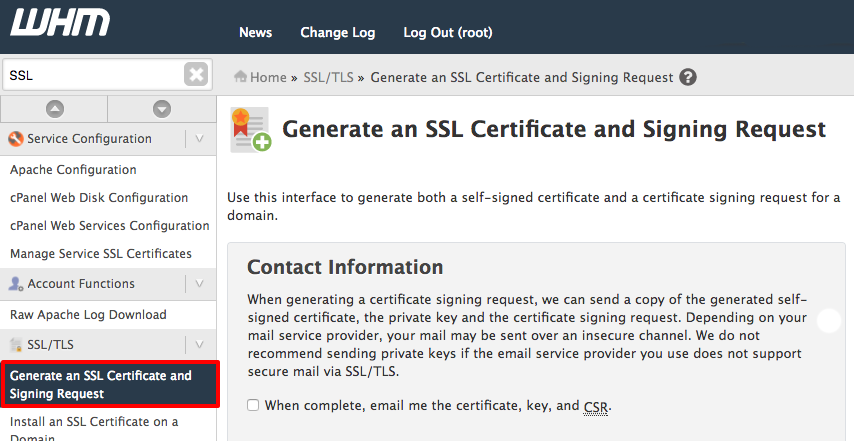
- In the left navigation panel, click on Generate an SSL Certificate and Signing Request under SSL/TLS. You can also start typing “SSL” in the search bar above the navigation to find Generate an SSL Certificate and Signing Request.

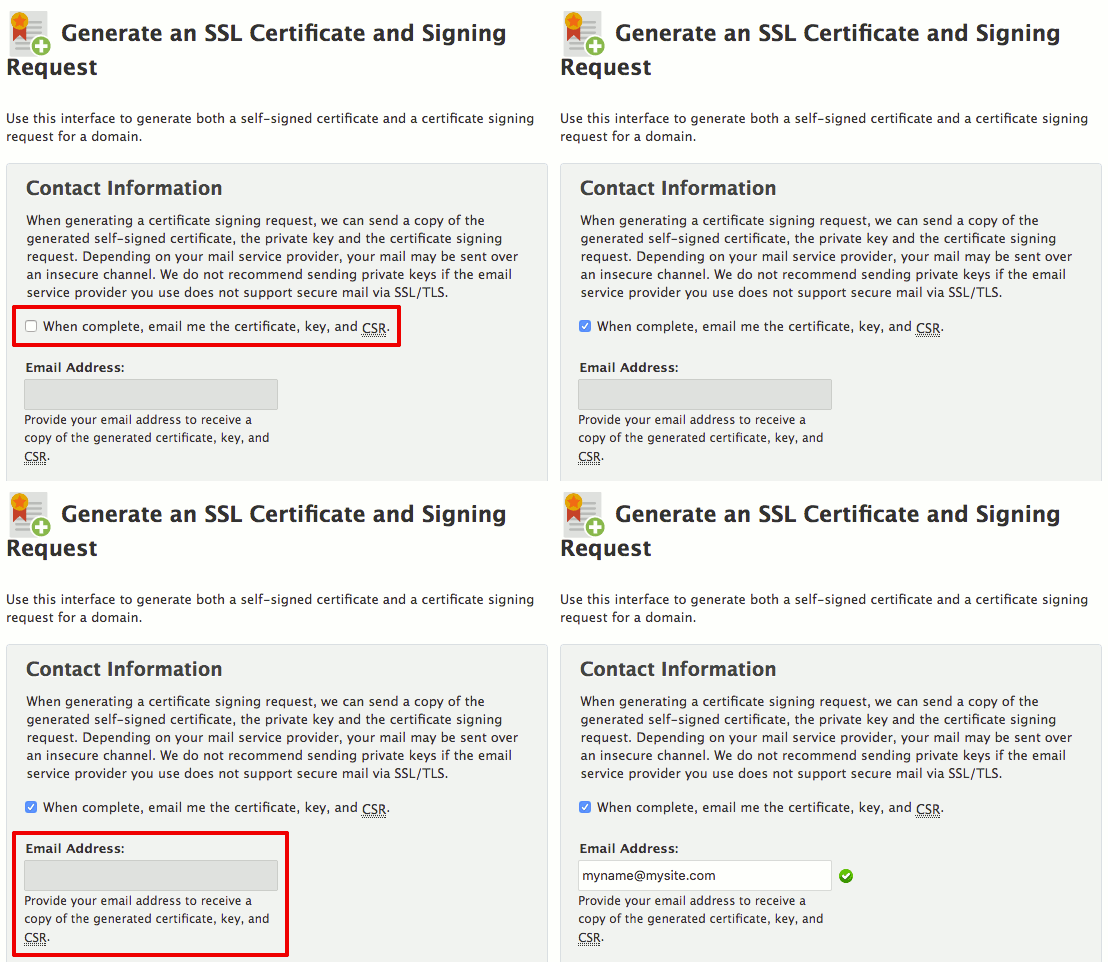
- If you’d like your CSR and private key to be emailed to you, check the box for When complete, email me the certificate, key, and CSR. Then, enter your email address. This is a good option in case you accidentally close the window or tab with your CSR before the whole process is completed. (If your email provider doesn’t use secure mail, don’t send your CSR to yourself!)

- Leave the Key Size set at the recommended 2,048 bits and continue scrolling down to Certificate Information.
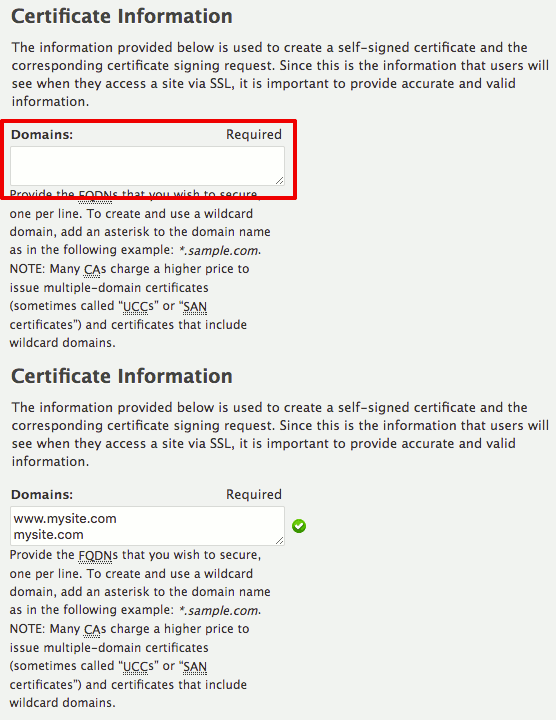
- Choose the domains you’d like to be covered with your SSL certificate. At a minimum, you should cover mysite.com and www.mysite.com (together, they are only considered one domain name, but you have to define them both in the CSR). You can also cover your domain and all subdomains you create by adding an asterisk to your domain name: *.mysite.com. Different certificates have different prices. Our SSL certificates page breaks down every type of certificate and how many domains it covers so you can make the best choice for your domain.

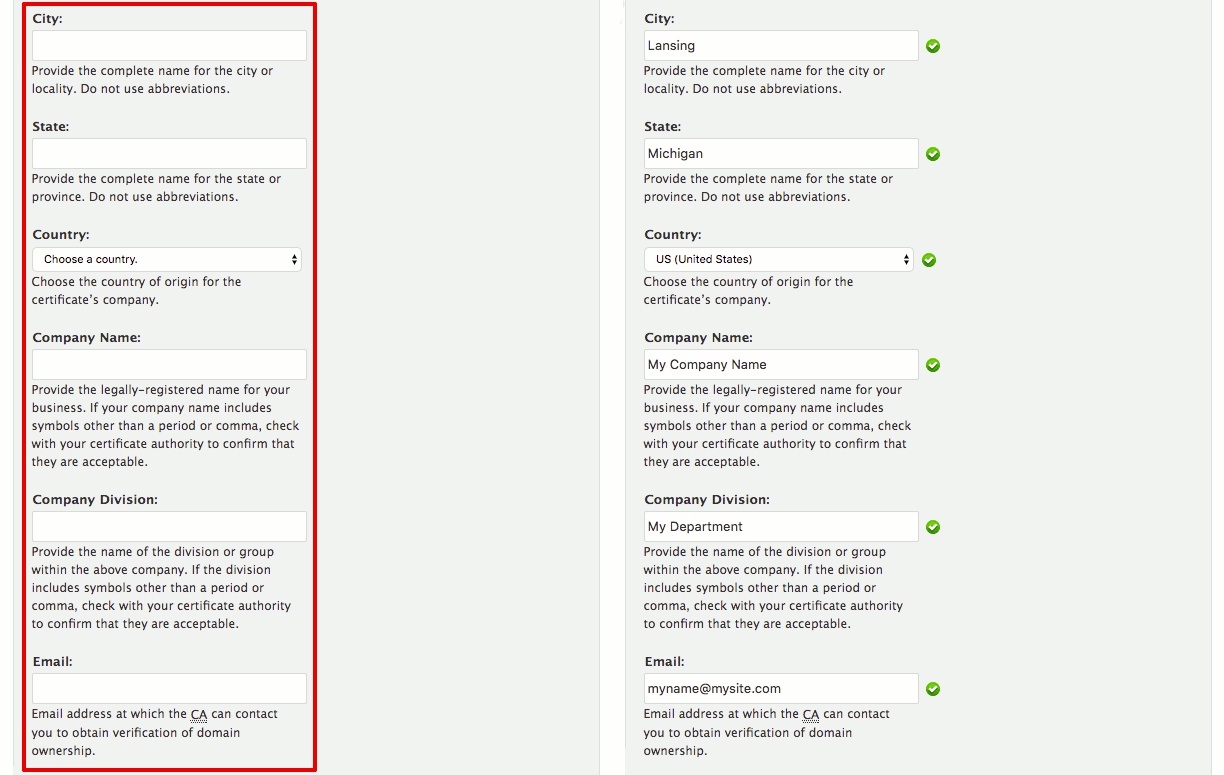
- Enter your City, State, Country, Company Name, Company Division, and Email.
Notice:
It is very important that this contact information is the same information associated with your domain name. If this information isn’t the same, the certificate authority could reject your request or require additional identity verification before issuing you an SSL certificate. If you’re not sure how you registered your domain name, you can look up the information using whois or an online whois checker. 
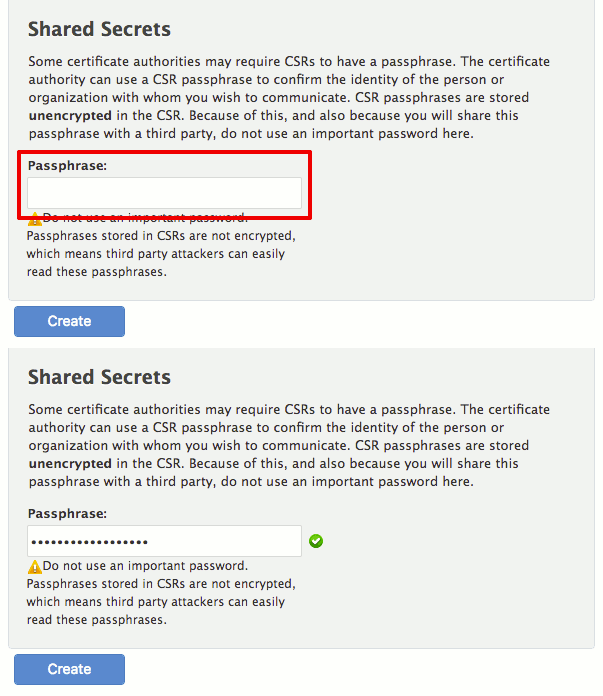
- Enter a Passphrase. GlobalSign doesn’t require a passphrase, but choose one to generate the CSR. This passphrase will be unencrypted in your CSR, so do not choose a passphrase you use for anything else.

- Click Create. Your CSR, a self-signed certificate, and private key will load. Copy and paste this block of text into a document to make sure you have it for ordering your SSL certificate. Line breaks are very important, so we recommend pasting the text into a plaintext editor. If you chose to email the CSR to yourself, you should also see the CSR in your email inbox.
Now that you have your CSR, you can move on to the next step: Ordering an SSL Certificate.