

Forwarding Your Premium Business Email
Easily set up email forwarding in Premium Business Email. Learn how to forward messages to up to 4 addresses, save copies, and set timeframes.
If you have multiple email addresses, you might find it convenient to forward all your email to a single inbox. With Premium Business Email, you can automatically forward your email to up to 4 other addresses. This article will walk through how to forward your Premium Business Email.
Forwarding from Webmail
- Log into your Premium Business Email webmail.
- In the upper right hand corner, click on the
 icon and then click Settings.

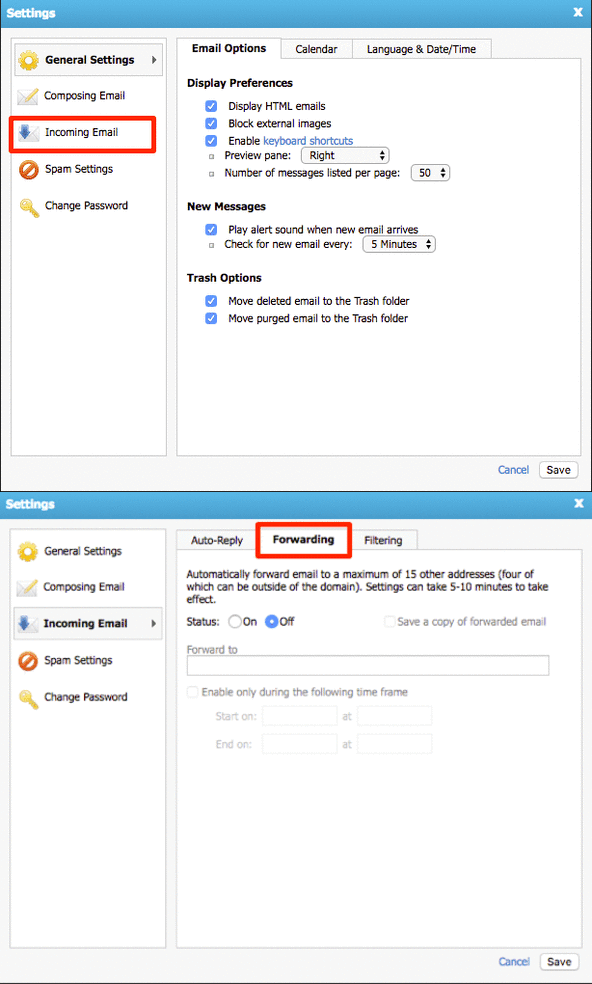
- In the Settings pop-up box left navigation menu, click Incoming Email. Then click the Forwarding tab.

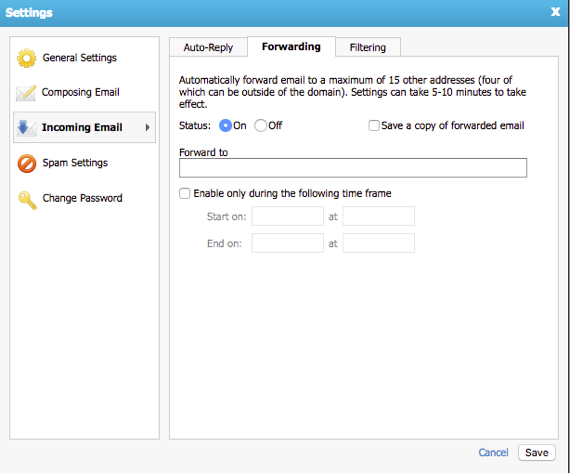
- First, turn forwarding on by changing the Status to On.

- You can choose to Save a copy of forwarded email by checking the box for that option.
- In the Forward to field, enter the email address(es) you’ll be forwarding to.
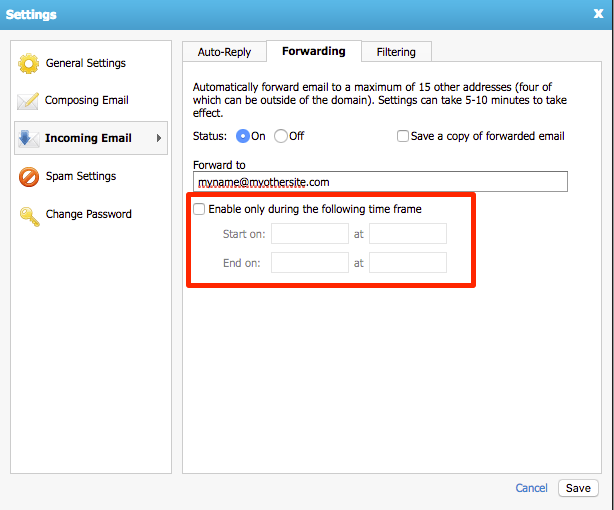
- If you want, you can choose a specific timeframe to forward your email.
 icon and then click Settings.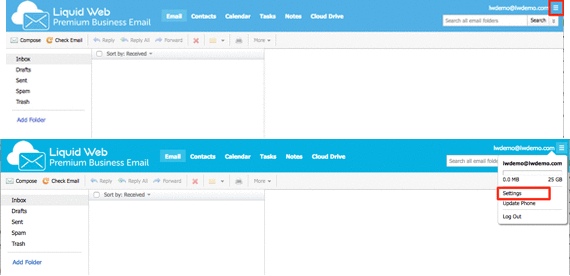
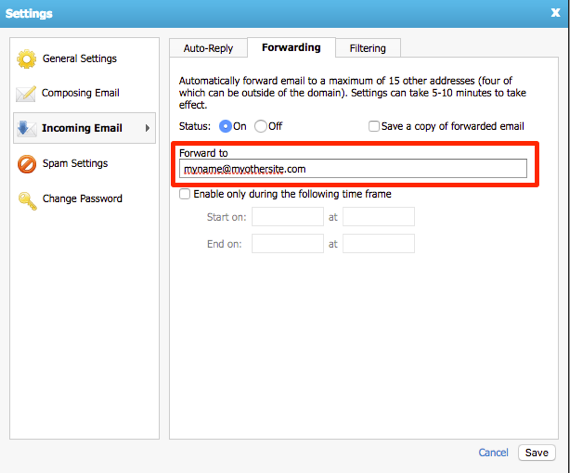
- Once all your settings are how you’d like them, click Save.