Finding your server password
Easily retrieve your lost server password via Liquid Web’s portal under Servers > Password and Username.
When you first order your server from Liquid Web, you’ll receive your login credentials in a Secure Note in your Liquid Web account. But what happens if you lose your password after you’ve dismissed your secure note? No problem! It’s easy to find your server credentials in your Liquid Web Account.
Finding your server credentials
- Log in to your Liquid Web account.
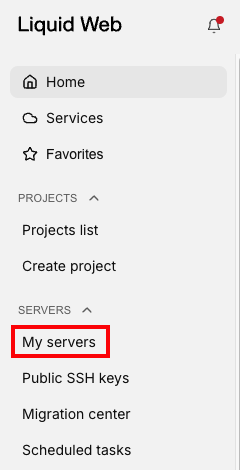
- Click on My Servers in the left menu.

- Click on the name of the server you want to access. This will open the Server details page.
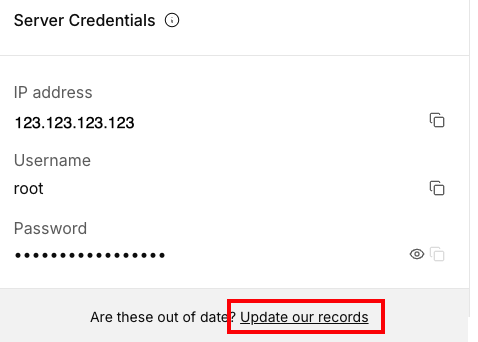
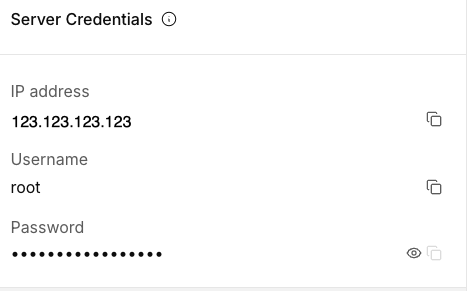
- Scroll down to the Server Credentials block. Here you will find the server’s IP address, username, and password according to our current records.

Note: this information only reflects our current records of your server credentials. If you’ve changed your server password, this information may be out of date. Be sure to report your current password whenever you update your server credentials. You can click Update our records from the Server Credentials block to update your information.