

Finding Your Server IP Address
Each server has a unique IP address, often the same as your website's. Used for control panel access, maintenance, and troubleshooting like monitoring email reputation and logging in via SSH/RDP. Find it in your Liquid Web account, cPanel, or Plesk.
Every server has a distinct IP address. Generally, your server IP address will be the same as your website’s IP address. This IP address can be used to log into your control panel (WHM, cPanel, Plesk), but your server IP address is used for other maintenance and troubleshooting like, monitoring your email reputation, logging into your server via SSH or RDP, creating certain DNS records and setting up FTP clients.
The most common way of finding your server IP address is through your Liquid Web account, but you can also find it in cPanel and Plesk. This tutorial will show you where to find the server IP address in each of these locations.
Using my.liquidweb.com
- Log into your Liquid Web account.
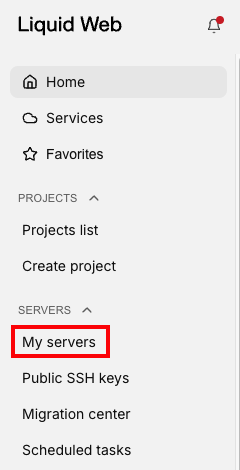
- Click on the My Servers tab at the left of the screen.

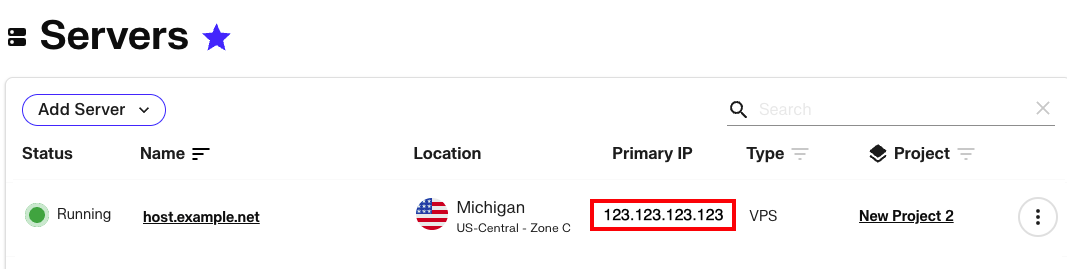
- The Servers page will show you the primary IP of each server to the right of the servers name. To view any additional IPs you may have on the server, click the server’s name to bring up the Server details page.

cPanel
- Log into cPanel (see Logging Into cPanel).
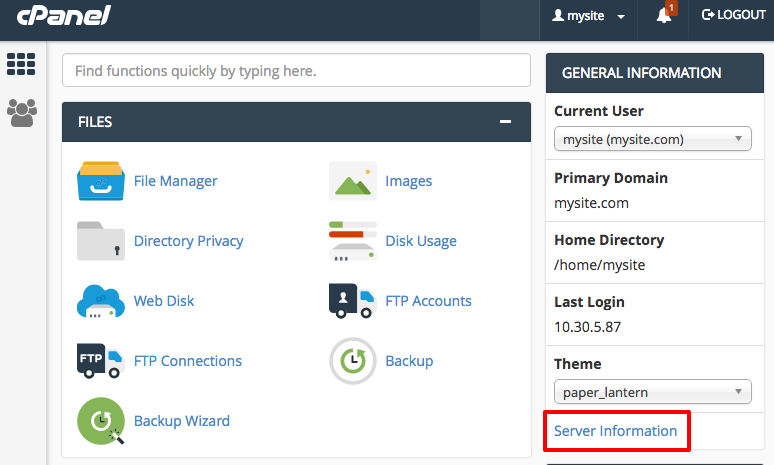
- On the home page, click the Server Information link on the right-hand side of the page under General Information.

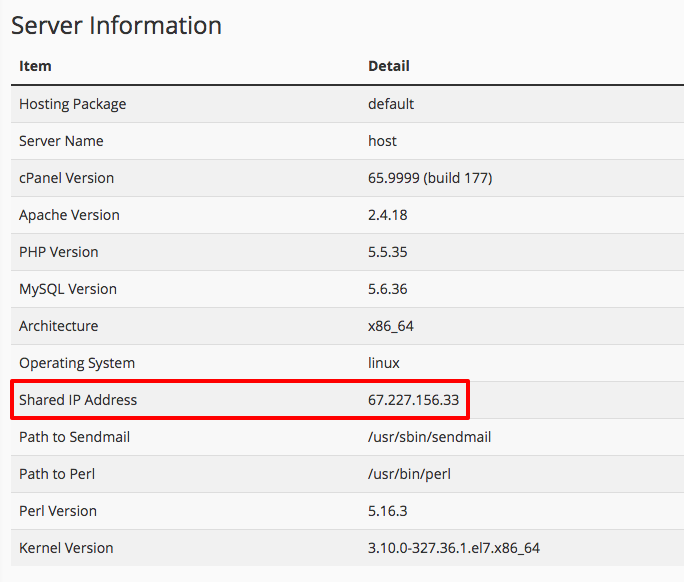
- This will provide you with all the information of your server. The IP address will be found in the row titled Shared IP Address.

Plesk
- Log into Plesk (see Getting Started with Plesk) and select Tools & Settings from the left navigation menu. (It’s under Server Management.)

- From the Tools & Settings page, select the IP Addresses link from the Tools & Resources section. You will see a list of the IP addresses per server in your Plesk account.


