Exploring Your Cloud VPS Infrastructure
While we know you probably know where your server information is located when you log in via command line, sometimes it can be a hassle to remember the directories and files that store all the server information. That’s why Liquid Web provides you with a visual interface in your Liquid Web account where you can view specific parts of your server without having to log into your server via SSH and the Command Line. While you can view these parts in the command line just fine, a visual representation of your server details, backups, images, monitoring, network, storage and more helps you have a well-rounded view of your hosting infrastructure.
Click on the name of the server you’d like to view details on. This brings you to the server details page.
The Server details page is organized to provide you with quick access to all the tools you need to manage your server.
Overview
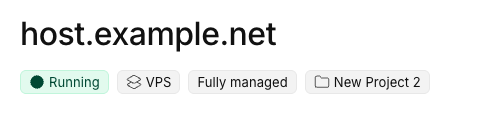
The Overview tab provides you with an overview of the important information and functions of your server. Below the hostname of the server, you’ll see its current status, type, management level and any projects the server is associate with.
Hostname details

Three dot menu
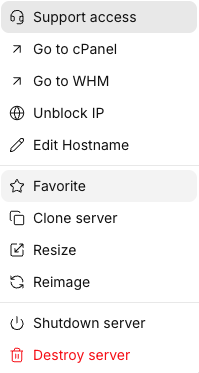
To the right of the hostname, you’ll see a Reboot button and a three dot menu. The three dot menu contains additional functions for working with your server including your Support Access information, Panel logins, Unblock IPs, Editing hostname, as well as cloning, resizing, reimaging, and even shutting down or destroying your server.
 Navigation tabs
 Navigation tabs
As you scroll down the screen, you’ll see the navigation tabs. These tabs will take you to additional sub-sections of the Server details page where you can manage Monitoring, Networking, Backups & Images, Activity, and access the server Console.

Details block
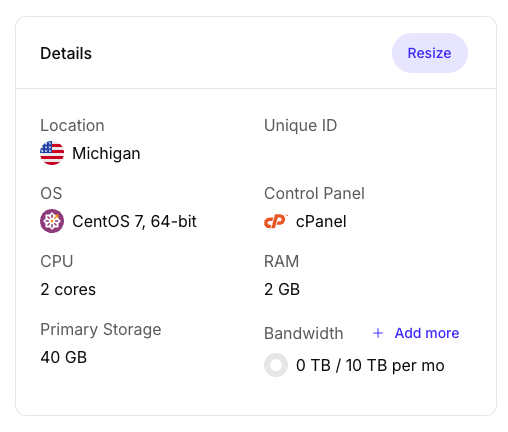
The Details block gives you the important details about your server, including its location, operating system, CPU cores, Primary storage, Unique ID, Control Panel (if applicable), memory, and current bandwidth usage.
Overall performance block
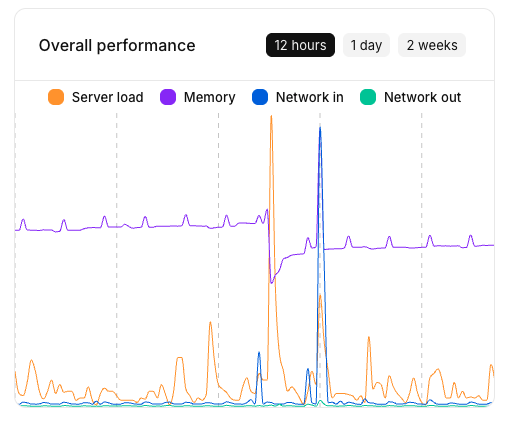
The overall performance block lets you see graphs of the servers overall performance over time. More detailed performance graphs can be found in the Monitoring page.
Network info block
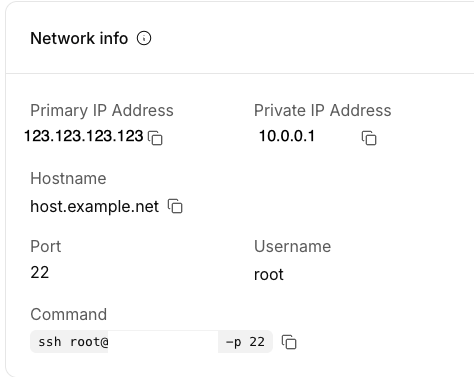
The Network info block gives you quick access to the most important networking information like your primary IP address, hostname, access port, username, and even a command you can copy to your favorite terminal program to access your server. Additional networking information and functionality can be found in the Networking page.
Scheduled Tasks
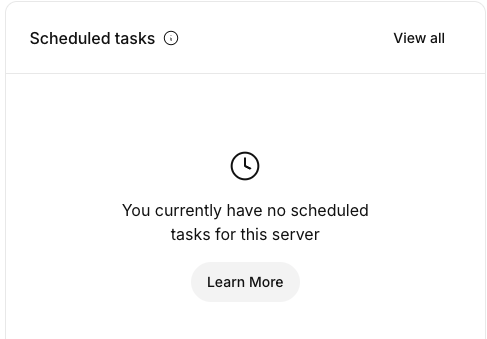
The Scheduled tasks block shows you any current scheduled tasks for your server from the portal (like rebooting or resizing your server). Click View all to add or remove scheduled tasks from the portal.
Block Storage
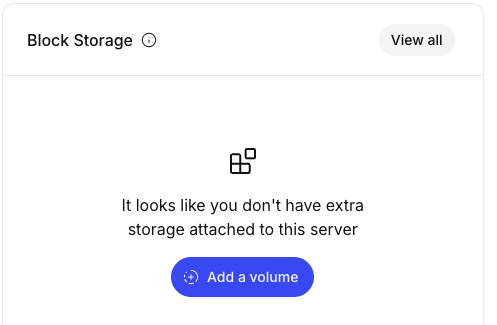
If you have Block Storage attached to your server, you can find details about it in the Block Storage block. Click View all to add or manage your block storage for this server. You can also click Add a volume to begin adding Block Storage to your server.
Server Credentials
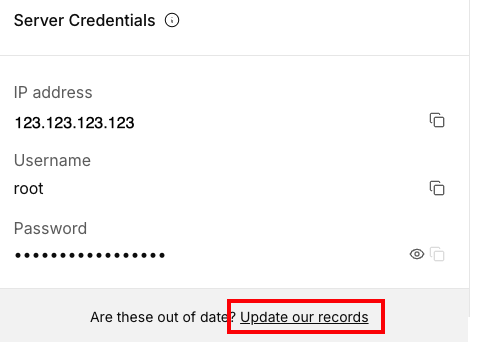
The Server Credentials block gives you access to the login credentials for the server that we have on file, including IP address, username, and password. If you have changed your password from the randomly assigned strong password, please click update our records so that we can continue to provide support for your server.