Enabling Two-Factor Authentication in WHM
Secure your server by enabling Two-Factor Authentication (2FA) in WHM. Learn how to configure 2FA for root access and manage cPanel users.
Before Two-Factor Authentication can be enabled for your user, they will need to download a two-factor authentication app like Duo Mobile or Google Authenticator. With this app, you will enter the key or scan the QR Code given during the Two-Factor Authorization process
Two-factor authorization means that instead of just a password, you will also need a rotating authentication token along with the password (two factors) to log into WHM. Only the correct combination of the first and second factor will allow you to log in and access your server through WHM. In addition to adding two-factor authorization for users in WHM, you can also enable it for users in your Liquid Web account.
- To enable two-factor authorization in WHM, log into WHM as root.
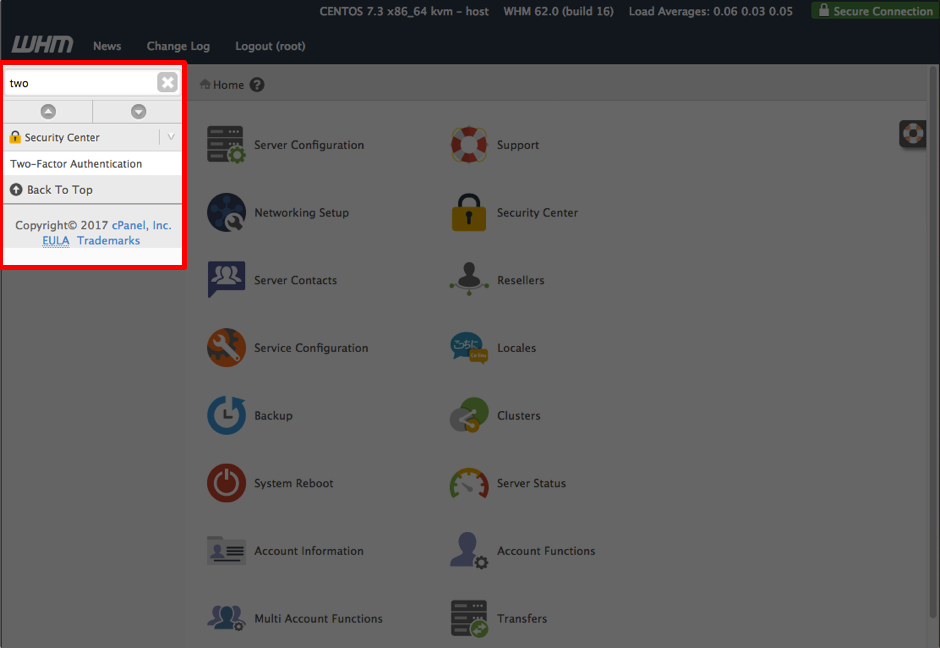
- Type the word two in the search bar on the left-hand side of the page to bring up the menu item, Two-Factor Authentication.

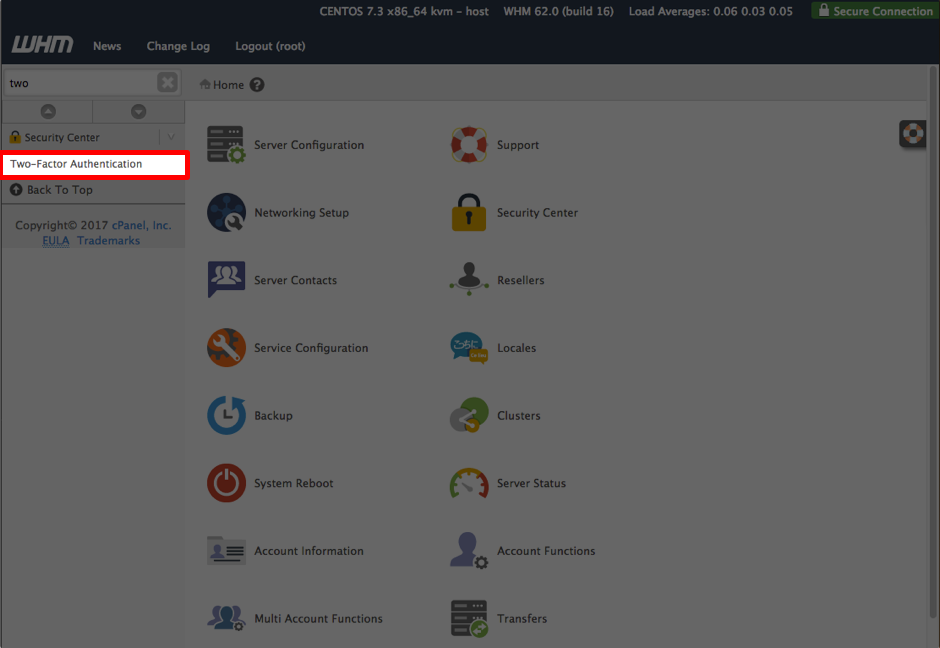
- Select Two-Factor Authentication.
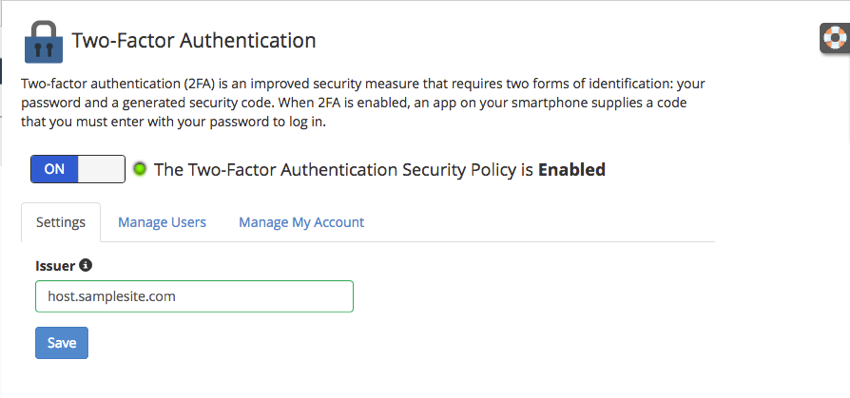
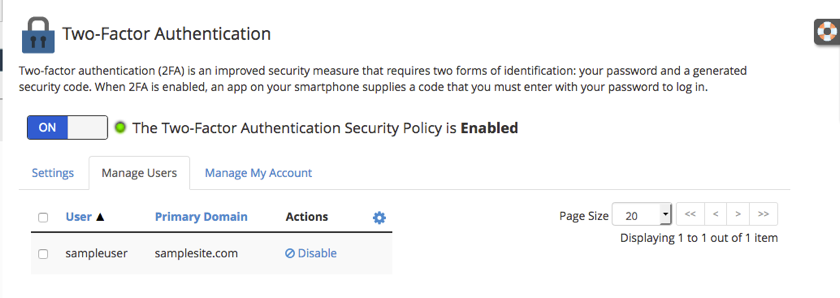
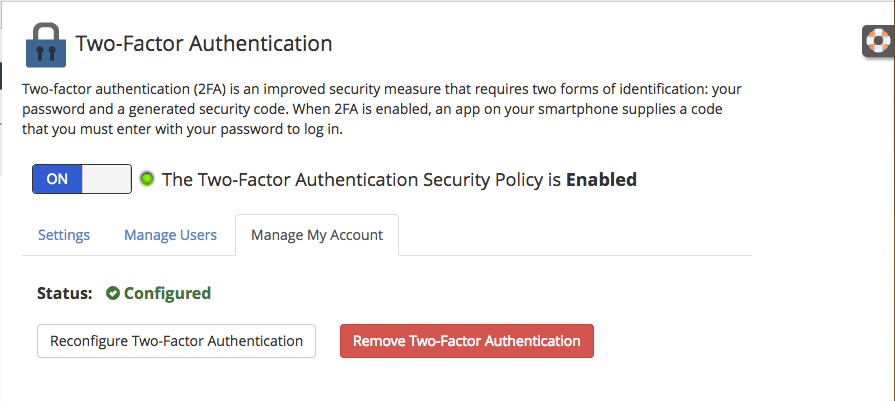
- This will take you to the Two-Factor Authentication home page. It is set to disabled by default. Click the button to enable.

- The Settings tab should show your host name as the Issuer. If it does not, enter your host name and click Save.
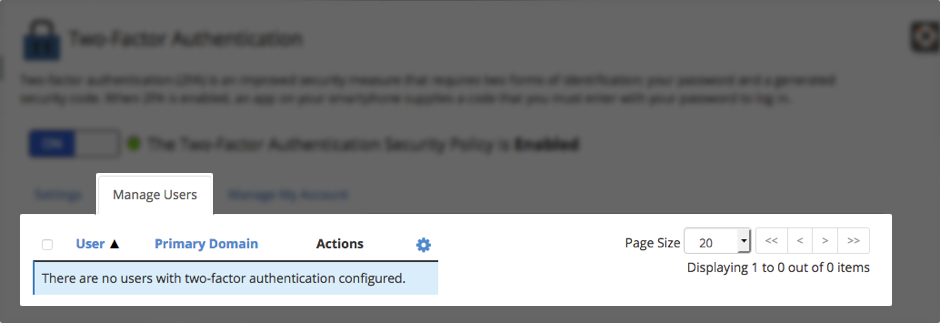
- The Manage Users tab will remain empty until you set up two-factor authentication for each cPanel user you want to have that login method. See our article Enabling Two-Factor Authentication in cPanel to set up your users.

- Once Two-Factor Authentication is enabled on a cPanel users account, they will show in the Manage Users section.

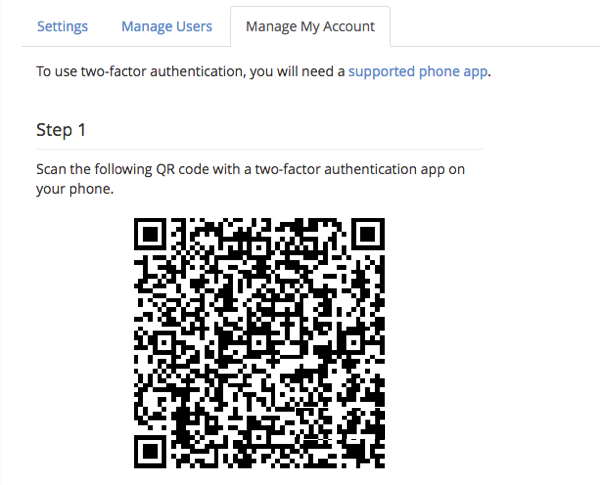
- Next, Configure the Two-Factor Authentication in the Manage My Account tab.
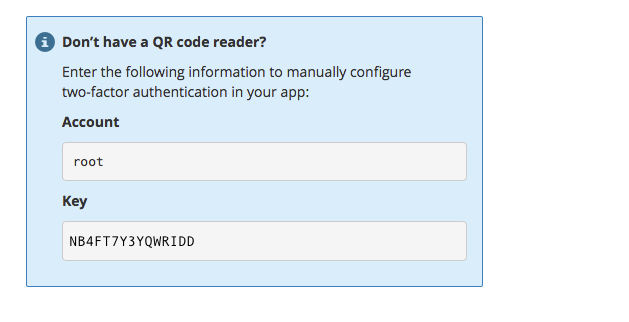
- Scan the QR code into your two-factor authentication app on your phone. If you don’t have a scanner, you can enter the credentials under the bar code.


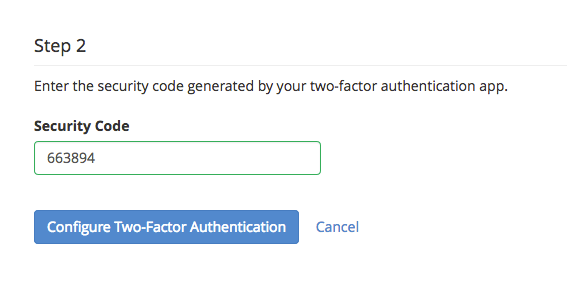
- Enter the authentication code in the authenticator application on your phone.

- Click the Configure Two-Factor Authentication button to complete the process.