

Enabling SpamAssassin for Spam Filtering
There are two potential problems when it comes to using your own mailserver and spam: spam email being sent to your account and spam email being sent from your account. The free program SpamAssassin can reduce how much spam email gets to your inbox. This article will show you how to enable SpamAssassin on a domain.
SpamAssassin assigns a score to each email you receive. Then, based on your settings, it rejects email that scores too high. The scoring is from 0 to 10, with 0 having the strictest rules and 10 having the most relaxed rules. It’s like a threshold: if you set the threshold to 5, emails that score 6 or higher will be marked as spam. We generally recommend starting at a threshold of 5, then adjusting as necessary.
SpamAssassin is available for both cPanel and Plesk servers.
Enabling SpamAssassin in cPanel
- Log into the cPanel account that has your email account. If you haven’t set up an email address on your domain, read our article on Creating Email Accounts in cPanel first.
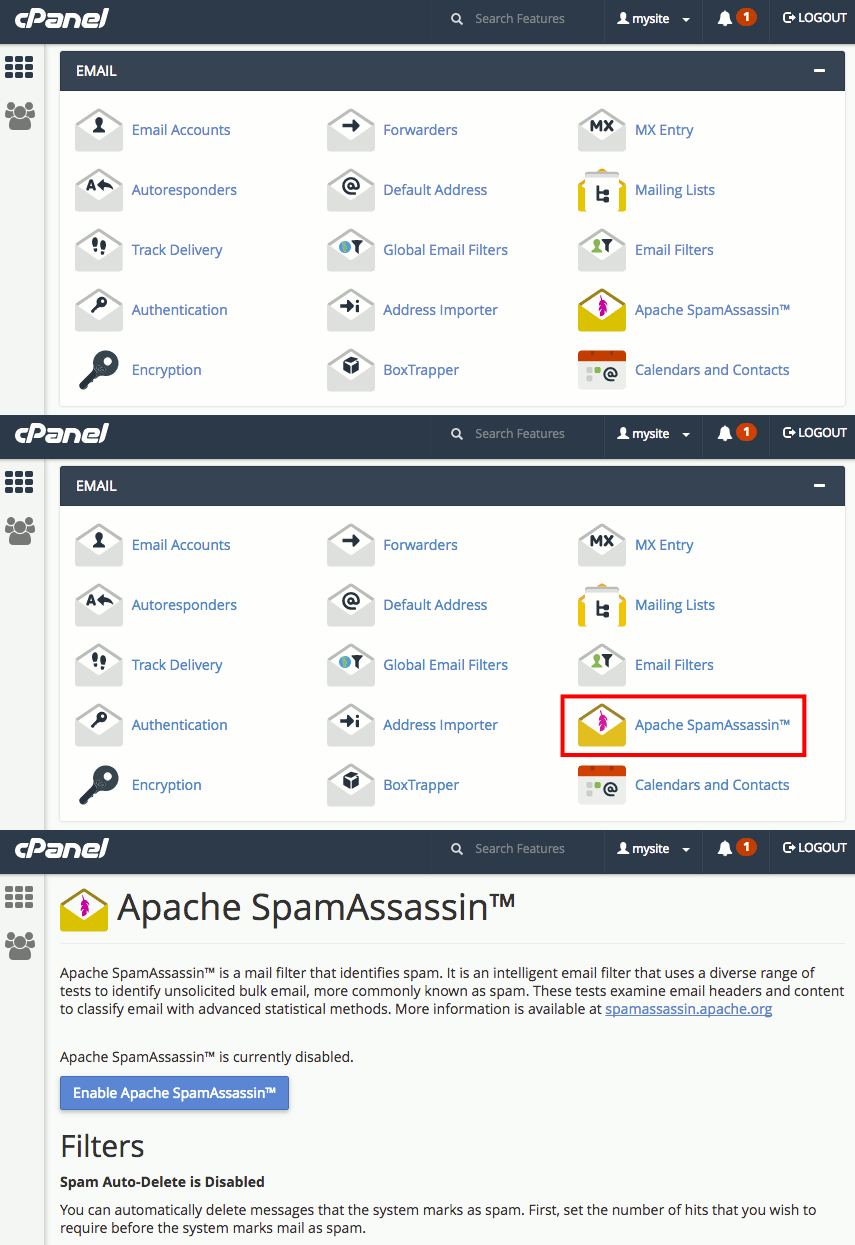
- Scroll down to the Email section on the cPanel homepage and click on Apache SpamAssassin.

- Click Enable Apache SpamAssassin. SpamAssassin will start and you’ll see a success message.

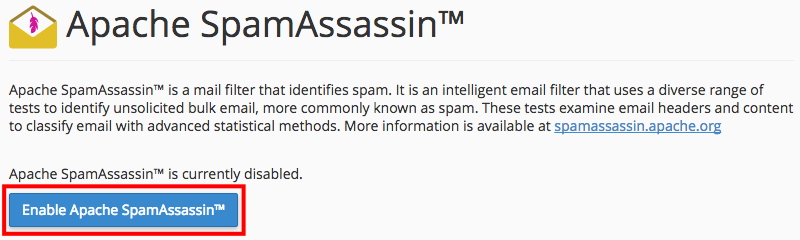
That’s all you need to do to enable SpamAssassin! But, after you’ve turned SpamAssassin on, you can fine-tune the settings.
Configuring SpamAssassin in cPanel
Depending on your mailbox setup, you can change different SpamAssassin settings.
Spam Auto-Delete
SpamAssassin can either deliver or delete messages flagged as spam.
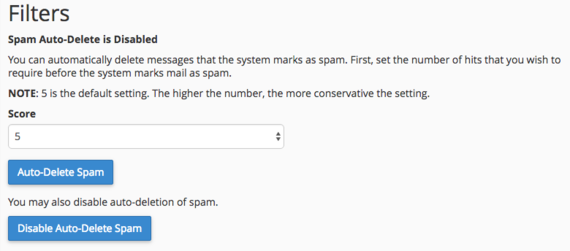
- On the Apache SpamAssassin page (where you just enabled SpamAssassin), scroll down to the Filters section.
- Use the Score dropdown menu to set the score at which you want to start rejecting spam. Remember this works like a threshold: the higher the number, the more relaxed the rules are.
- Then, click Auto-Delete Spam. If you start auto-deleting spam and realize you no longer want to, come back to this page and click Disable Auto-Delete Spam.

Spam Box
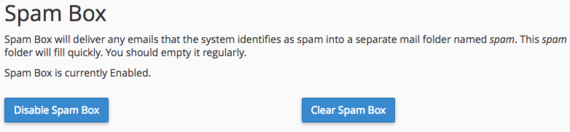
When you enable SpamAssassin, Spam Box is also enabled. This places all the spam that SpamAssassin finds into a folder in your mailbox called spam.
- On the Apache SpamAssassin page (where you just enabled SpamAssassin), scroll down to the Spam Box section.
- Simply click Disable Spam Box or Enable Spam Box to change this setting.

Address Whitelists and Blacklists
You can get very specific with your SpamAssassin rules. Here, you enter certain email addresses or domains you want to whitelist or blacklist. Usually the default SpamAssassin settings work pretty well, but you can add addresses to these lists if they are being filtered incorrectly.
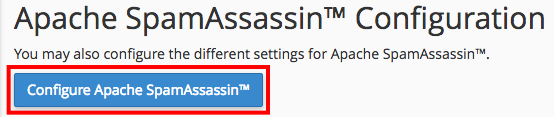
- On the Apache SpamAssassin page (where you just enabled SpamAssassin), scroll down to the Apache SpamAssassin Configuration section.
- Open the SpamAssassin configurations by clicking on Configure Apache SpamAssassin.

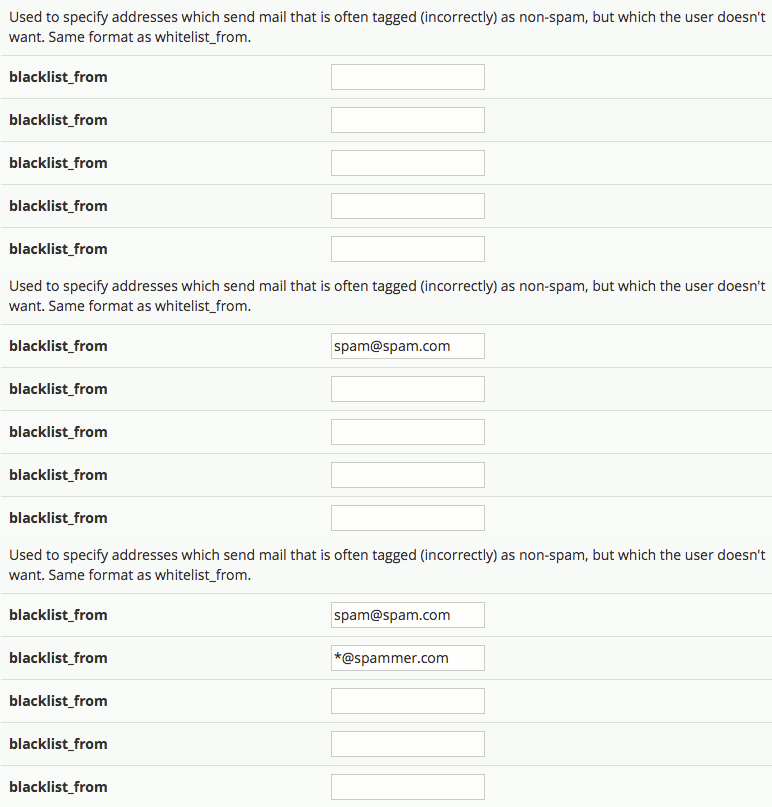
- Add email addresses to the blacklist_from fields to mark email from those addresses as spam . You can also add records as “*@adomain.com” to block all addresses from a certain domain.

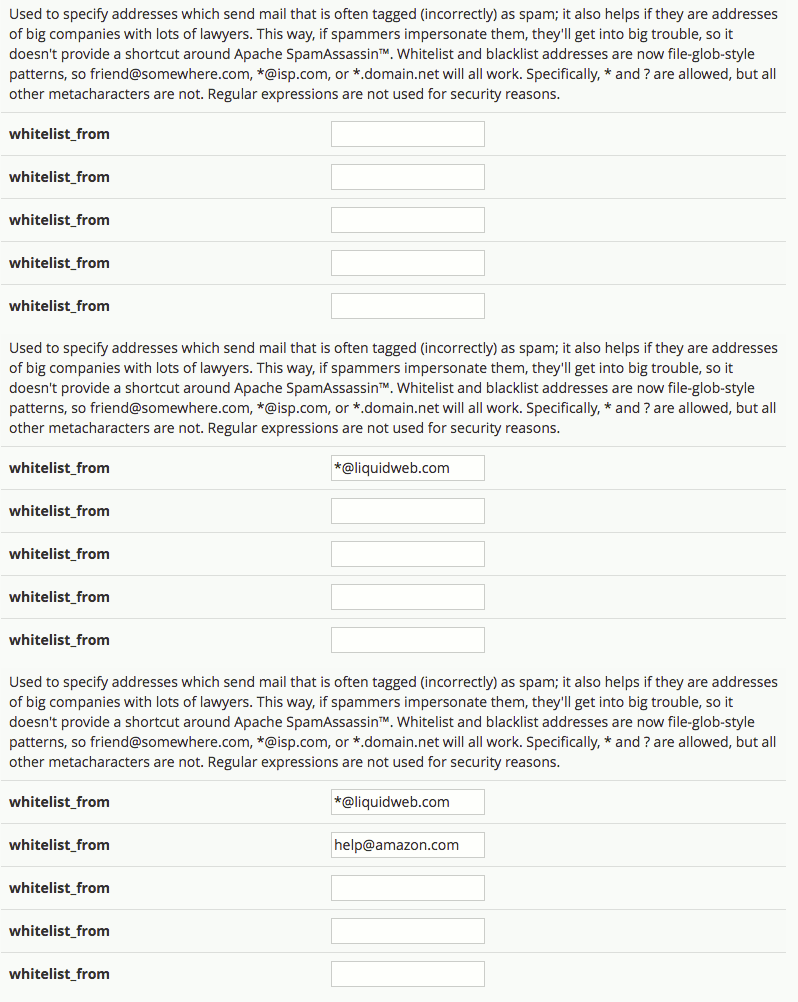
- Add email addresses to the whitelist_from fields to mark email from those addresses as legitimate. You can also add records as “*@adomain.com” to allow all addresses from a certain domain.

SpamAssassin is a good open source spam solution. Unfortunately, SpamAssassin isn’t perfect and can miss some spam. We recommend also Filtering Spam Using RBLs and Using ClamAV for Virus Protection on your server. If you want the most precise spam filtering, we recommend moving to our Premium Business Email product.
Enabling SpamAssassin in Plesk
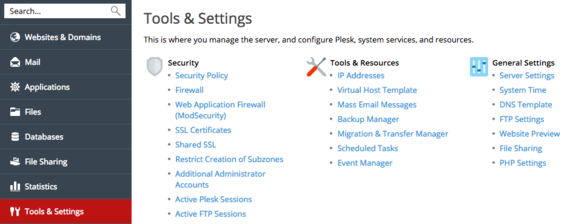
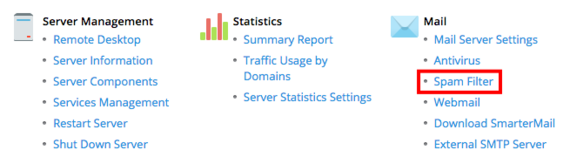
- In the left navigation menu, click on Tools & Settings.

- Click on Spam Filter under Mail.

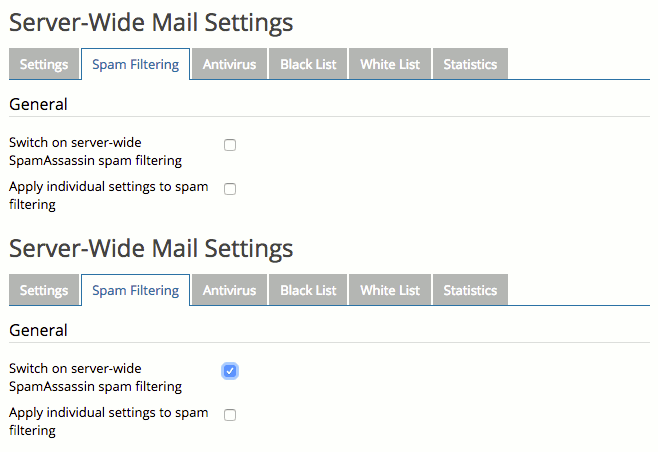
- First, you’ll enable SpamAssassin by checking the box for Switch on server-wide SpamAssassin spam filtering. If you want, you can also apply individual settings to spam filtering.

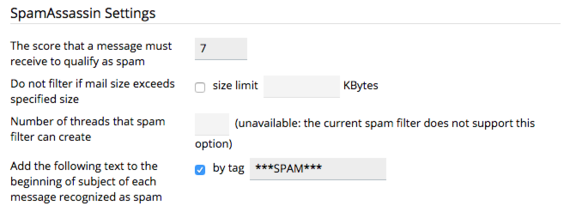
- Now, choose your SpamAssassin settings. The most important setting is the score that a message must receive to qualify as spam. Remember this works like a threshold: the higher the number, the more relaxed the rules are.

- Every other setting depends on the type of email your server receives. You can choose trusted languages and locales, as well as choose how you want potential spam to be marked in your inbox.
- Once you’ve changed the settings to work for your server, click OK. Remember you can change these settings at any time if you need to!
SpamAssassin is a good open source spam solution. Unfortunately, SpamAssassin isn’t perfect and can miss some spam. We recommend also Filtering Spam Using RBLs on your server. You can also have automatic spam filtering through our Premium Business Email product offering!