

Multi-Factor Authentication for Premium Business Email
The Premium Business Email Control Panel offers two options to enable multi-factor authentication during your initial login.
The Premium Business Email Control Panel provides two options for enabling multi factor authentication when you first log in. Upon login you are presented with the option to set up multi factor authentication. You can proceed with this option or skip it.
Use Text Message Multi-factor Authentication
With text message multi-factor authentication, you can use your phone number to receive a one-time code that allows you access to the control panel.
Use the following steps to enable text message multi-factor authentication:
- Log in to your Premium Business Email Control Panel.
- When you are prompted with a screen titled Choose Your Multi-Factor Authentication Method, select Get A Text Message.
- Enter the phone number that you want to link the multi-factor SMS messaging with.
- After a verification code has been sent to your phone, enter the code in the verification field and click Verify Code.
- The last step displays the following message: You have successfully set up Multi-Factor Authentication!
Use a Multi-factor Authentication Mobile Application
Use the following steps to enable a mobile multi-factor authentication application:
- Log in to your Premium Business Email Control Panel.
- When you are prompted with a screen titled Choose Your Multi-Factor Authentication Method, select Use a Mobile App.
- Link your mobile device to your administrator account by using the following the instructions in the prompt:
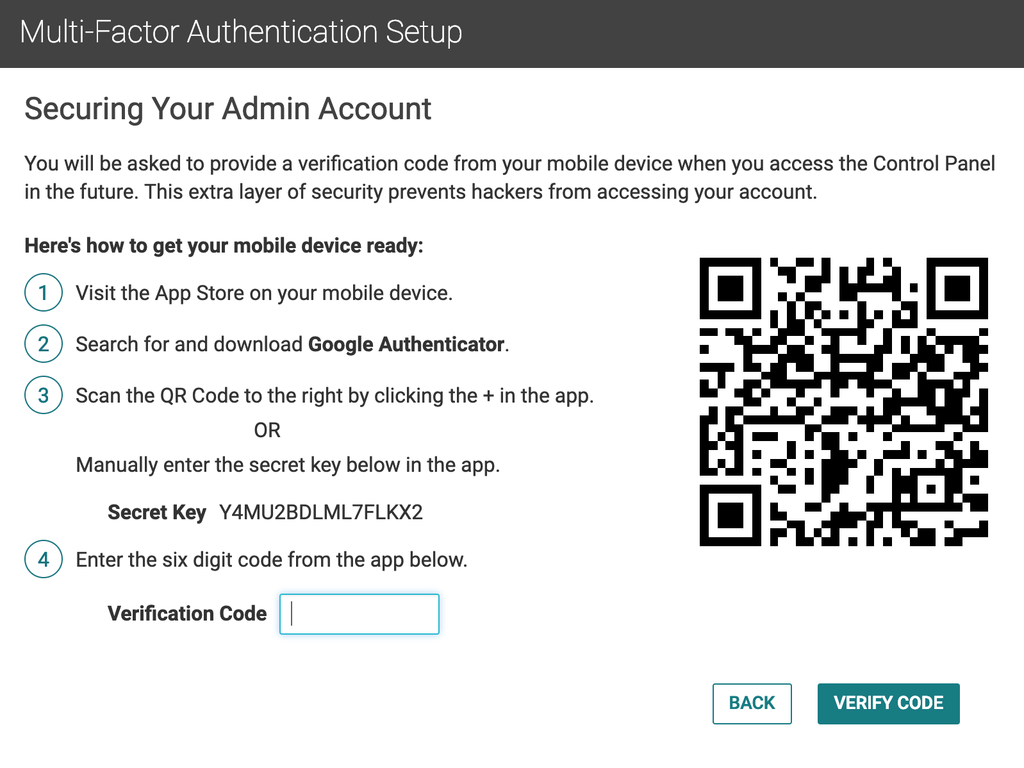
- The last step displays the following message: You have successfully set up Multi-Factor Authentication!
NOTE |
| When you change mobile devices, you will need to disable two-factor authentication and re-enable it on the new device. |
Log in to the Control Panel with Two-Factor Authentication
- Navigate to Premium Business Email Control Panel.
- Enter your Admin ID and Password.
- When prompted for the Two-Factor Verification Code, use the desktop or mobile two-factor authentication application that you already installed to produce a verification code. Enter this code into the Two-Factor Verification Code field.
You have successfully logged in using two-factor authentication.