

Deleting Mailboxes in Premium Business Email
Learn how to delete mailboxes in your Premium Business Email control panel. Plus, see how to recover accidentally deleted accounts within 14 days.
You’ve seen how easy adding a Mailbox is, now let’s take a look at deleting mailboxes.
- Log into your Premium Business Email control panel.
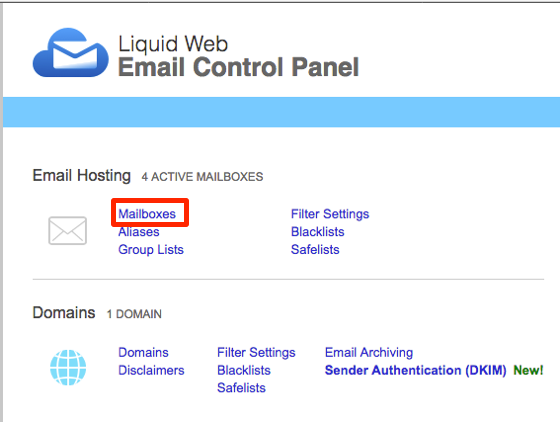
- Select Mailboxes from the Email Hosting section.

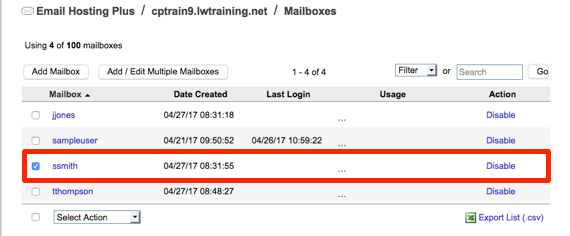
- From the list of users, select the mailbox or mailboxes you want to delete by checking the box next to the name.

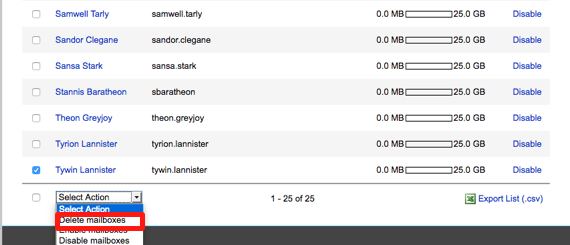
- Using the drop-down menu below the mailbox list, select Delete mailboxes.

- Confirm that you want to delete the mailbox in the pop-up.

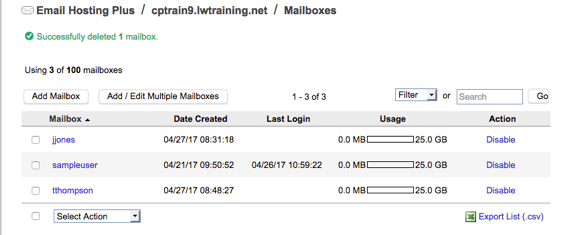
- When the mailbox is deleted, a green success message will appear notifying that it has been deleted and the mailbox will no longer show in your list.


Delete a Mailbox Accidentally? |
If you accidentally delete a mailbox, you can recover it for up to 14 days after deletion. See how in our article Troubleshooting: Deleting a Premium Business Email Mailbox Accidentally. |