

Access or Download Premium Business Email Archive
The following steps will walk you through how to log in to your Premium Business Email account to create and download an Archive of your email accounts.
Tip
You must already have Premium Business Email Archiving enabled to access this feature. If Archiving was not enabled previously, you will not have any archived email available to access.
- Log into the manage.liquidweb.com portal using your portal.liquidweb.com login information. You can also be redirected to your Manage interface from Portal.liquidweb.com by going to services and clicking on the Premium Business Email link under the Domain Services Section.
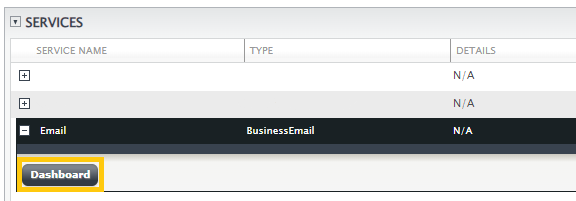
- Under the Services section on your home screen, you should see your Email service, expand it using the [+] button next to the email service and click on the Dashboard button.

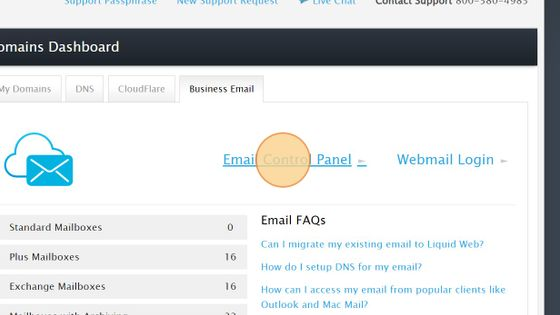
- Click Email Control Panel.

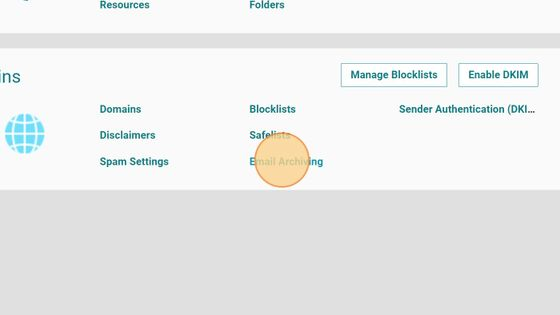
- Click Email Archiving.
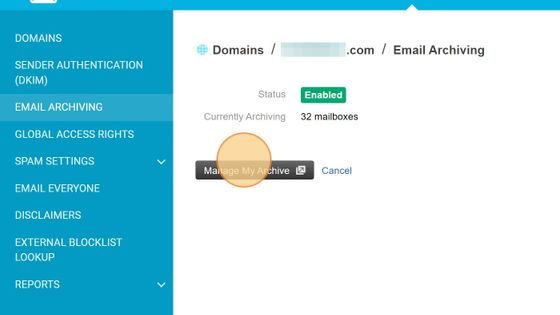
- Click Manage My Archive.
- Click Searches.
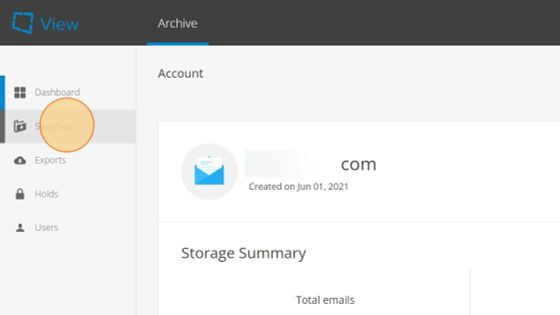
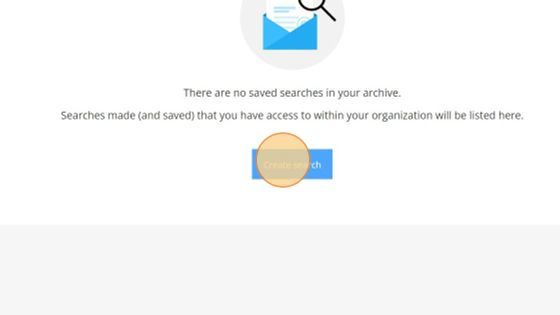
- Click Create Search.
- Add desired parameters and click Search.
- Click Save.
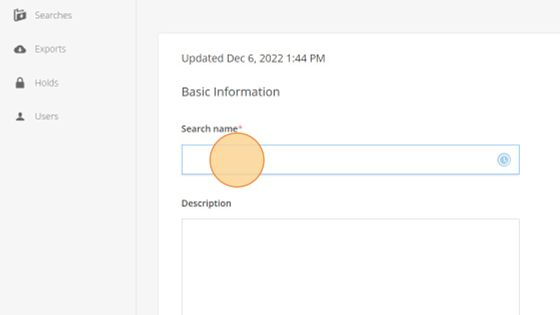
- Add a meaningful Search Name and Description.
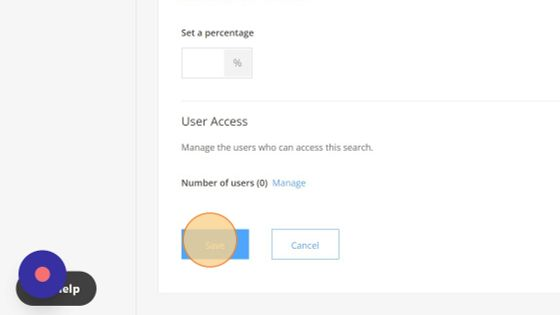
- Click Save.
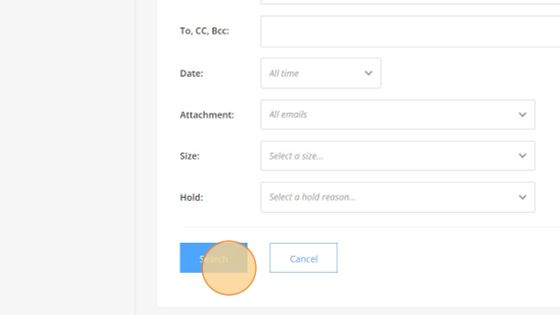
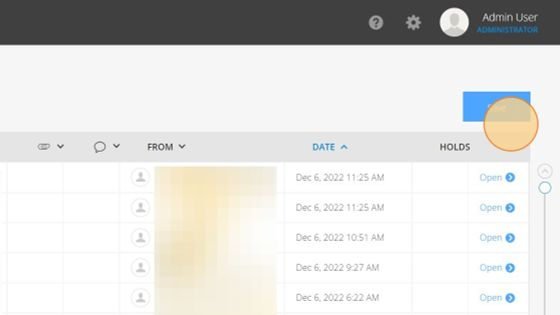
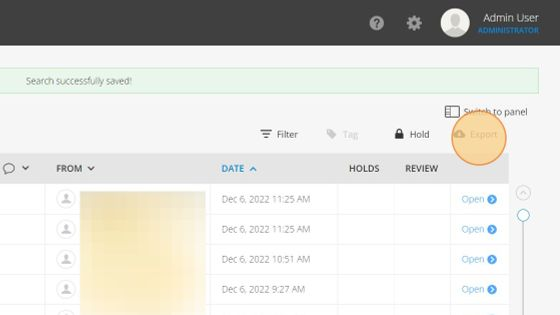
- Click Switch to Panel. Select all desired objects for the export (or all). Click Export.
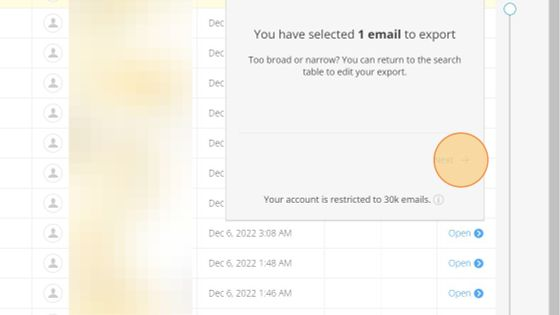
- Click Next.
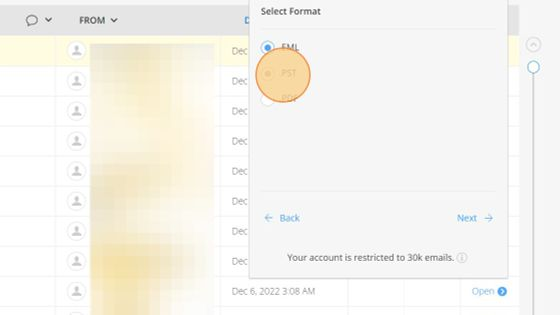
- Select .PST or desired format and click Next (A PST takes time to create but is the default for MS Outlook).
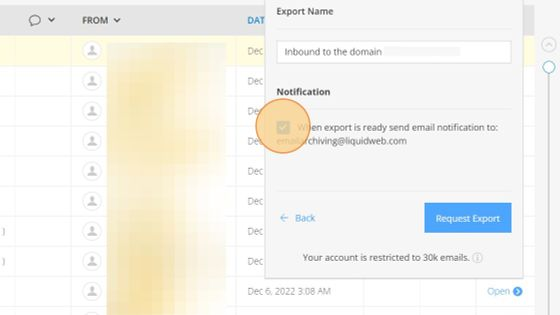
- Confirm the notification email address when the archive is ready. By default, this will be set to a liquidweb.com address.
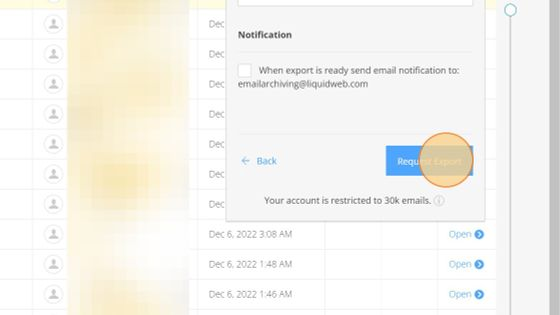
- Click Request Export.
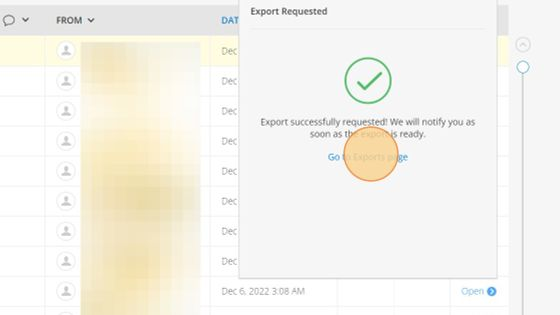
- Click Go to Exports Page.
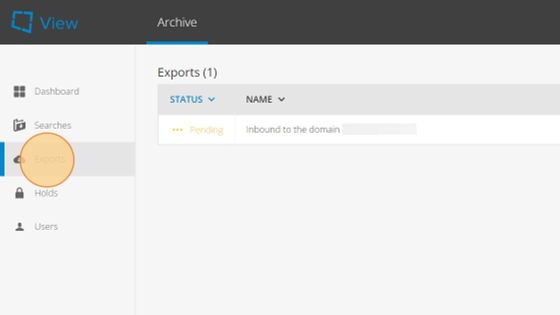
- Click Exports. Once complete, you will be able to download the email from this interface and will also be sent a link in the notification email.
That’s it! You have successfully downloaded an archive of your email from your Premium Business Email account.