

Adjusting Spam Filtering in Premium Business Email
Premium Business Email has spam filtering built in and gives you control over it is handled. You can choose to enable or disable the spam functions and decide how spam is delivered to the inbox. There are two ways of controlling your spam filter settings:
- at the domain level, with the ability to override individual user settings
- at the individual user level, with the ability to override the user’s preferences in their mailbox
Watch this video or scroll down for further instructions:
Domain-Level Mailbox Spam Settings
In addition to having the control to set spam filter settings for individual users, you can also set them at the domain-level. This means that the entire domain will have the same filter settings and can be set to override all individual mailbox spam settings.
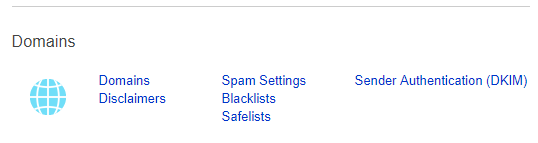
- Navigate to the Domains section of your email control panel.

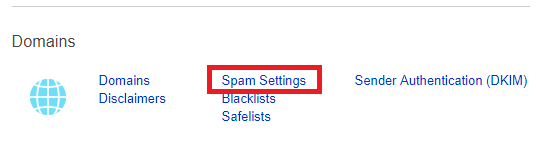
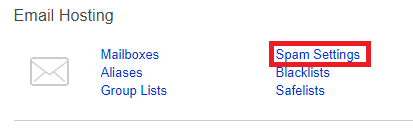
- Select Spam Settings from the menu.
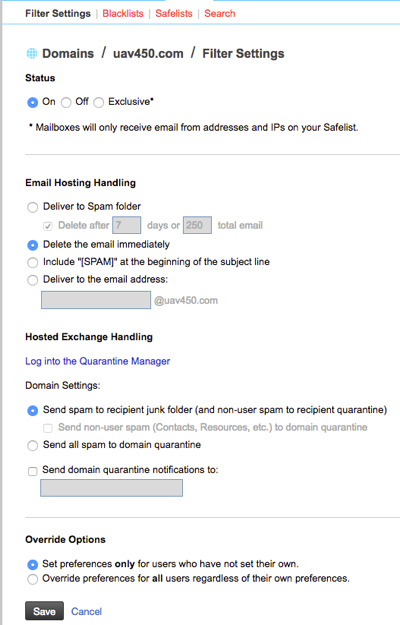
- This will take you to the main page for the domain-level spam filter settings. You will see many options here to choose from. See the descriptions of these settings below:
- On/Off/Exclusive – Selecting On will turn spam filtering on, Off will turn off all spam filters and Exclusive will allow only emails from addresses and IPs you’ve listed in your Safelist (whitelist).
- Deliver to Spam Folder – This allows messages to be sent to the user’s spam folder. You can decide to automatically delete the messages from this folder by selecting to delete after x amount of days or x amount of emails in the folder.
- Delete the email immediately – Spam email will be deleted immediately and not be delivered to the user’s mailbox.
- Include “[SPAM]” at the beginning of the subject line – Mail delivered that is flagged by the filters as spam will have the text “[SPAM]” in the subject line.
- Deliver to the email address – You can select an email address to send all spam messages to.
- You can choose Override Options to set the spam filter settings only for users who haven’t set their own, or choose to override all users, regardless of individual level preferences.

Individual Mailbox Spam Settings
As an administrator, you have access to set spam filter settings for individual email users. You can set the filters to act different ways for different users, depending on their email use practices. This section will walk you through the options for spam filtering.
Administrator Spam Filter Settings |
| The administrator spam filter settings can be set to override any individual user’s spam filter settings that they enable from their mailbox. |
Filter Settings
- To set the spam filters for an individual email user, log into your administrator email control panel.
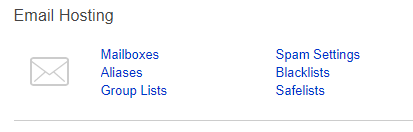
- Click on Spam Settings.
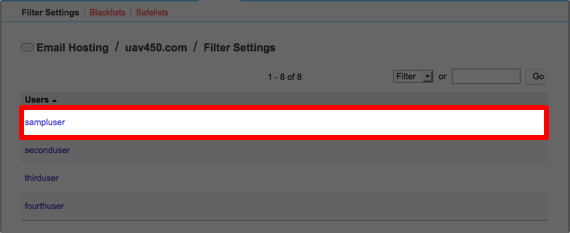
- This will direct you to a page showing a list of users on the account.
- From this list, click on the name of the user that you’d like to edit spam settings for.

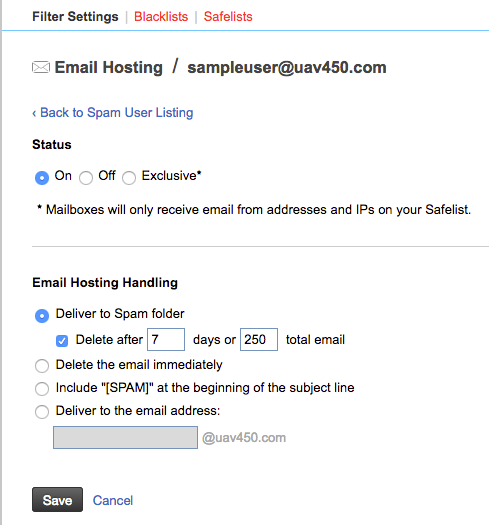
- This will open their spam filter options. You will see many options here to choose from. See the descriptions of these settings below:
- On/Off/Exclusive – Selecting On will turn spam filtering on, Off will turn off all spam filters and Exclusive will allow only emails from addresses and IPs you’ve listed in your Safelist.
- Deliver to Spam Folder – This allows messages to be sent to the user’s spam folder. You can decide to automatically delete the messages from this folder by selecting to delete after x amount of days or x amount of emails in the folder.
- Delete the email immediately – Spam email will be deleted immediately and not be delivered to the user’s mailbox.
- Include “[SPAM]” at the beginning of the subject line – Mail delivered that is flagged by the filters as spam will have the text “[SPAM]” in the subject line.
- Deliver to the email address – You can select an email address to send all spam messages to.
- When you have selected the settings, click Save.
For more information about Spam Control, see Spam Control Features in Premium Business Email.
Find information on blacklisting and safelisting domains, email addresses and IP addresses in our articles: