Adding/Deleting a domain in Premium Business Email
Now that you've purchased a Premium Business Email account, you'll need to add your domain to the service to get your email working. You can do this from your Liquid Web account. It's also easy to delete domains from the same location.
Adding a Domain in Premium Business Email
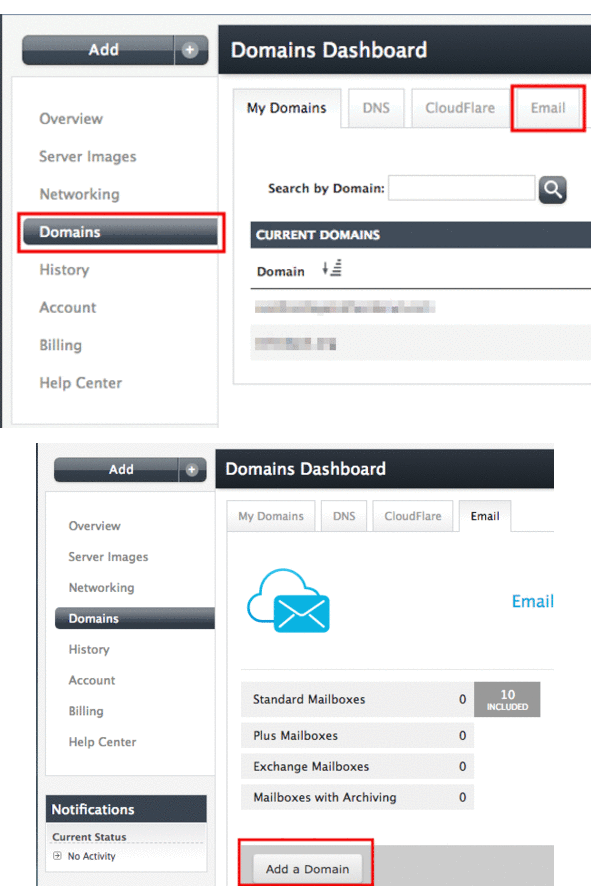
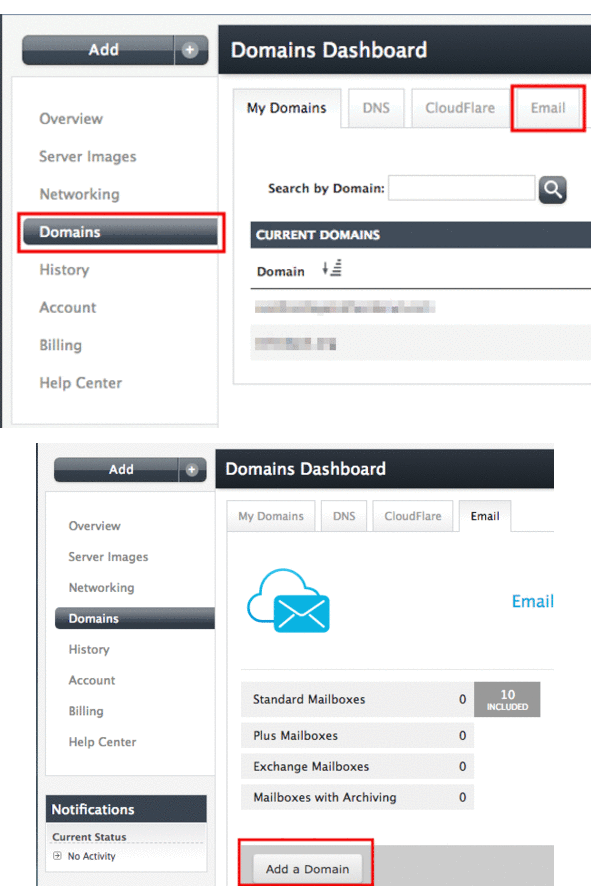
- Log into your Liquid Web account and click on Domains. Locate the Email tab on the right-hand side of your screen and select the Add a Domain button.
- A pop-up box will appear where you can enter the domain you want to use for your email. Select the type of email product and number of mailboxes you’d like.
With Premium Business Email, there are three types of email to choose from, each with their unique defining qualities:
- Standard is the basic email service which offers 25 GB worth of space but does not include mobile sync, online editor for documents, or desktop synchronization.
- Plus is a premium email offering 25 GB worth of space and includes mobile and desktop sync, online collaborative editing for documents and a 30GB cloud drive for storage.
After selecting the type of email box and the quantity needed, click the green Create Email Domain. Continue onto our article Adding a Mailbox in Premium Business Email and Hosted Exchange to add in each email address.
Deleting a Domain in Premium Business Email
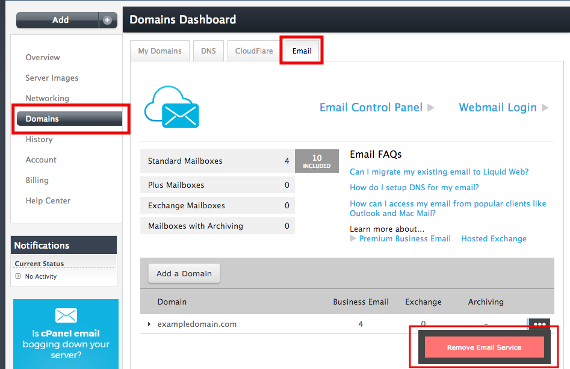
- Log into your Liquid Web Account and click on Domains. Locate the Email tab on the right-hand side of your screen. Find the domain you wish to remove and click on the three dots to the right of the domain. Then select the red button of Remove Email Service.
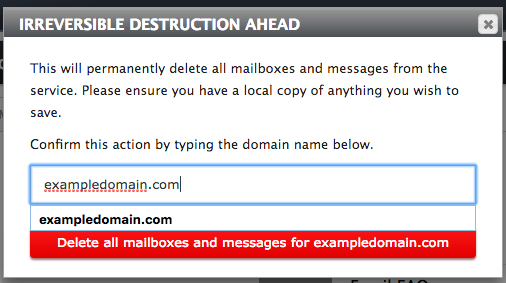
- After selecting the Remove Email Service a pop-up box appears, as a confirmation, you must type in the domain you want to delete. Doing so creates a clickable red Delete all mailboxes and messages button, clicking this button permanently deletes the domain email entry and its associated mailboxes.