

Importing and Exporting Address Book in Linux Webmail
Migrating email services to a Linux server or transferring contacts between systems can be arduous. Fortunately, common Linux webmail options like Horde and Roundcube offer tools to import and export address books using file types such as CSV or vCards. This guide covers the steps for importing and exporting contacts in both Horde and Roundcube webmail.
If you are migrating your email service to your Linux server or just need to copy over a set of contacts from one system to another, you know that this can be a tedious process. However, common Linux webmail options offer tools to help you import and export your address books using common file types (like csv files or vcards). We’ll cover importing and exporting in both Horde webmail and Roundcube.
Importing Address Book in Horde
- To import an address book in Horde, open your webmail and click on Address Book.
- Click on Import/Export.
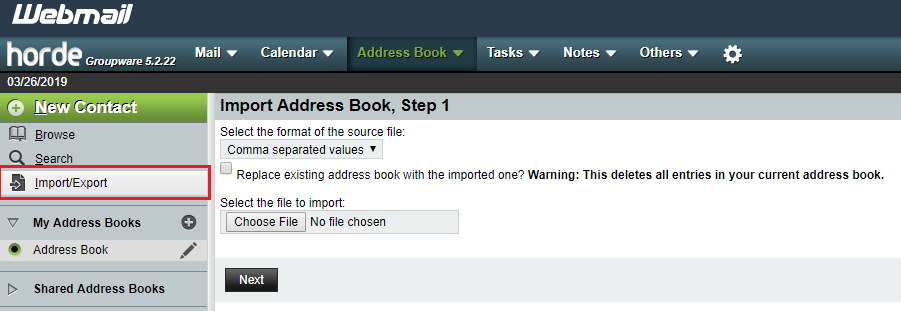
- Choose the file type in the format drop-down (we’ll use a Comma separated values file, which is the default).
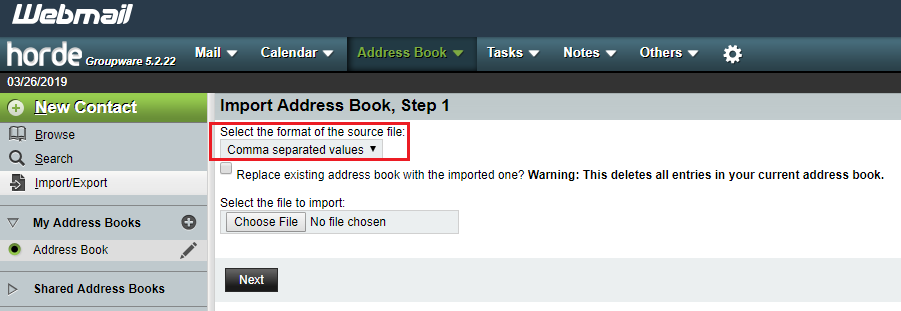
- If you’d like to replace the current address book, check the box. If you’d just like to add the entries to your existing address book, leave the box unchecked.
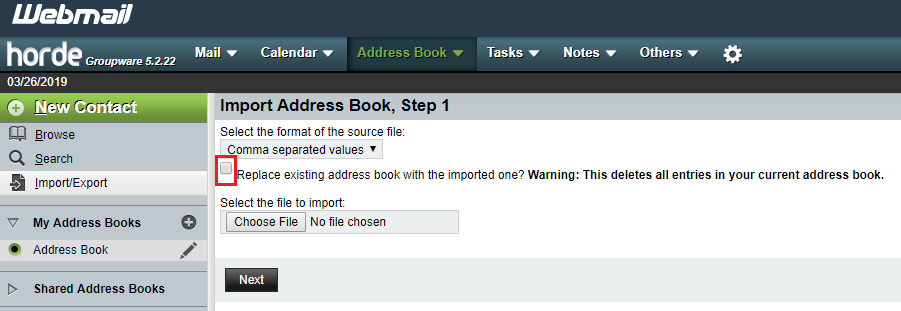
- Select the file to import by clicking Choose File, then click Next. Note: if you use a vcard file, the process will complete at this point. If you use another file type, like csv, you’ll need to follow these additional steps to match the fields in the csv to your address book.
- Answer the basic questions about the csv file to indicate how the file is formatted.
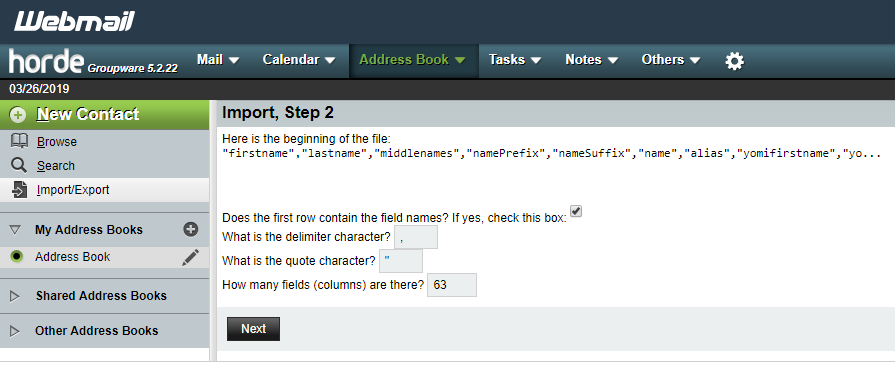
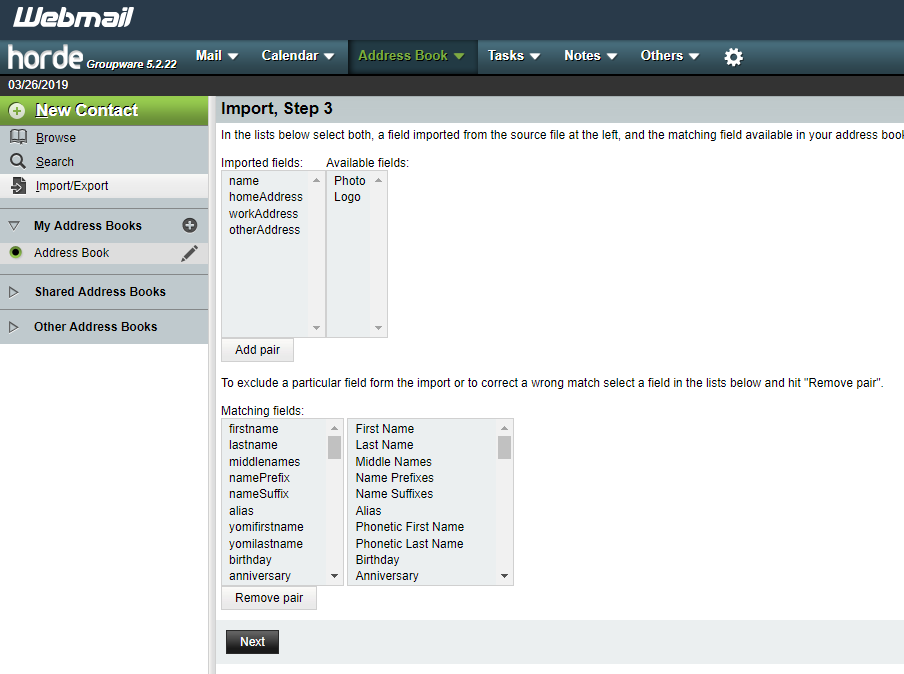
- Verify that the fields from the csv are correctly matched to the fields in the address book and make any adjustments needed by removing or adding pairs. Click Next to complete the import.
- Any issues with the import (like duplicate entries) will be shown in a pop-up notification in the lower right portion of the screen.
Importing Address Book in Roundcube
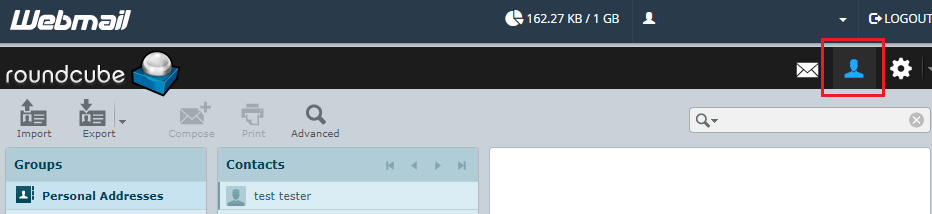
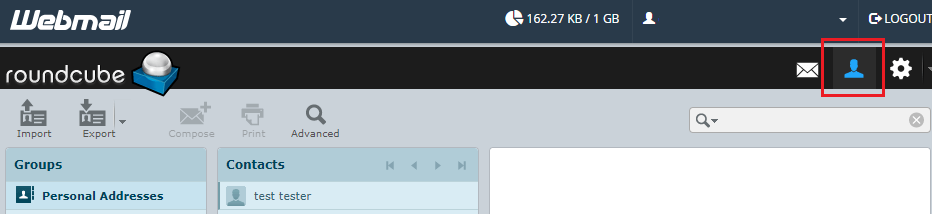
- To begin the import process in Roundcube, click on the contacts button.
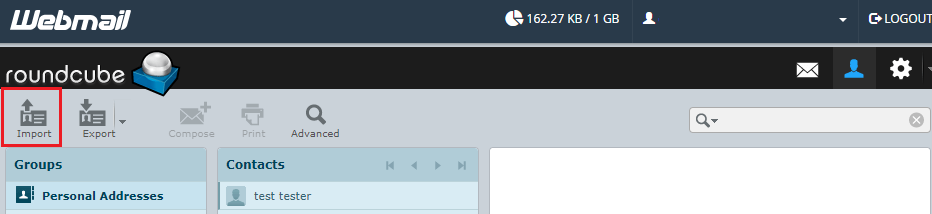
- Next, click on Import.
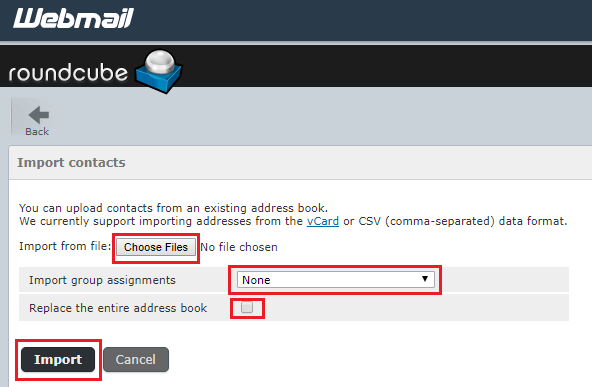
- Choose the details of the import. Select the file by clicking Choose Files button. Select the desired group assignment from the dropdown. Click the Replace the entire address book box if you would like the new address file to overwrite the existing book. Leave the box unchecked if you just want to add the new entries to the existing address book. Finally, click Import to complete the import process.
Exporting Address Book from Horde
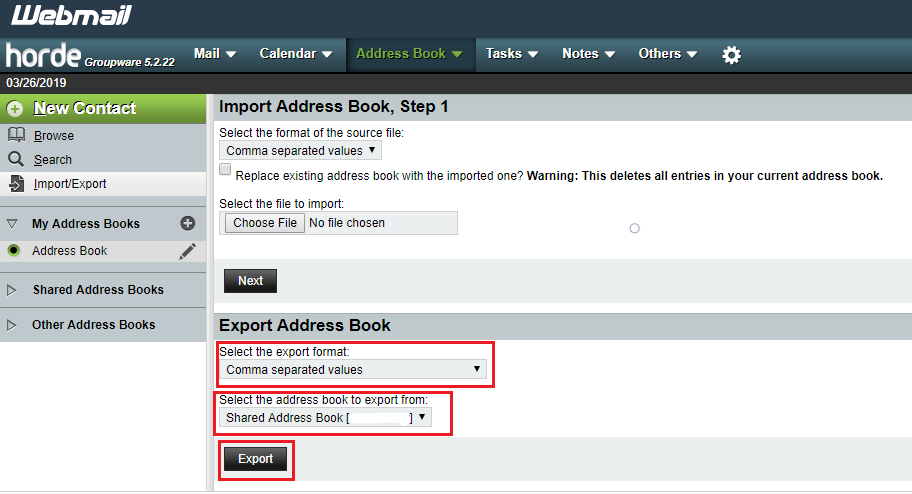
- To export an address book from Horde, click on the Address Book link and click Import/Export.
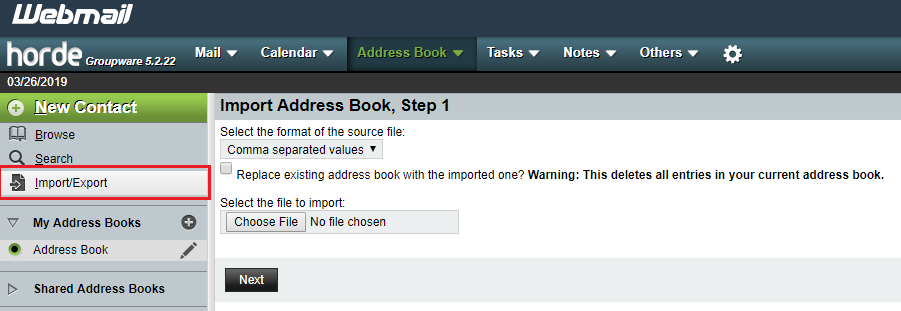
- Select the file format you would like to use (csv is the default). Select which address book you would like to export (primary, shared address book is the default). Finally, click Export.
- On the pop-up window, select the location to save the file, name the file, then click Save.
Exporting Address Book in Roundcube
- To export an address book in Roundcube, click on the Contacts link.
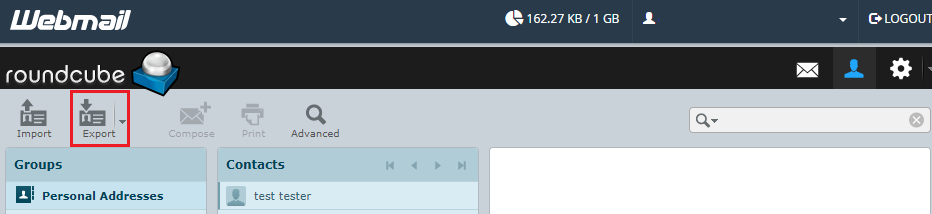
- Click on Export. Note: you can click the drop arrow next to Export to choose between exporting all contacts or just those that were selected.
- In the pop-up window, choose a location for the file, name the file, then click Save.