Forwarding Your Server Email to Another Email Account
If you have multiple email addresses, you might find it convenient to forward all your email to a single inbox. This article will walk through how to forward your email from your server and also the potential problems with forwarding your email.
Potential Problems with Forwarding
Although forwarding email can be convenient and is easy to do from your server control panel, it can affect your IP’s email reputation. In most cases, your email will be checked for spam before it gets forwarded to your secondary email address. The spam will not be forwarded. However, this is not always the case.
If the email address hasn’t been created in cPanel but is being used just to forward email, all the email will be forwarded, even if it’s been marked as spam. Plus, sometimes spam messages can get through your spam filter. The bottom line is: if your email forwarder forwards a spam message accidentally, it might look like your server (and your IP address) is sending that spam!
If you have lots of email forwarders or you forward your email for a long time, this problem will compound. Your IP could become associated with sending spam (even though you aren’t intentionally forwarding spam)! One way to get around this is to use your secondary email address (the one you are forwarding to) pull the email from your server instead of pushing it from your server to the secondary address. Check with your secondary email provider for their preferred method. For example, Gmail has specific best practices.
cPanel
- Log into your cPanel account.
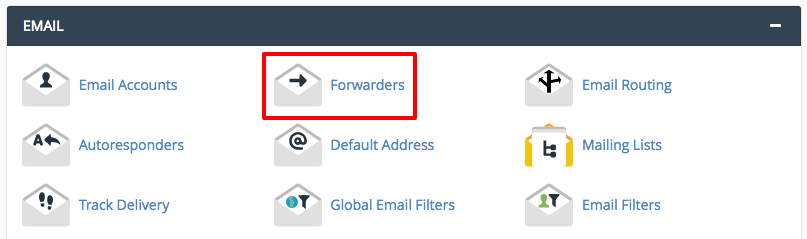
- In the Email section, click on Forwarders.

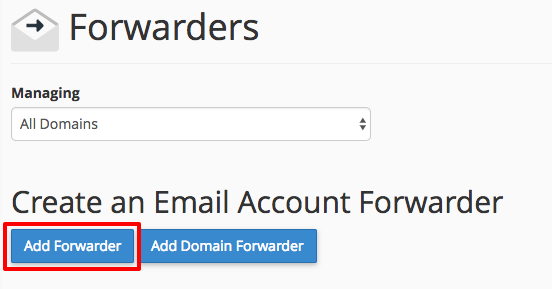
- Here, you’ll see all the forwarders you currently have in place. Click Add Forwarder.

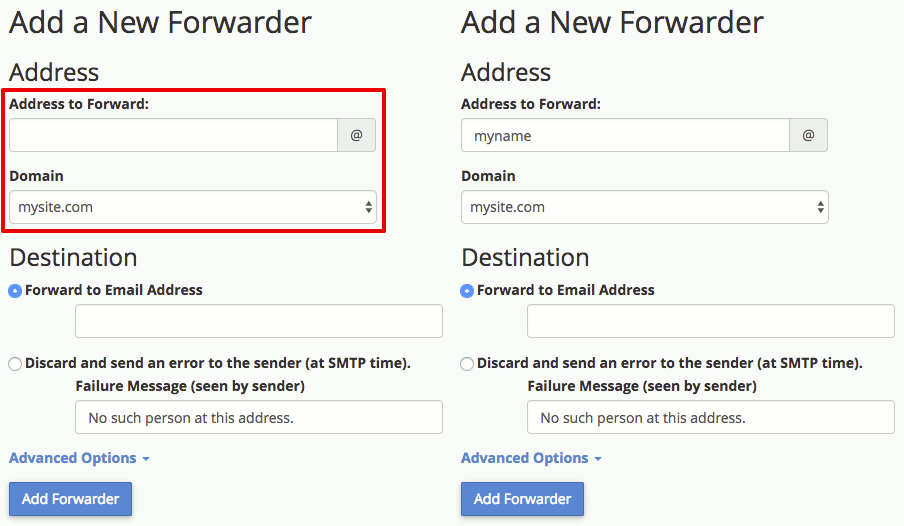
- Type in the email address you’d like to forward.

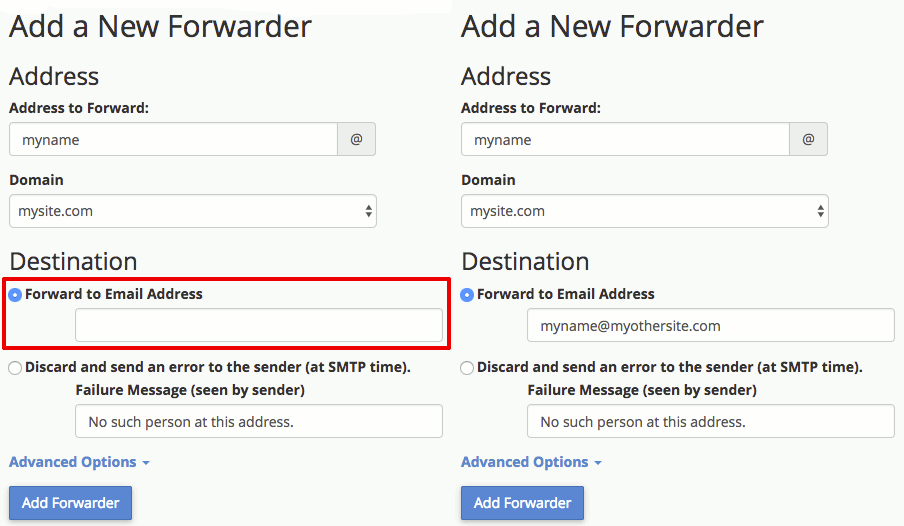
- Then, type the email address where you want the email to be forwarded. Or, you can select the radio button for Discard and send an error to the sender (at SMTP time).
- Click Add Forwarder.
Plesk
- Log into Plesk.
- In Power User view, click on Mail in the left navigation menu. In Service Provider view, click on Domains in the left navigation menu and then click on the domain with the email address you will be forwarding. Click on Mail.
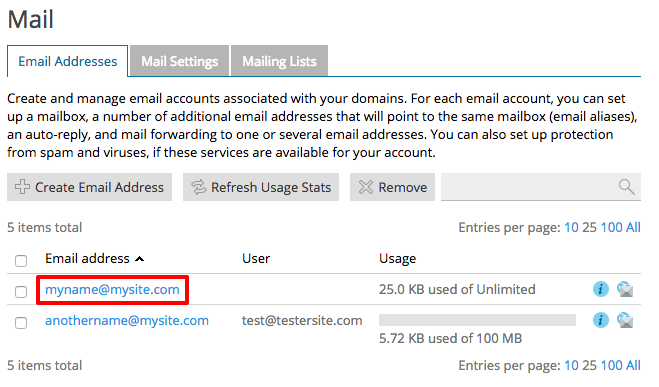
- Click on the email address you will be forwarding.

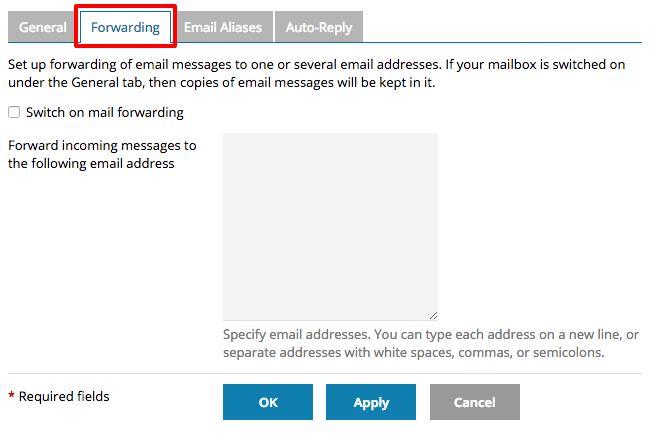
- Click on the Forwarding tab.

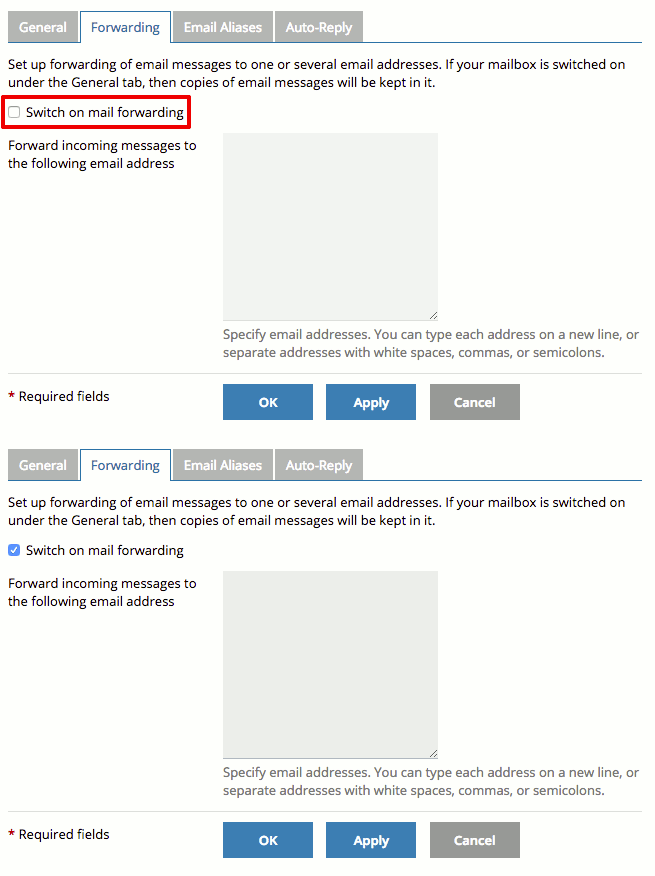
- Check the box for Switch on email forwarding.
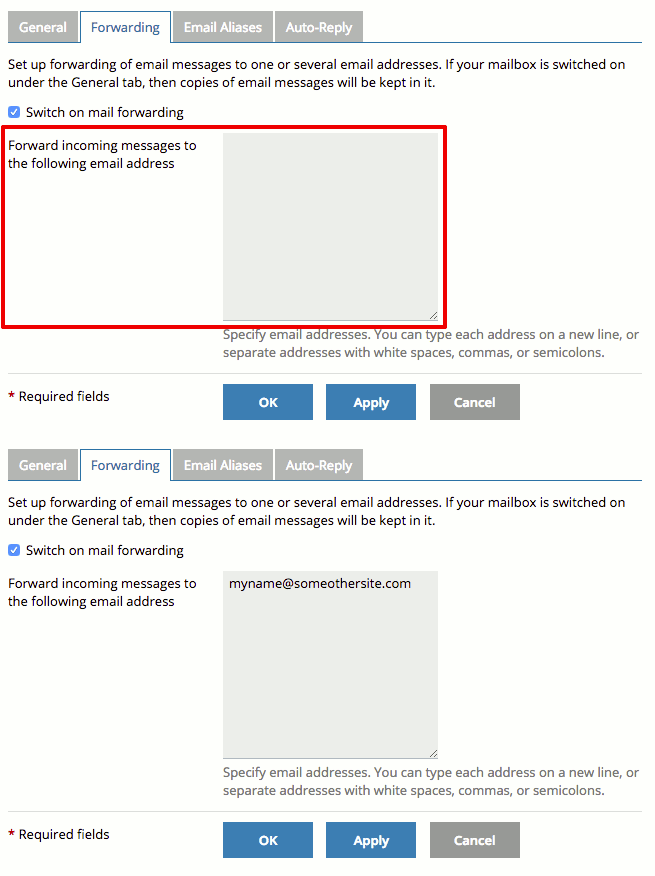
- Enter the email address where you’d like to forward your email.
- Click OK to save your settings.