Create a Group Email List in Premium Business Email
Easily send announcements and updates to all domain mailboxes and external addresses by creating group email lists in Premium Business Email. Control reply settings and sender permissions for enhanced management.
You can create a group email list in Premium Business Email to send announcements, updates and other information to all mailboxes on your domain and to external email addresses. You can control the settings for replies from specific recipients, as well as limit who can use the email address to send emails.
Email Address Limit: |
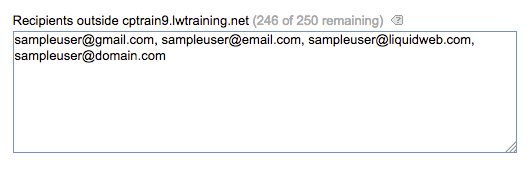
| You are limited to 250 addresses outside of your domain and messages must be under 5MB in size. |
Watch this video or scroll down for further instructions:
- To begin setting up a group list, log into your Premium Business Email control panel.
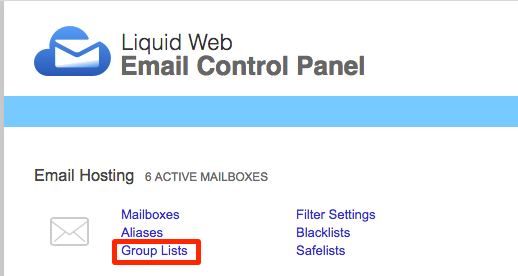
- From the menu under Email Hosting select Group Lists.

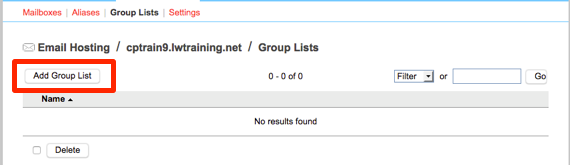
- Click the Add Group List button.

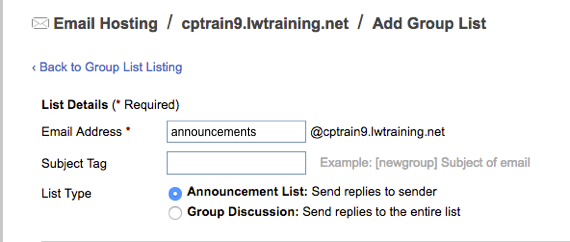
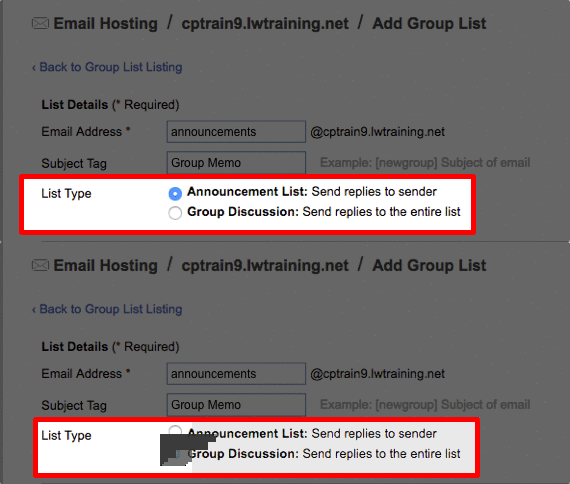
- Create an email address to send group emails from.

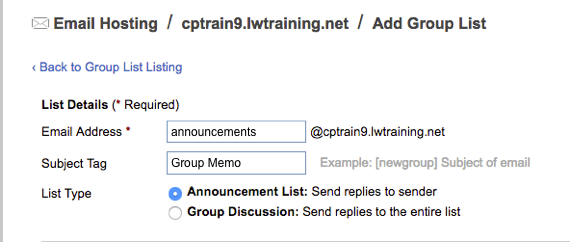
- Set a Subject Tag. This is a tag that will show in the subject line of your email to let recipients know that the email is coming from a list. It will auto-populate from the email address you create or you can enter your own unique tag.
- Choose if you want replies only to be sent to the originator of the email or to the entire group.
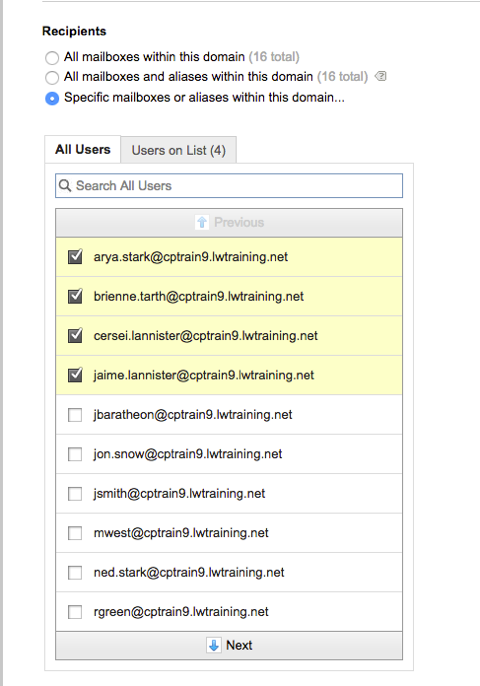
- In the Recipients section, you can choose who is sent emails. You have four options:
- Send to all mailboxes within your domain.

- Send to all mailboxes and aliases in your domain.
- To specific recipients within your domain.
- To recipients outside of your domain (up to 250).

- Send to all mailboxes within your domain.
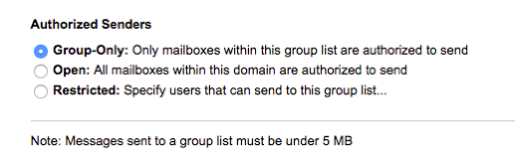
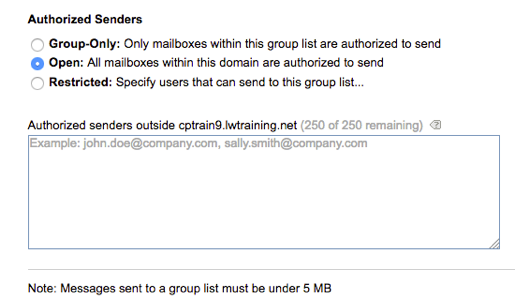
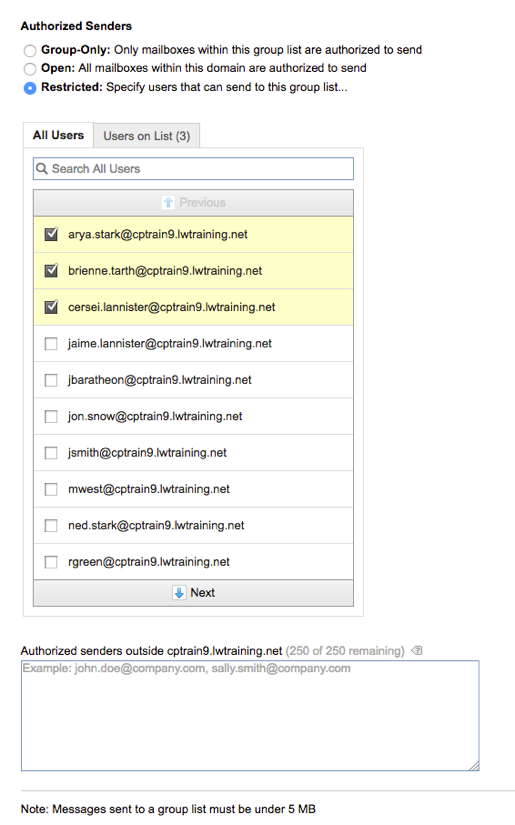
- The Authorized Senders lets you choose who can send email from the group list email address. You can:
- Allow only mailboxes in the group to send emails.

- Allow all mailboxes inside your domain to send emails.

- Restrict sending email to only specific users in the group list.

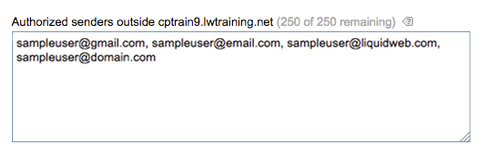
- Allow senders from outside your domain (up to 250).
- Allow only mailboxes in the group to send emails.