Create a Domain Alias in Cloud Sites
It's easy to set up a domain alias in Cloud Sites. A common use for is to have mysite.com and mysite.net show the same information.
A common need in web hosting is to have mysite.com and mysite.net show the same information. This is called a domain alias and is an alternate name for a website. It’s easy to set up domain aliases in Cloud Sites.
NOTE: |
| This is different from using an ALIAS DNS record for your domain. For information about ALIAS DNS records, see Using ALIAS DNS Records For Domains in Cloud Sites. |
The alias domain will display the same content as the primary website when setting up domain aliases in the Cloud Sites control panel.
- Log into the Cloud Sites control panel.
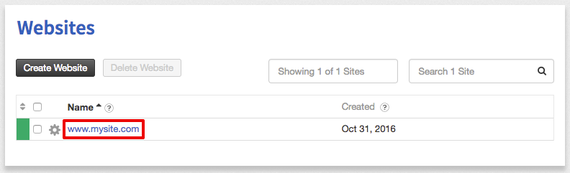
- Click on the name of the website where you want to add an alias.

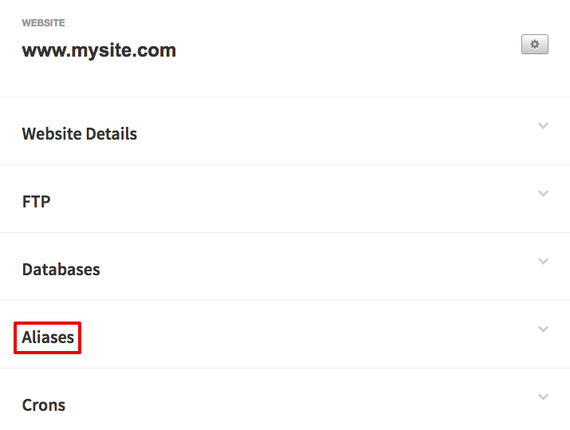
- Scroll down to Aliases and click to expand the Alias section.

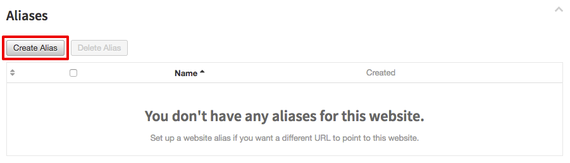
- Click the Create Alias button.

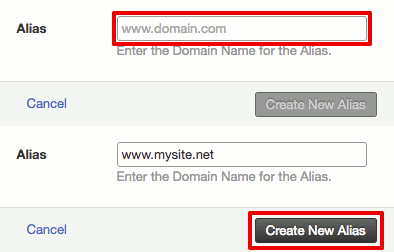
- Type the domain or subdomain that you want to mirror the website’s content. Then, click Create New Alias.

- Now update your DNS records to point your Domain Alias to its Destination Record. If your DNS is hosted at Liquid Web, you can edit your DNS records in your Liquid Web account. If your DNS is hosted elsewhere, you’ll have to edit the DNS record wherever your DNS is hosted.