

Creating a Cloud VPS
Liquid Web Cloud VPS: Scalable, monitored virtual server. Pick our framework or customize in a few clicks for creative and business potential.
Notice About Pricing: |
| Prices are subject to change, for current pricing on Cloud VPS contact our Solutions team. All pricing has been taken out of this article. |
A Liquid Web Cloud VPS is a scalable, real-time monitored virtual private server. Choose your framework from one of our pre-configured images or a configuration of your own, and in just a few clicks, you’re ready to unleash your creative and business power.
- Log into your Liquid Web account.
- Click on Create and deploy to open the drop down menu. From the menu, you can choose VPS Hosting to begin choosing your VPS options or Visit Marketplace for the classic Marketplace experience.

- Click on VPS Hosting.
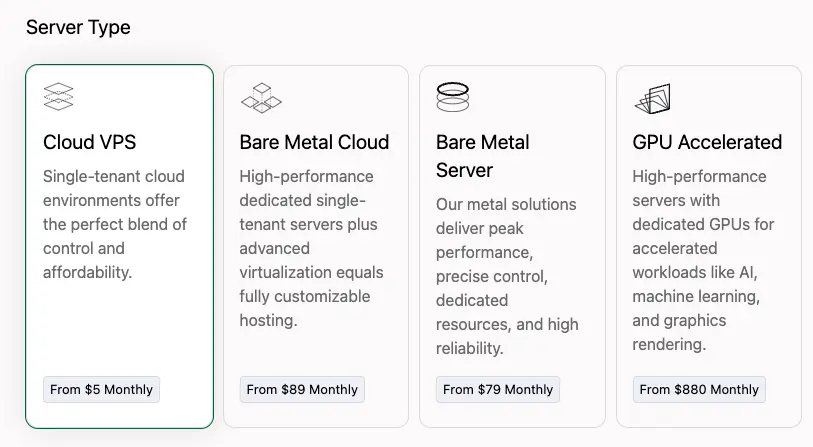
- Choose the type of server you’d like to deploy. Cloud VPS is the first option.

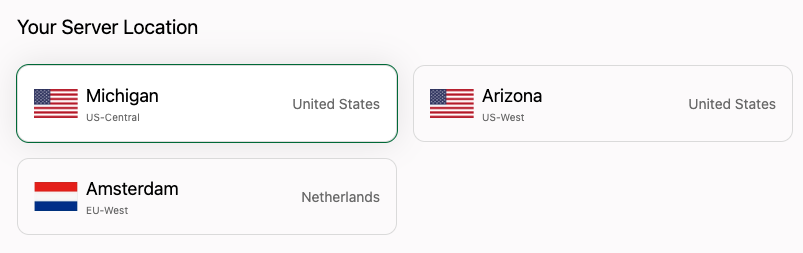
- Choose the location for your new Cloud VPS server. You default location will be highlighted, but you can choose any of the available locations, depending on your needs.

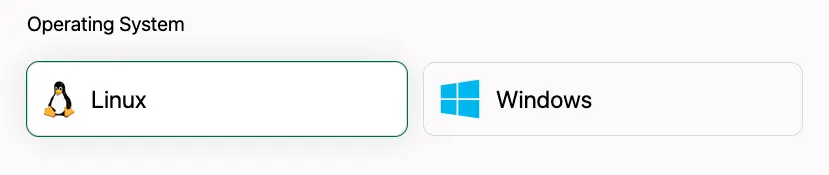
- Next, choose the operating system for your server.

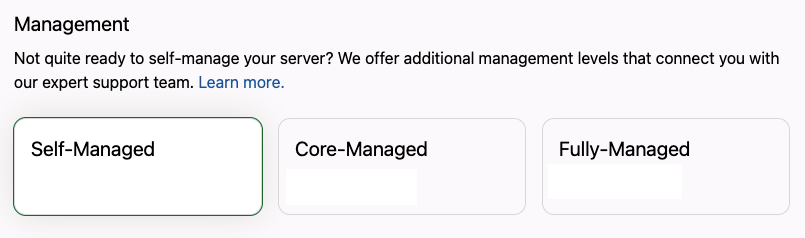
- Now choose the Management level for your server. For more information about Support Management levels, see Management and Support Levels.

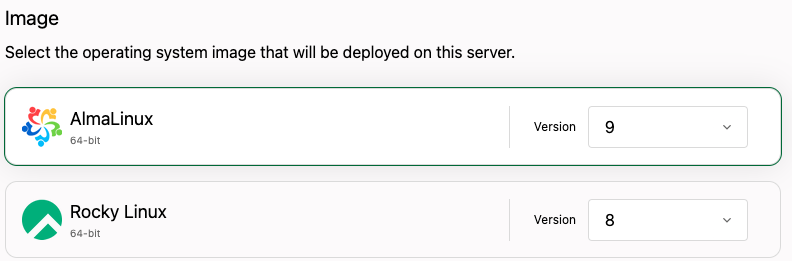
- Choose the image (which operating system) you’d like installed on the server.

- Select your billing cycle and frequency (additional discounts are often available for longer billing cycles).

- You can select a control panel to help you manage your server and clients, or you can choose not to use a control panel.
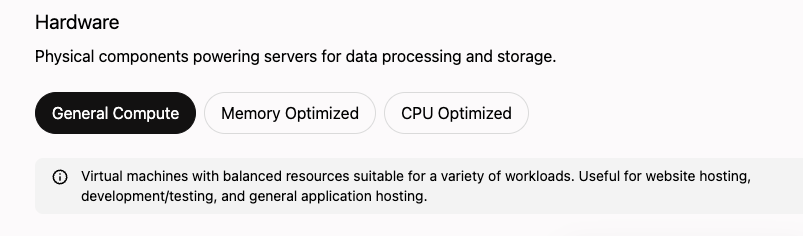
- Choose your hardware package. Multiple options are available depending on the needs of your business.

- Choose among a few additional options, including backups, additional IP addresses and DDoS protection.
- Click Buy and Deploy to finalize your options.

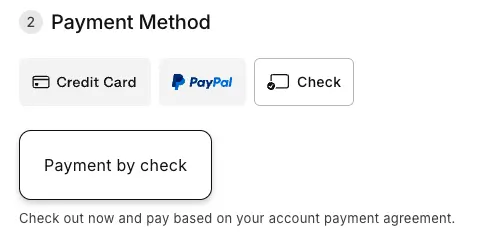
- At the checkout screen, you can log in to your account (if you haven’t already). Choose the payment method for this order.



- Enter any Special Instructions you may have for the order (if needed)
- Confirm that you have read and agree to Liquid Web’s Terms of Service and additional policies.

- Review your order details and click Place your order to finalize your purchase.



Find more information on working with your Cloud VPS in our articles:
- Creating a Cloud VPS Image
- Creating a Backup of Your Cloud Server
- Creating a Staging and Development Environment
- Adding IP Addresses to Your Server
- Resizing a Cloud Server
- Restoring a Cloud Server from an Image
- Cloning a Cloud Server
- Destroying a Cloud Server
- Setting Up Your Cloud VPN
- Setting Up Cloud Block Storage