Whitelisting ModSecurity Rules in WHM
ModSecurity is your sites first defense when it comes to malicious IP addresses and attacks by hackers. Sometimes, your own IP address or the IP of a specific user will be blocked because of an accidental rule violation. If this occurs, you will need to use the ModSecurity CMC plugin in WHM to whitelist the rule being broken and allow the IP access to your site.
Within this article, you will see how to:
- Locate Blocked IP Addresses
- Modify the Global Rule Whitelist
- Whitelist Rules per User
- Whitelist Rules per Domain
- Whitelist Rules by DirectoryMatch
Warning: |
| Configserver’s ModSec Control plugin allows for rules to be edited if they are located in /usr/local/apache/conf/modsec*. We strongly advise most users against editing rules directly, as an error can prevent your web server from being able to start. We advise whitelisting using the rule ID instead. |
Locate Blocked IP Addresses
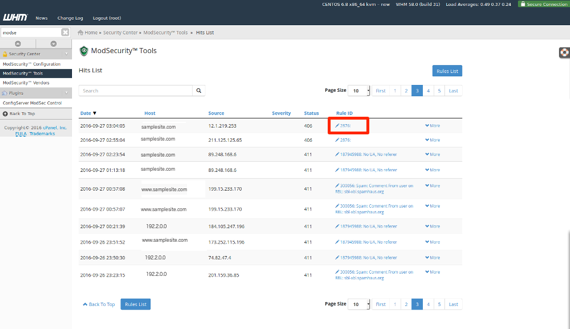
The first step to whitelisting a rule is to locate the blocked IP addresses. In order to do this, you will need to use the Hits List found in your ModSec Tools.
- Navigate to your Hits List under ModSecurity Tools. If you need help navigating to your Hits List, see our article Installing Configserver’s ModSecurity Control Plugin on Your Server.

- Once in the Hits List page, you can see all websites and IP’s which have violated rules in your ModSecurity firewall.
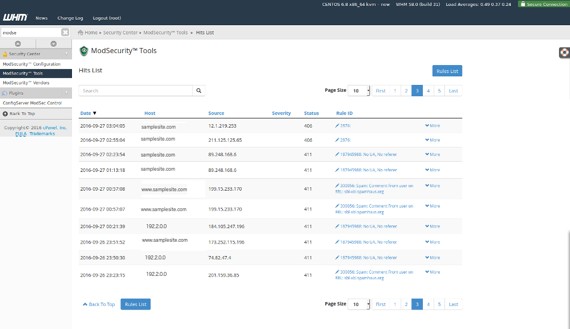
You can search for your own IP address by using the search bar of the Hits List. If you’re not sure of your IP address, use https://www.whatismyip.liquidweb.com to find out. Once you input your IP address, any rules it has violated will show up in the Hits List.
Global Rule Whitelist
If there is a rule affecting multiple domains, you can choose to whitelist rule globally. This means that the rule will allow traffic to come through on all domains and IP’s in your account.
- From the Hits List, click the link for Rule ID to open the rule. Copy the Rule ID so that you can paste it into the ModSecurity rule ID List.
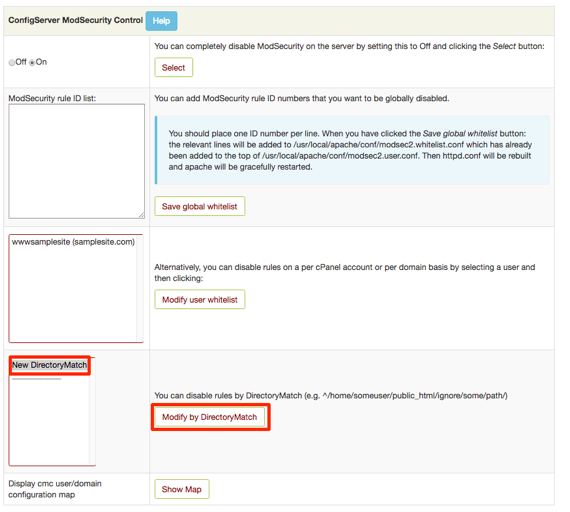
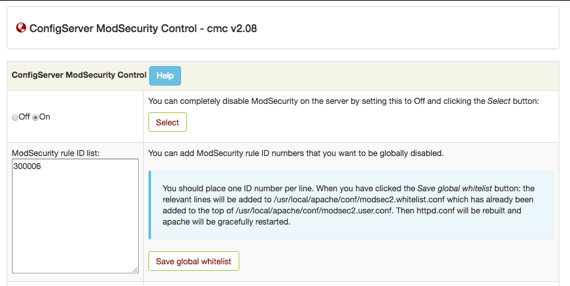
- Navigate to the ConfigServer ModSecurity Control page in WHM and paste the Rule ID into the ModSecurity rule ID list.

- Click Save global whitelist. Apache will restart and the rule will now be whitelisted to allow traffic to come through to your site.
Whitelist Rules per User
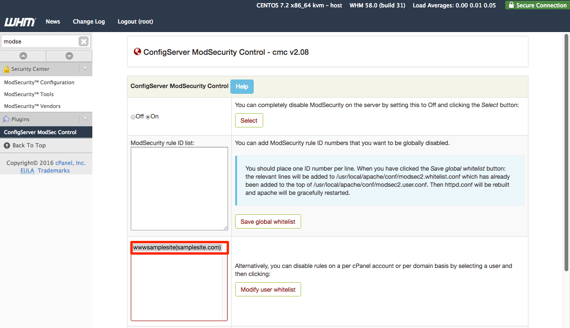
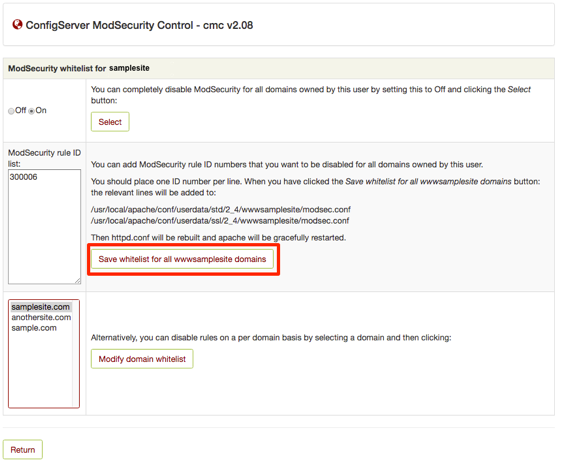
If you have multiple user domains you’d like to whitelist a rule for, but not all domains in your account, you can use the User Whitelist.
- Select the user domain you want to modify the rule for and click Modify user whitelist.

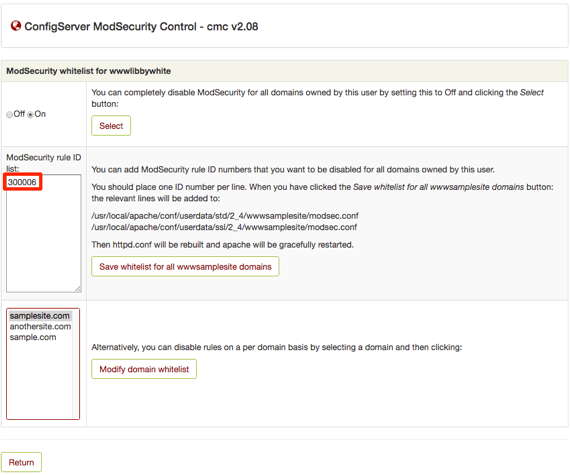
- This will take you to the whitelist page for the domain. Copy and paste the rule ID in the ModSecurity Rule ID list box.

- Click Save whitelist for all www(yourdomain) domains button.

- Apache will restart and the rule ID will now be whitelisted for the selected user domains.
Whitelist Rules per Domain
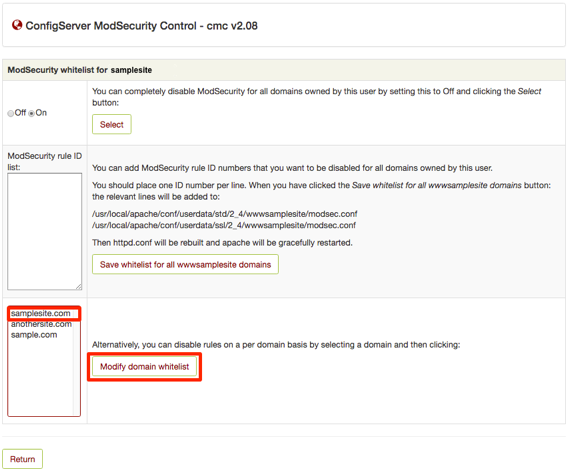
You can whitelist a rule for a specific domain under any user. This will only allow the rule to be bypassed for that domain, the rest will still be protected by the rule.
- From the user whitelist home page, highlight the domain you want to whitelist the rule for and click Modify domain whitelist.
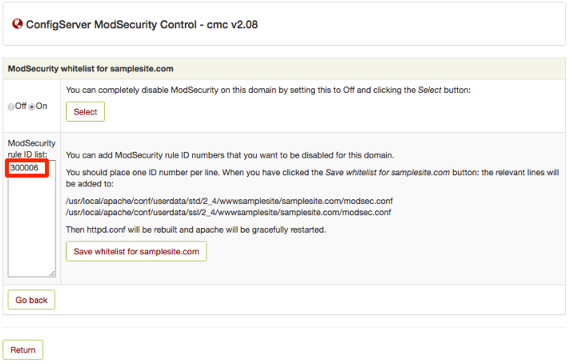
- When the page opens, copy and paste the rule ID into the ModSecurity rule ID list.

- Click Save whitelist for (yourdomain).com and Apache will restart to whitelist the rule ID.
Whitelist Rules by DirectoryMatch
Sometimes, a specific page on your site will need to have a rule ID whitelisted. This occurs most commonly with WordPress and the wp-admin page. You can whitelist a rule ID for a specific page using DirectoryMatch.
- Select New DirectoryMatch and click Modify by DirectoryMatch.

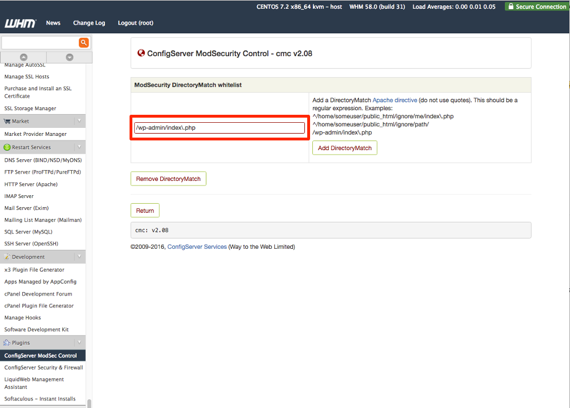
- In order to whitelist a directory path, you will need to enter the entire expression to whitelist the page.

- Click Add DirectoryMatch to open the whitelist page for that specific path.
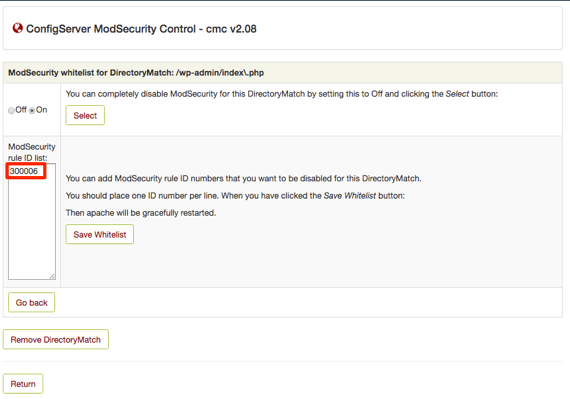
- The page will open for you to copy and paste the rule ID to the whitelist.

- Click Save Whitelist and apache will restart to save the whitelist.