

Changing Your Root Password in WHM
What does it mean to change the root password? The root password is your main server password. It will change your login credentials when you log into WHM. If you log into your server via command line as root, you’ll also use the new password. Root passwords are changed when WHM is initially set up to make it unique to you instead of the generic password given at the time of setup or because of security protocols that require periodic password changes.
Changing Your Root Password
- Log into WHM.
- In the left-hand search bar, search for “Change Root Password.” Click on Change Root Password under Server Configuration.
- Enter a new password and then confirm your new password.
- When the passwords match, click Change Password.
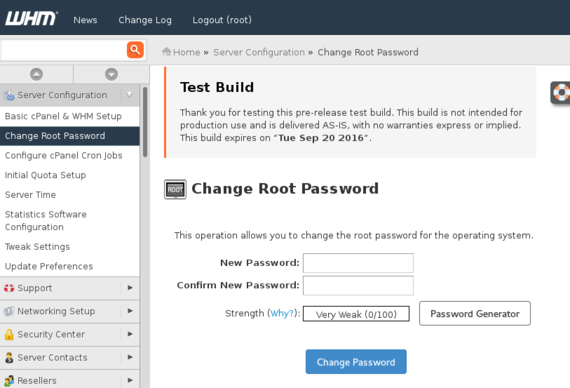
The next time you log into WHM, you’ll use your new password.
Password Security |
| A strong password uses a mix of upper- and lower-case letters, numbers, and special characters. Using words found in the dictionary weakens your password. It’s vital to use a strong password to secure your server. If someone guesses your password, they could delete your entire website and even corrupt any backups on your server. For more information, see Best Practice: Creating a Secure Password. |
It’s important to keep your root password secure. Don’t tell people your password or write it down next to your keyboard. If you have any problems with your server, Liquid Web will need your root password to log into your server to help you. Whenever you change your root password, securely tell Liquid Web your new password in your Liquid Web account.
Using portal.liquidweb.com
- Log into your Liquid Web account.
- Click on Servers at the top of the screen.

- Click on the name of the server for which you want to update the password.
- Click on Support Access.

- Update the current root (or administrator) password. You can also update an alternative username or send additional information by clicking the drop down arrow.

Liquid Web takes your security very seriously. We only use your root password when you need help and we’ve authenticated your identity.