

Changing cPanel Passwords in WHM
If you are a reseller or have root access to WHM, you can change any users cPanel account password without knowing the previous password used. This allows you to reset the password for a user who has forgotten their password and needs to get into their cPanel account. If you need help accessing WHM, see Logging into WHM.
Note: |
| When you change the password for a cPanel account, you are also changing the password for email, FTP, MySQL and SSH. |
- Once you log into WHM, start typing the words list accounts in the search bar on the left-hand side of the page.
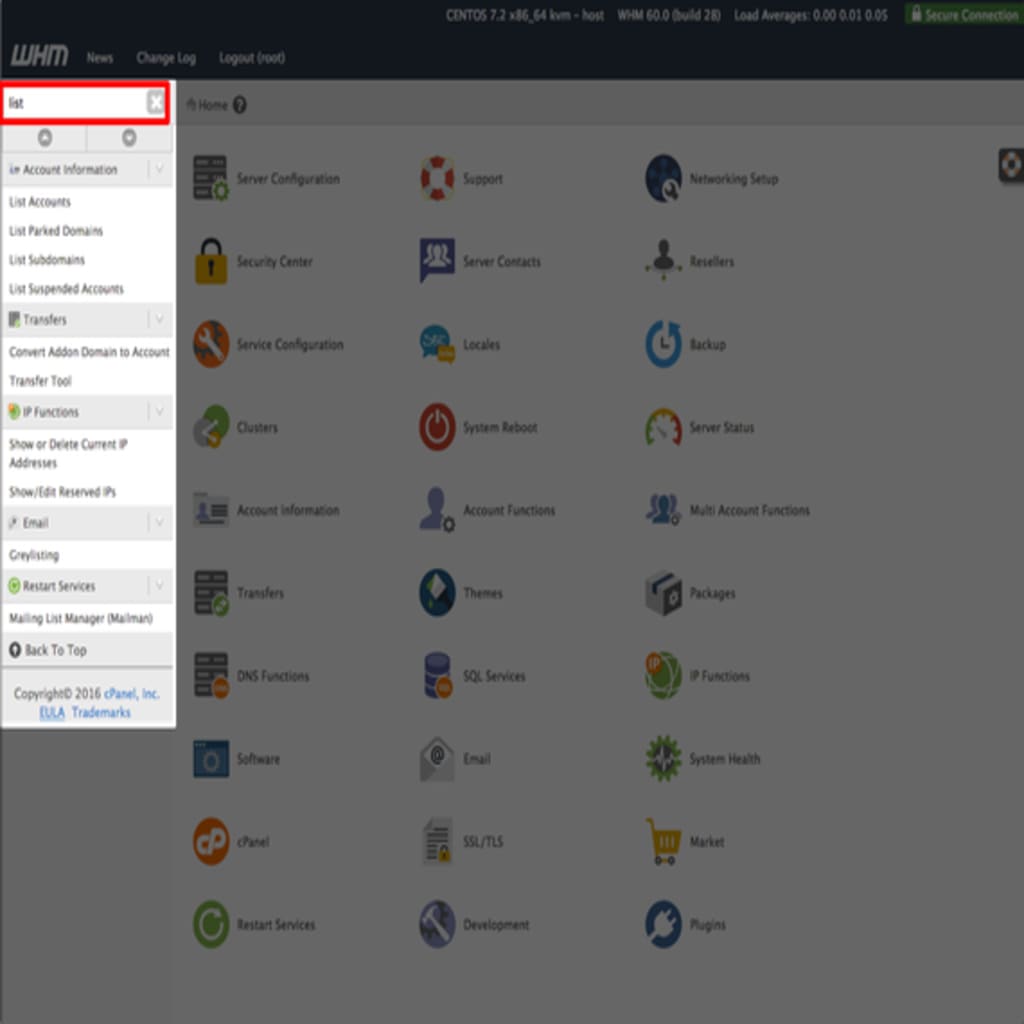
- As you type, the menu will begin to show the Account Information menu. Click on List Accounts to view the cPanel accounts.

- The List Accounts page shows all active cPanel accounts. From this list, click the [+] next to the domain name to open the modification settings for that site.

- The Change Password section will show just below the domain name. Enter the new password and click Change.
Note:
Make sure you choose a strong password to prevent hacking. Strong passwords contain upper and lower-case letters, numbers and special symbols (ie. $, &, % and so on). See our article Best Practice: Creating a Secure Password for more information.
- A confirmation will show for the password change. Click on List Accounts again if you wish to change other passwords, or go back to the home page of WHM.
