

Setting PHP memory_limit with EasyApache 4
When setting the PHP memory_limit in WHM, it applies only to the specific PHP version. With EasyApache 4, multiple PHP versions can run simultaneously, so you must repeat the process for each version installed.
When setting the memory_limit in WHM, it will change only for the version of PHP installed. EasyApache 4 allows for multiple PHP versions to run at the same time on your server. If you want the memory_limit to be set across all versions, you will need to repeat this procedure for each version of PHP installed on your server. If you only need the memory_limit for a specific site or folder to be increased, please see PHP Memory_Limit.
- Log into WHM.
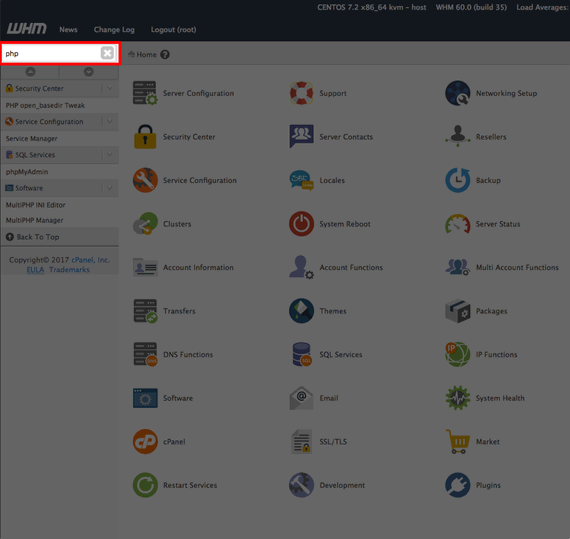
- Search for PHP in the search bar at the top of the menu on the left-hand side of the page.
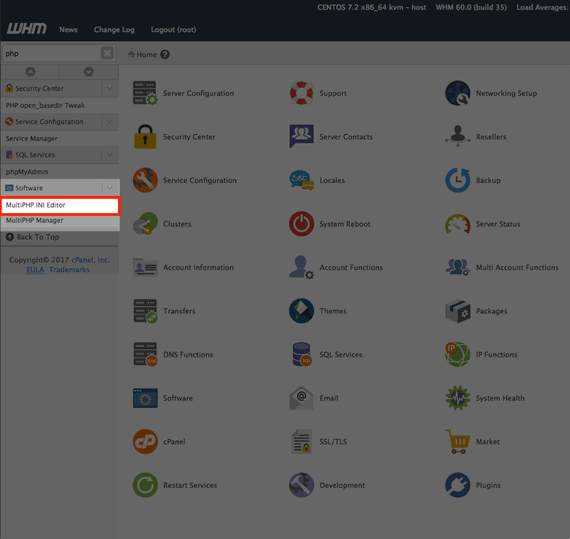
- Select MultiPHP INI Editor from the menu on the left-hand side of the page.

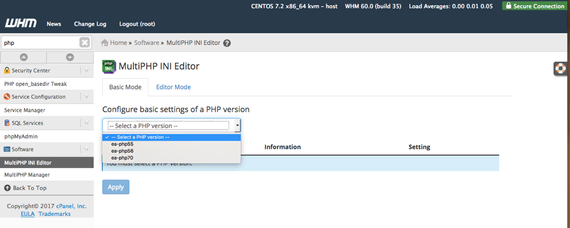
- Next, select the PHP version you have installed. To find your version, see our article Understanding Your PHP Version.

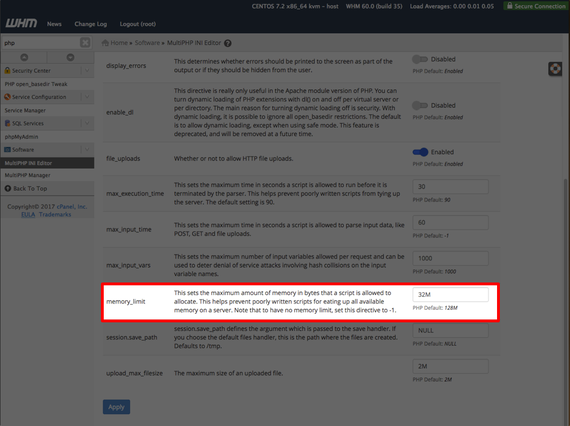
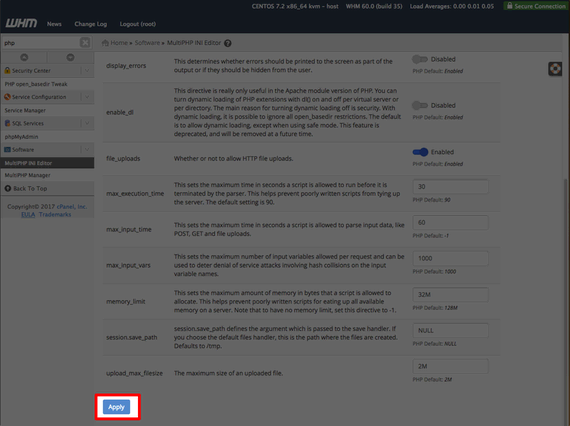
- Scroll down the page to the memory_limit section.

- Set the memory_limit to your desired maximum in bytes and click Apply to save the changes.
If you are still experiencing memory_limit errors after increasing your global memory_limit, please contact our Support team.