

Troubleshooting: cPanel is Emailing Me, Is My Server Down?
cPanel occasionally pushes updates that will generate emails about resource usage, updates, root logins and process notices. This article will go through a few of the most common emails and explain them. Most are nothing to worry about and just notifying you of updates and valid logins, if you are getting an email not covered here, please contact our Support team by creating a case.
WHM/cPanel Root Access Alert
What this means:
WHM and cPanel will email you whenever root logs into WHM or cPanel. The email will give you the time, IP address and User (root), and will look like this:
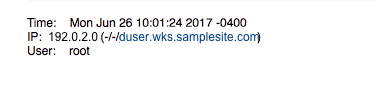
This simply means that someone with that IP address has logged in as root. Normally it is your own IP address, if you find that it is an unfamiliar IP address, contact our Support team.
Liquid Web Support Admin Login |
| Our Support team does access your server (either troubleshooting for a case or for monitoring and maintenance), so you may see an unfamiliar IP address with the format of 10.x.x.x . If you see an IP with a 10, you can whois and verify that it is a member of our support team. |
How Do I Stop These Emails?
Disable alerts:
You can disable all alerts from WHM. This option will disable all options that will send email alerts.
Warning: |
| This is not recommended as alerts often provide essential information about blocks, security, and hacking activity on a server and if disabled that information will be lost. Additionally, some of these options disable functionality. It might be better to create a filter in your email to have them delivered to a specific folder so that you can view them at a later time to verify that your server is not susceptible to malicious activity. |
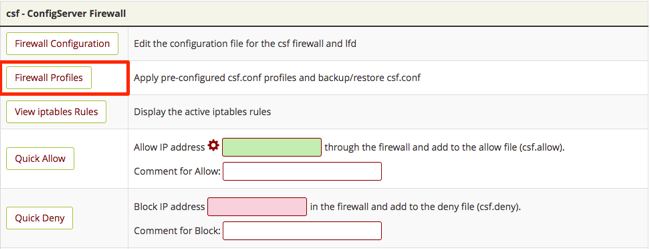
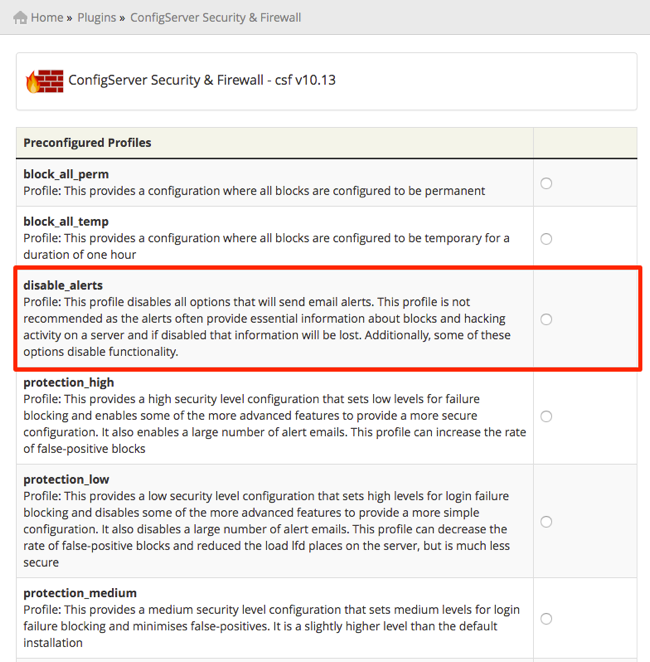
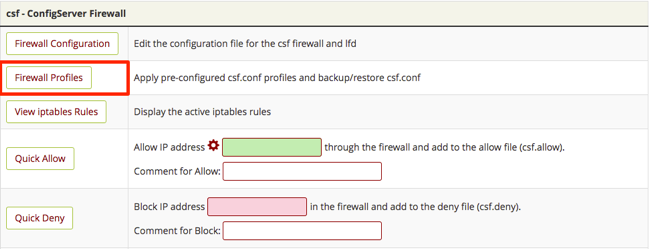
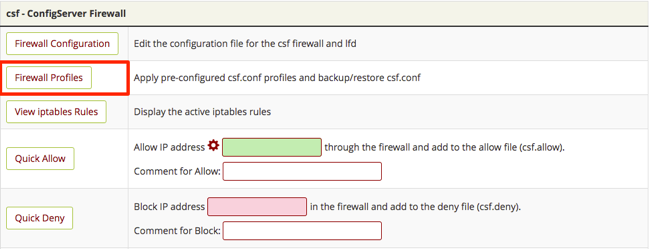
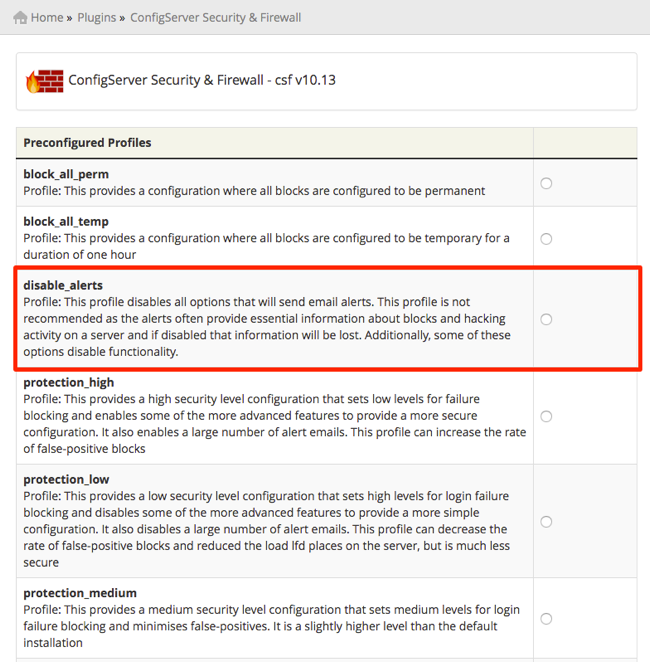
- To disable alerts, navigate to ConfigServer Security & Firewall and open Firewall Profiles.

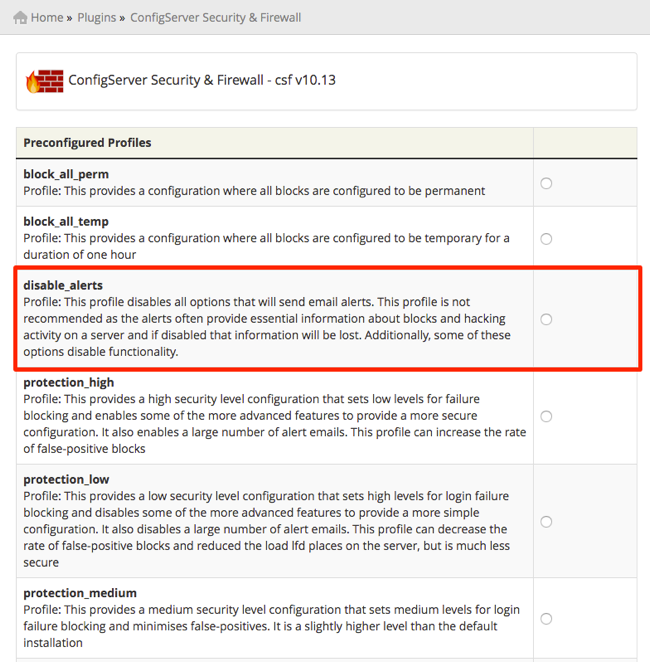
- Click the radio button in disable_alerts to disable lfd and csf alerts.

Excessive Resource Usage: samplesite (xxxxx(Parent PID:xxxxx))
What this means:
This notice will appear when a process runs longer than a certain amount of time or consumes more than a certain amount of RAM. csf.conf has an alert to notify if “x process uses more than 256MB,” and PHP demands more resources than that limit. The email will look something like this:
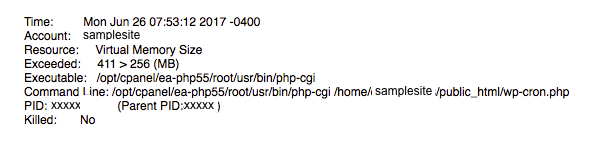
Since your process is taking up resources, this could slow down your site and cause issues. You will need to increase the limits in csf.conf to allow the process to run without hitting the predetermined limit or disable the alert if you know that the process isn’t harming your server performance.
How do I stop these emails?
You can stop the emails following the instructions below to either increase your limits or disable the alerts.
Warning: |
| This is not recommended as alerts often provide essential information about blocks and hacking activity on a server and if disabled that information will be lost. Additionally, some of these options disable functionality. It might be better to create a filter in your email to have them delivered to a specific folder so that you can view them at a later time to verify that your server is not susceptible to malicious activity. |
Increase csf.conf process limits:
You can alter the csf.conf process limits and times within WHM. Once you log into WHM, follow the steps below.
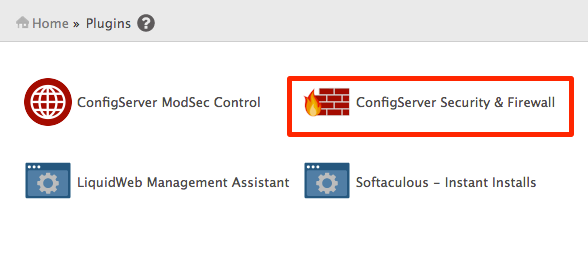
- Click on the Plugins link from the home page of WHM.
- Choose ConfigServer Security & Firewall in the Plugins menu.

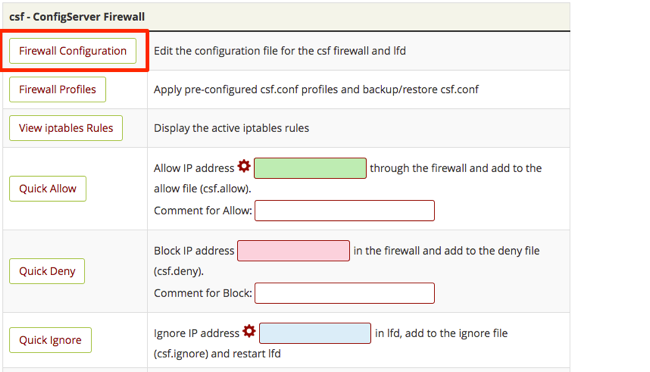
- Scroll down to Firewall Configuration section and click the button to enter the configuration settings.

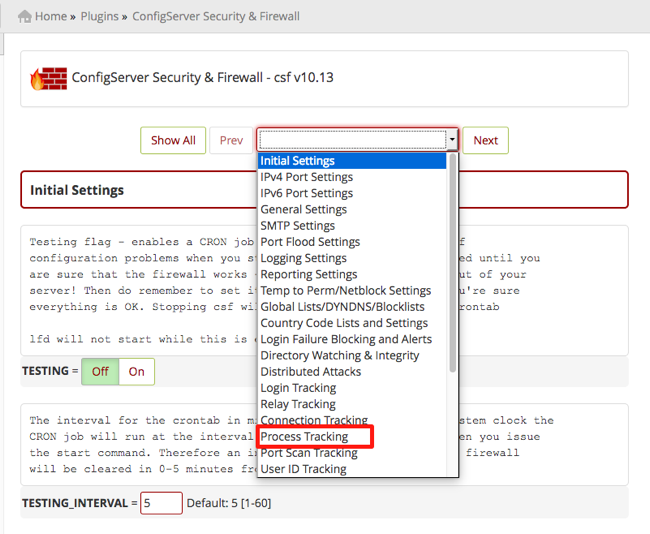
- Use the drop-down menu at the top of the page to go directly to the Process Tracking section of the server configuration.

- To increase the process memory limit, scroll to the PT_USERMEM section.
- Set the memory limit to a number higher than the limit (in MB) that you are receiving the email for.
- Scroll to the bottom of the page and click Change to save your changes.
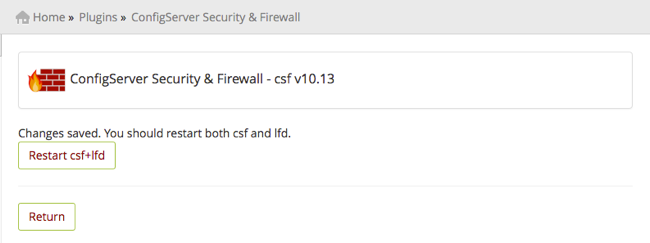
- Restart lfd and csf.Note: In order for your changes to take effect, you must restart lfd and csf.

Disable alerts:
You can disable all alerts from WHM. This option will disable all options that will send email alerts.
Warning: |
| This is not recommended as alerts often provide essential information about blocks and hacking activity on a server and if disabled that information will be lost. Additionally, some of these options disable functionality. It might be better to create a filter in your email to have them delivered to a specific folder so that you can view them at a later time to verify that your server is not susceptible to malicious activity. |
- To disable alerts, navigate to ConfigServer Security & Firewall and open Firewall Profiles.
- Click the radio button in disable_alerts to disable lfd and csf alerts.
lfd on host.samplesite.com System Integrity checking detected a modified system file
What this means:
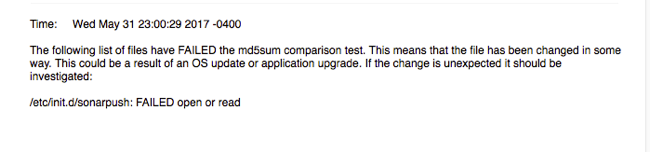
Your server will update yum automatically every night. These emails are a result of that update. This can be concerning because it shows a “FAILED” message. It is merely telling you that there are changes in the comparison test. The email you receive should look something like this:
How Do I Stop These Emails?
Disable alerts:
You can disable all alerts from WHM. This option will disable all options that will send email alerts.
Warning: |
| This is not recommended as alerts often provide essential information about blocks and hacking activity on a server and if disabled that information will be lost. Additionally, some of these options disable functionality. It might be better to create a filter in your email to have them delivered to a specific folder so that you can view them at a later time to verify that your server is not susceptible to malicious activity. |
- To disable alerts, navigate to ConfigServer Security & Firewall and open Firewall Profiles.
- Click the radio button in disable_alerts to disable lfd and csf alerts.
Cron <root@host> /usr/local/cpanel/scripts/upcp –cron
What does this Mean?
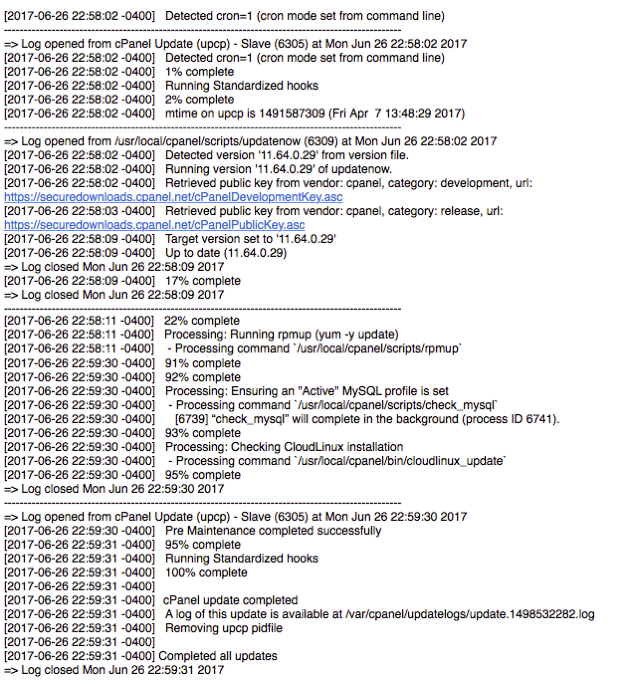
cPanel runs a cron to automatically update your upcp script nightly. You will receive an email with a long list of processes that have been completed with the update. It will look something like this:
How Do I Stop These Emails?
These emails can be disabled by modifying the crontab from the Command Line. Change the line in the crontab from this:
6 1 * * * /usr/local/cpanel/scripts/upcp --cron
to:
6 1 * * * /usr/local/cpanel/scripts/upcp --cron >/dev/null 2>&1
This will disable the update email and keep it from clogging up your inbox.