

Using AutoSSLs in cPanel and WHM
There are many options for adding an SSL to your website to secure information that passes through from customers. One of the most recent options is enabling the AutoSSL feature in WHM. This feature allows you to apply an SSL to any domain you have on your server. You can choose to use the SSL on up to 200 sites for free. If you’re not sure an SSL is right for the sites on your server, take a look at our article What Is an SSL Certificate? You can also install an SSL Certificate in cPanel.
Knowledge
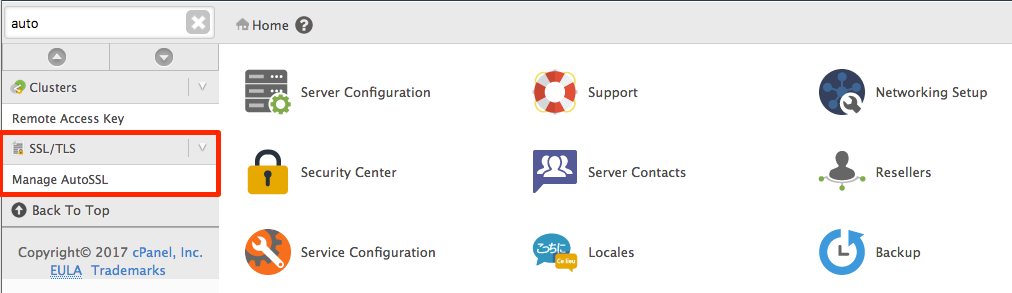
- To find the AutoSSL feature, log into WHM and begin typing AutoSSL in the search bar on the left-hand side of the page.
- Click on the Manage AutoSSL link.

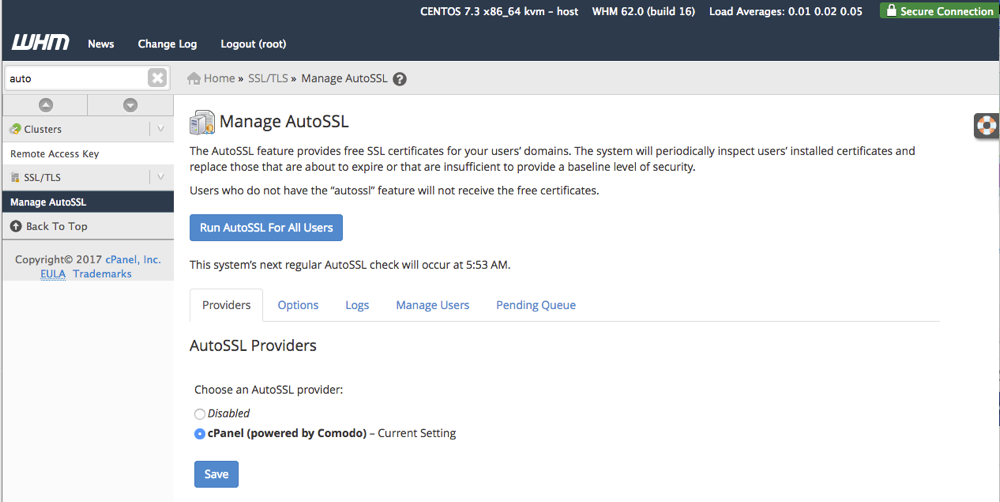
- This will open the home page for the AutoSSL feature.

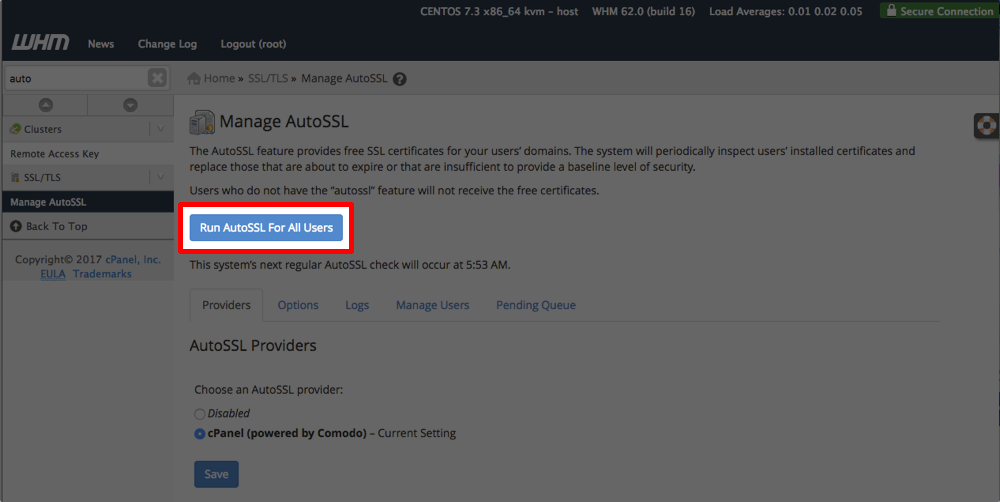
- If you want to run the AutoSSL for all users, simply click the button and the SSL will apply to all cPanel accounts and websites on your server.
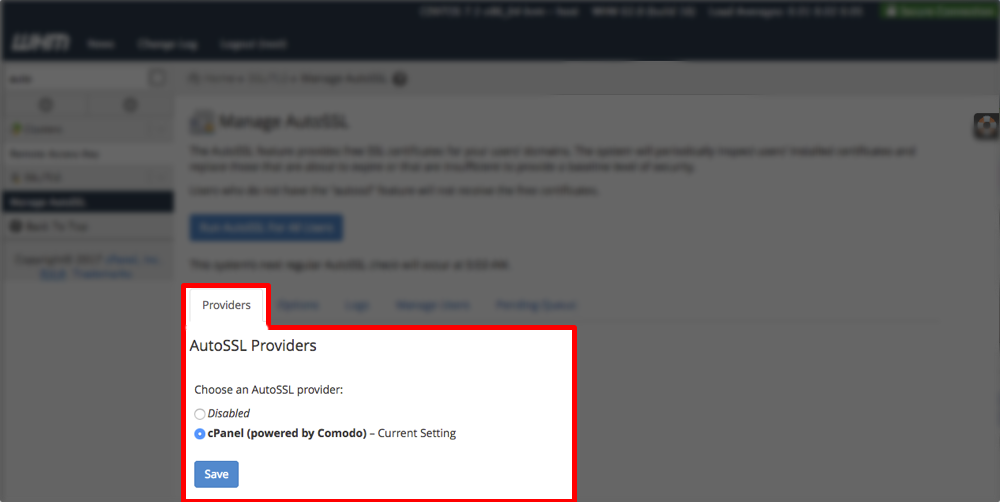
- The Providers tab will allow you to enable the AutoSSL or disable it. The current provider for the AutoSSL is Comodo. If you have another SSL installed on your account, disable the AutoSSL by clicking Disabled.
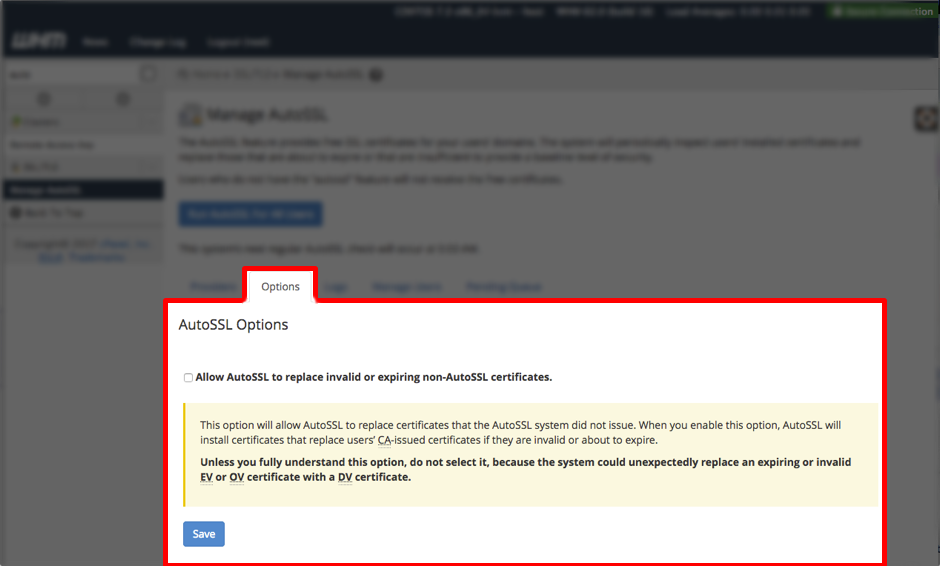
- The Options tab will allow the AutoSSL to replace any CA-issued certificates that are invalid or about to expire.
Warning:
Unless you fully understand this option, do not select it. This could cause the AutoSSL Certificate to replace an expiring or invalid Extended Validation certificate or Organization Validated certificate with a Domain Validated certificate. A Domain Validated certificate is the lowest level of authentication, which means it is the least secure SSL certificate type.
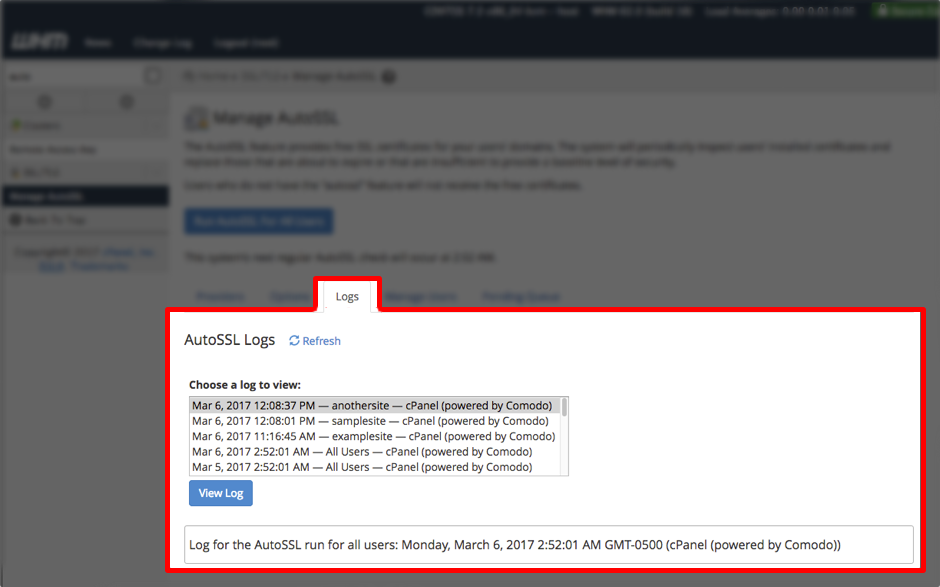
- The Logs tab will show you logs of AutoSSL installs for all users as well as the status for each cPanel user with a domain attached to it. If you are not the owner of the domain, the AutoSSL will not enable, and you will be notified in the log.

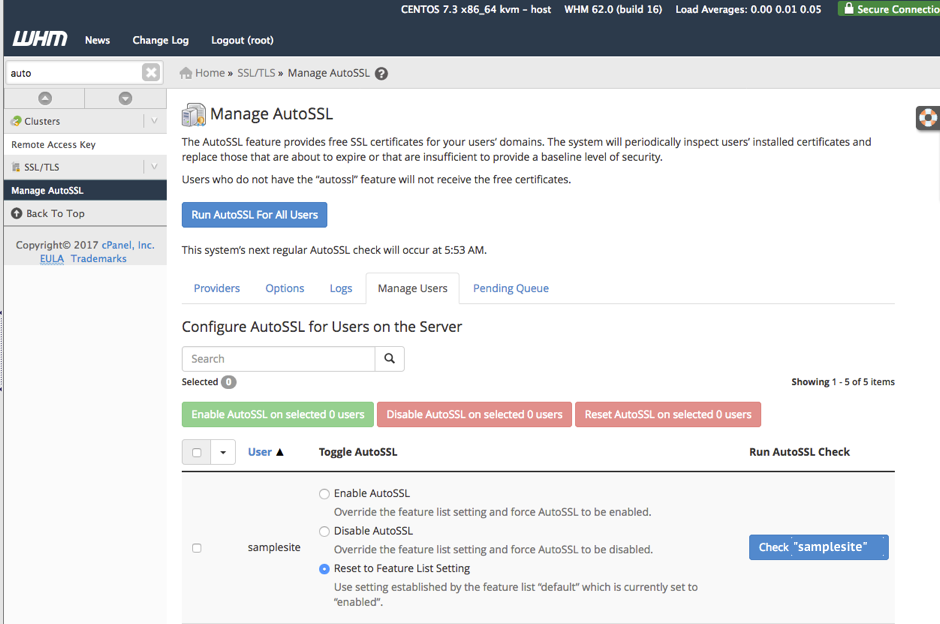
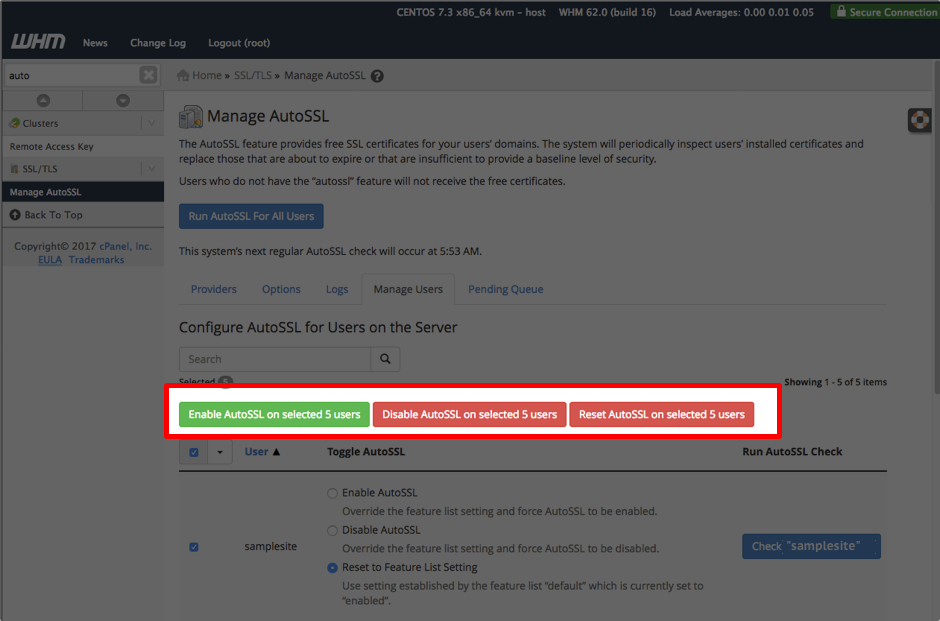
- The Manage Users tab is where you will choose specific cPanel accounts to apply the AutoSSL to. You can also check the status of the SSL from here on a per domain basis.

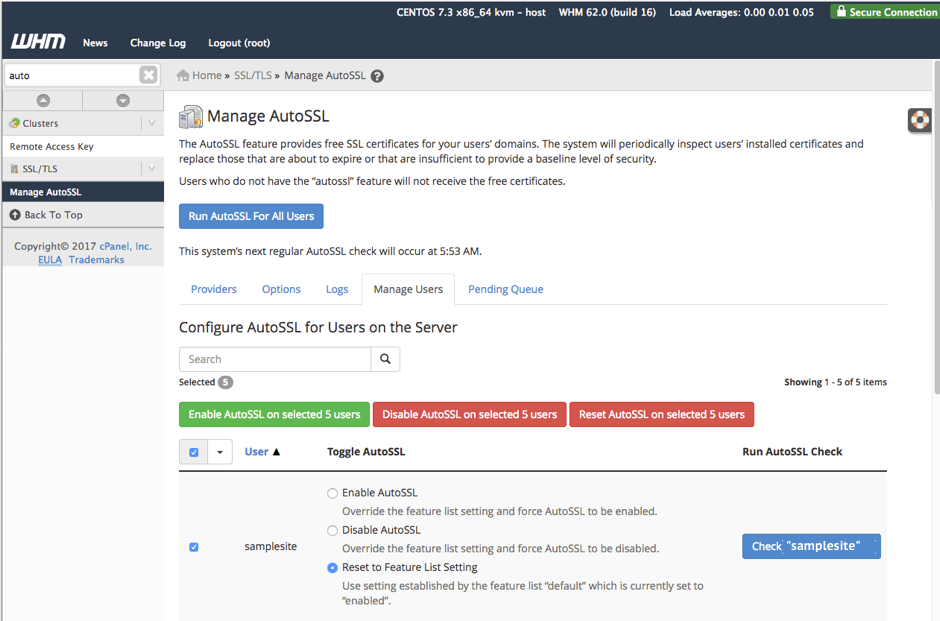
- To enable, disable or reset AutoSSL on all users, click the box on the left hand side of the page next to the User link.

- Select the action you want to perform on all accounts from the buttons above the user list.
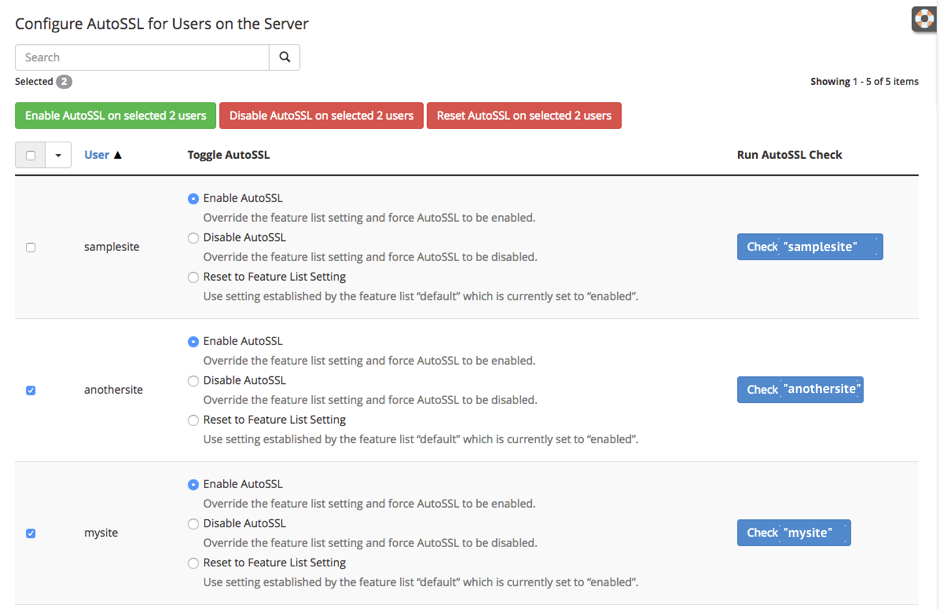
- To choose to enable the AutoSSL for an individual account, click the box next to the user name and use the buttons above to complete the action. The number of users being enabled will show in the button.

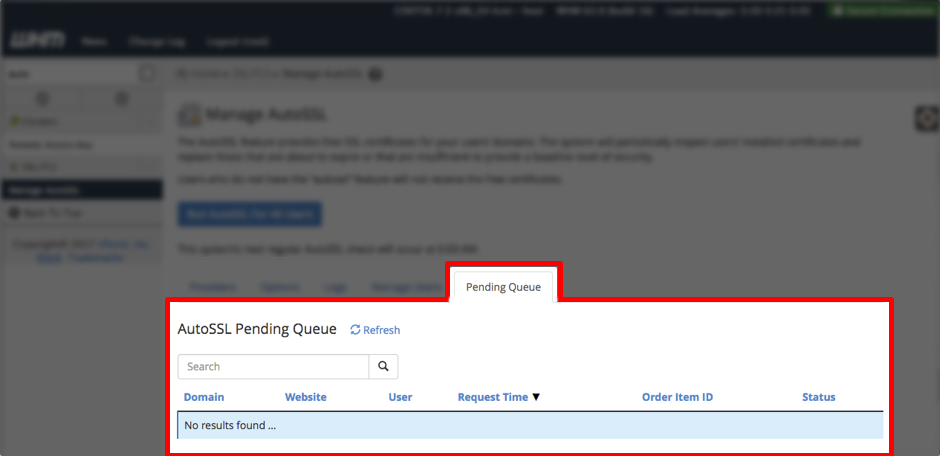
- The Pending Queue will show any SSLs that are pending approval by the certificate authority. If the domain is not owned by you or has conflicting information, it may take longer for the AutoSSL to be approved through Comodo.

Troubleshooting .htaccess Blocking AutoSSL
When your AutoSSL renews, you may run into an issue where .htaccess may block the renewal and an error will show stating that it can not access a temporary file due to restrictions. When this happens, you can add the following rule to your .htaccess file and it will whitelist the AutoSSL and allow it to run renewals without being blocked.
RewriteCond %{HTTPS} off
RewriteCond %{REQUEST_URI} !^/d+.BIN_AUTOSSL_CHECK_PL__.w+.tmp$ [NC]
RewriteCond %{REQUEST_URI} !^/.well-known/acme-challenge/ [NC]
RewriteRule (.*) https://{HTTP_HOST}/{REQUEST_URI}