

Saving Individual Emails in cPanel Webmail
Backing up your entire system on a regular basis is an important part of any good disaster recovery plan. However, what if you only want to save a single important email? It’s not practical to take an entire site backup just to have access to that single email file. You can print the email or save it to a pdf file, but then you can’t restore it back to your email account at a later date if needed. The solution is to download a copy of the email directly from your webmail client. You can do this for individual emails with RoundCube webmail. For entire folders, you’ll need to use Horde. Both are included in your cPanel server.
RoundCube Webmail
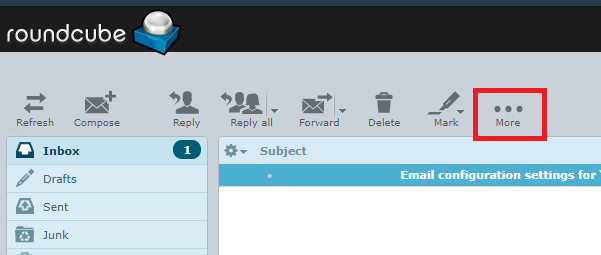
In RoundCube webmail, you can download individual email files using the “more” button in the email toolbar.
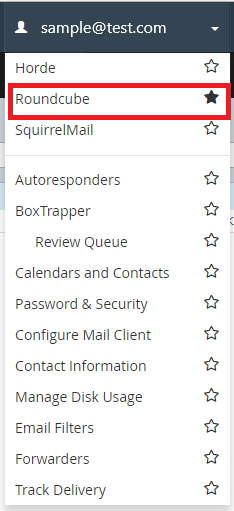
- Log in to your webmail account and make sure you are using RoundCube by selecting it in the drop down menu under your username.
- Now, click on the email you want save, then click the three dots above the email (this is the “more” button).
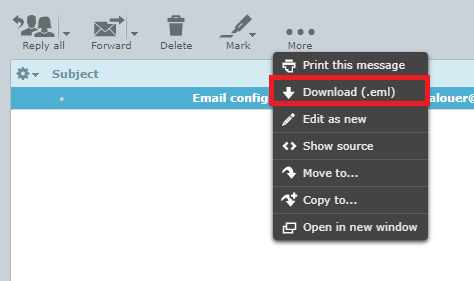
- On the drop-down menu, select Download (.eml). Choose a name and location for the file, then click Save to save it to your computer.
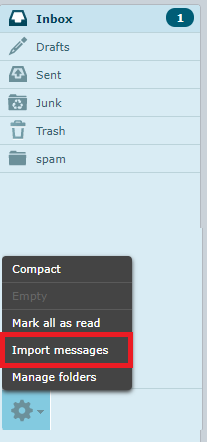
- To restore an email at a later date, click the Settings wheel at the bottom of the left column and choose Import Messages. Select the file you saved and click Open.
To download an entire folder of email, you’ll need to switch to Horde Webmail. See our article Exporting Emails from cPanel for step by step instructions.