

Setting Up a Database with MySQL Database Wizard in cPanel
Databases are an important part of most modern, dynamic websites. This article provides instructions for setting up a database with MySQL Database Wizard in cPanel.
This tutorial assumes that you are already logged into cPanel and are on the home screen. If you need help setting up a cPanel account and logging in, see our article Logging Into cPanel.
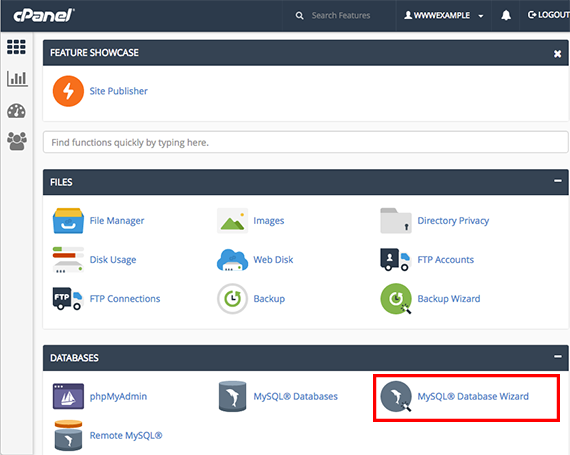
- Click on the MySQL Database Wizard icon. This will take you to the Database Wizard home page.

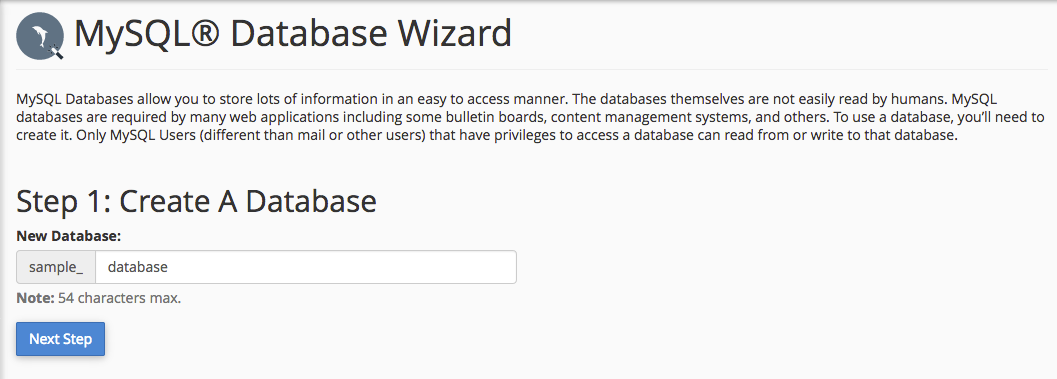
- In Step 1: Create A Database, type the name for the database you are creating, and click on Next Step.

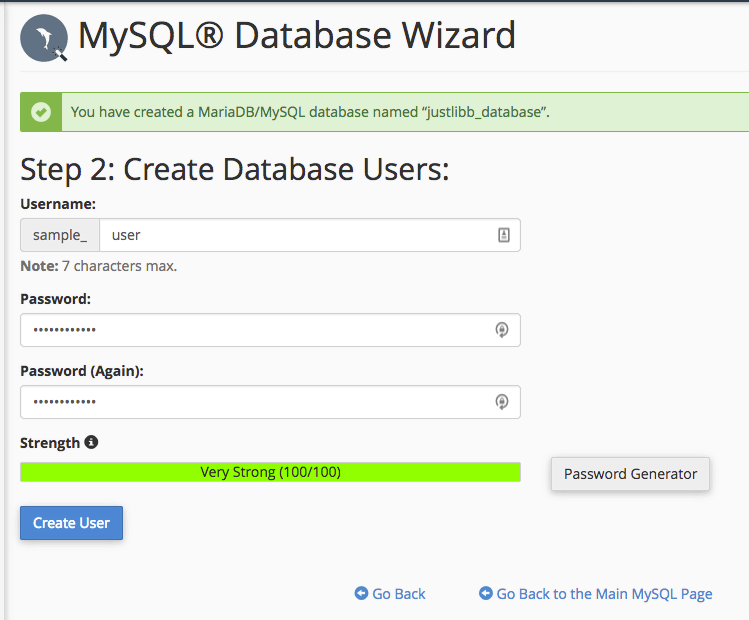
- Create the database user by typing in the username and password. You can select the Generate button and cPanel will generate a strong password for you, just be sure to save the password in a secure location. Once this is complete, click Create User.

- After clicking Create User, you will be asked to assign database privileges for the user. You can choose to give them full access to the database or select specific privileges and restrict some access to manipulating the database. For an idea about privileges, see our article What is “Least Privilege”?. Below is a list of the privileges you can assign to your user. For more information on user privileges in MySQL, see the MySQL Reference Manual.
- ALL – This allows the user access to change everything in the database.
- ALTER – Enables the ability to change the structure of tables.
- CREATE – Allows creation of new databases and tables.
- CREATE TEMPORARY TABLES – The user can create temporary tables.
- DELETE – Allows the user to delete rows from the tables in the database.
- EVENT – Required to create, alter, drop or see events for the Event Scheduler.
- INDEX – Enables the user to create or drop (remove) indexes. Index applies to existing tables.
- LOCK TABLES – Allows the user to lock tables and prevent other sessions from reading the locked table.
- SELECT – This privilege is needed for statements that read column values.
- TRIGGER – Enables trigger operations to create, drop, execute or display triggers for a table.
- ALTER ROUTINE – Alters or drops stored procedures and functions.
- CREATE ROUTINE – This allows the user to create stored procedures and functions within the database.
- CREATE VIEW – Creates a new view or replaces an existing view.
- DROP – Allows databases, tables and views to be removed.
- EXECUTE – This is required to execute stored procedures and functions.
- INSERT – Allows the user to insert rows into tables.
- REFERENCES – Unused prior to MySQL 5.5.41, and creation of a foreign key constraint requires additional privileges for the parent table.
- SHOW VIEW – This enables use of the command SHOW CREATE VIEW.
- UPDATE – Allows rows to be updated in the database tables.
- Once you’ve selected the privileges for the user, click Next Step you will be notified that the database and user are set up.

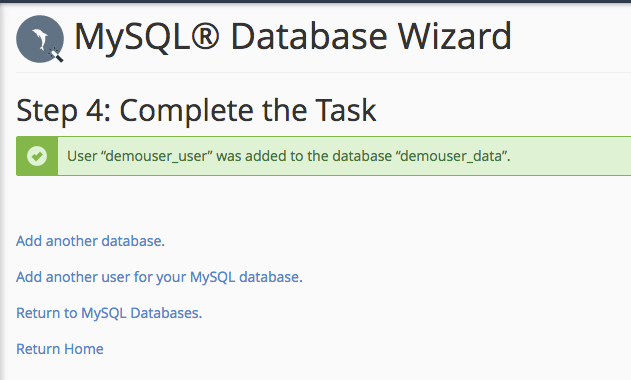
You can view your databases and users by selecting the Return to MySQL Databases link.
Read our article on removing a MySQL database if you’re not sure how to delete one on cPanel.