Logging into phpMyAdmin from cPanel
Database management is made easy using cPanel to log into phpMyAdmin. Once logged in, you can add and delete data, connect databases to each other and so much more. For general database information, see our article Understanding Databases.
Note: |
| These instructions assume that you have already created a database and user for your account, if you haven’t done this yet, please see our article Setting Up a Database with MySQL Database Wizard in cPanel. |
To manage your MySQL Database from cPanel, you will need to open phpMyAdmin. Click on the icon to open phpMyAdmin on the home page of cPanel. If you are unsure how to log into cPanel, see our article Logging Into cPanel.

Managing Databases
Once on the home page of phpMyAdmin you have the ability to manage all MySQL databases that exist in your hosting account. To navigate to a database, click on the [+] next to the account user name to show the databases associated with it.
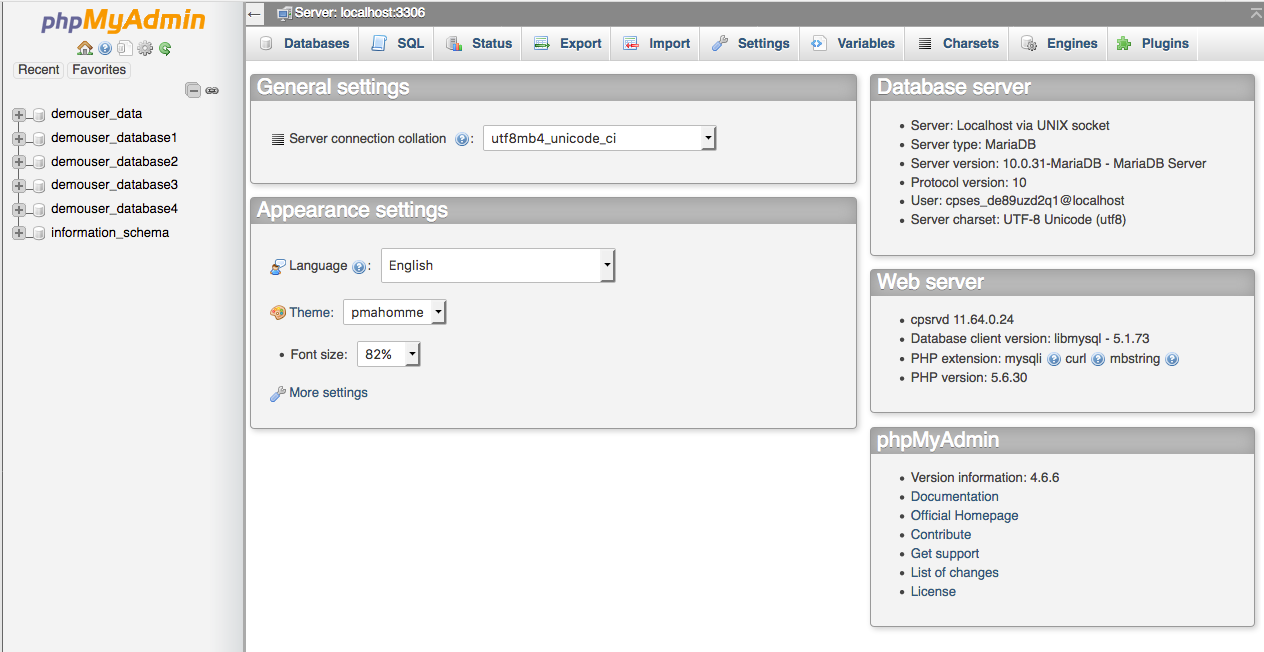
You can now start managing tables, add and delete entries, and perform queries on your database.