

Migrate a WordPress Site with Solid Central
Introduction
Migrating a WordPress site can be a time consuming process that is either carried out manually, or requires the installation (and sometimes, purchase) of a 3rd party migration tool. With Solid Migrations, we do the hard work for you, allowing you to spend this time on other more valuable tasks. Solid Migrations is a powerful and intuitive tool that can be used to move sites between hosts, or even into StellarSites.
This guide will walk you through the migration process, how it works inside the Solid platform, and the steps involved in successfully moving a site from one host to another. By the end of this document, you’ll know how to confidently migrate a WordPress site between two different hosts using Solid Migrations.
Differences between a Migration and a Deployment
For customers using Solid Central, the terms Migration and Deployment refer to two different, albeit similar processes:
- Migration: Moving a site to a new host and changing the domain.
- Deployment: Syncing code between environments (Staging into Production), typically on the same host.
- For more information see Deploying your WordPress site with Solid Deployments.
Prerequisites
- A WordPress site that is reachable via the public internet. Also known as the origin site.
- WordPress Admin credentials for the origin site and destination site.
- SFTP or SSH credentials for the origin and destination server where your sites are hosted.
- Log in credentials for a Solid Central account.
Step-by-Step Instructions
Solid Migrations automates most of the work in moving a WordPress site to a new location, but some steps still require user action, especially around DNS changes and final verification. Below is a breakdown of each step involved in the process.
Getting Started with a Migration
- Log in to Solid Central.
- Click on Sites in the navigation menu.
- Click on the site you wish to migrate from your list of sites.
- In your site’s dashboard, click on the Deploy icon.
- Click Start a Migration to begin the migration process.
- Select your destination site from the list.
- Note: If your destination site isn’t listed, click Add New Site within the dropdown to connect it now without leaving the migration flow.
- Note: If your destination site isn’t listed, click Add New Site within the dropdown to connect it now without leaving the migration flow.
- Once a destination is verified, you have a final chance to review the upcoming migration. Click on Confirm Migration to proceed to the next step.
- Solid Central will begin copying your themes, plugins, media, and database tables to the destination. You do not need to keep this window open; the process will continue in the background.
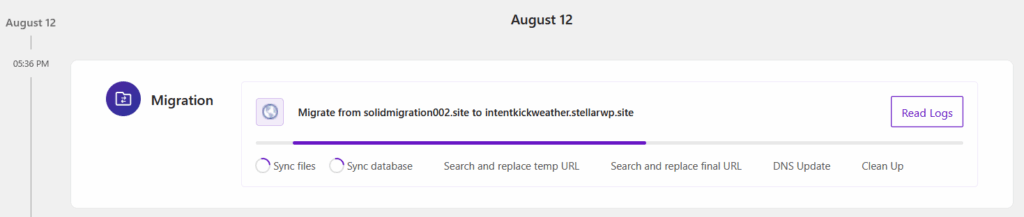
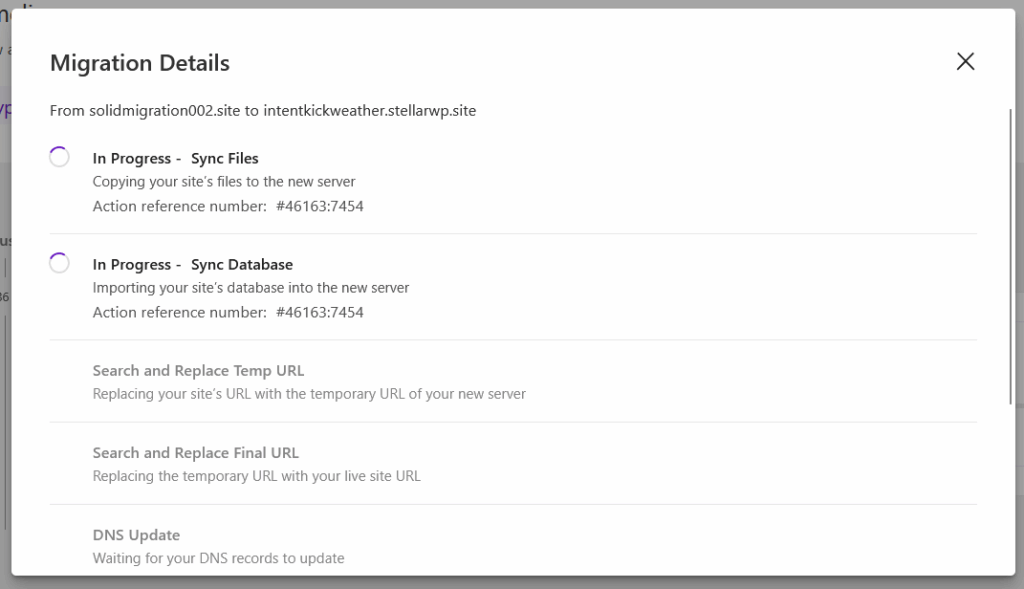
- Follow the progress of the migration by looking at the new card in the timeline view as it will always reflect the current status. Click on Read Logs to get a better understanding of how it is progressing.
Finalize your Migration
- If you are happy with how the migration has progressed so far, click on “Finalize Migration” to proceed.
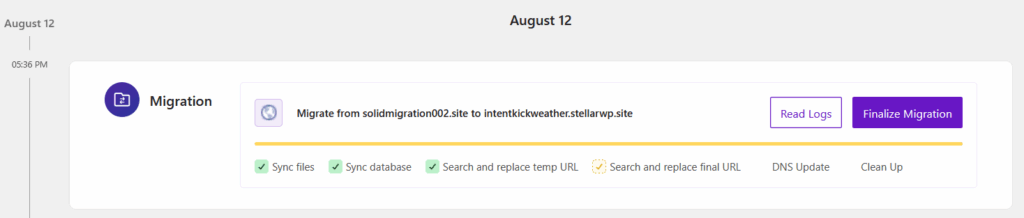
- Once your content has been successfully migrated to the destination site, Solid Migrations runs an automated search and replace to adjust URLs, file paths, and environment-specific values, so that it reflects the destination, rather than origin site. The URL from the origin site is replaced with the temporary URL provided by your host.
Review the status of the Migrated Site at your Temporary URL
After the migration completes, you’ll be able to use the temporary URL provided by your hosting provider to inspect your site, before updating your DNS records. This temporary domain is typically an automatically generated subdomain such as tempsite01.yourhost.com
This URL allows you to:
- Preview the full migrated site in a live environment.
- Test navigation, media, forms, and critical functionality.
- Access the WordPress Admin to verify settings and content.
This temporary domain is not meant for receiving visitors. It’s possible that some of the plugins and custom code may behave differently until your custom domain is pointed to the server hosting the destination site, and the migration has completed.
It is important that you use this opportunity to validate your site before finalizing the migration and going live with the new site. Once you are happy to proceed with the next steps, click the I’ve Reviewed My Site button to confirm.
Updating your DNS Records
Once you’re satisfied that the newly migrated site is functioning correctly at the temporary URL, it’s time to make the necessary changes to your domain’s DNS records, to point the domain to the new server where the destination site is hosted. Learn more here: Managing Your DNS.
Note: DNS changes may take up to 24 hours to propagate, though many update within a few minutes.
What Happens During Final Cleanup
These final housekeeping tasks ensure that your Solid Central dashboard is updated, to reflect the fact that the origin site has replaced the destination site:
- The origin site is disconnected from Solid Central.
- If the site is enrolled with Backups NextGen, backups from the origin site will stop.
- Timeline entries associated with the destination site are removed.
- The origin site’s historical timeline and migration records are preserved.
- Central now treats the destination site as the “official” site.
Next Steps
(Optional) Migrate Again or Cancel
If you need to apply updates to the origin site after previewing the migrated site, you can click the Resync My Site button to re-run the migration and overwrite the destination with the latest version. You can also click the Cancel this Migration button if you decide not to proceed.
Final Manual Verification
Now’s your chance to walk through the destination site as a visitor would. Test the front end and admin area, check for broken links and missing assets, and confirm login functionality.
A successful verification means the site is now live and running from the destination server.
After the Migration is Finalized
Once the migration has been finalized:
- You’ll manage the destination site in Solid Central going forward.
- If the site is enrolled in Backups NextGen, scheduled backups will now be taken from the destination site.
- All historical logs and timeline entries for the origin site are kept, but the connection has been removed.
This ensures your history stays intact while shifting control and responsibility to the new host entirely.
Troubleshooting
If the migrated site doesn’t look right after the migration completes and the DNS updates propagate, here’s what to check:
- Check that all files and database content were copied correctly.
- Look in the destination server’s PHP error logs or the WordPress debug log.
- Consider rerunning the migration, as this will perform the file and database transfer steps again.
- Double-check the status of the DNS propagation for the domain.